

Table of contents
- Overview
- Switch between table and calendar view
- Find a job
- Understand the job table
- Open or duplicate a job
- Archive multiple jobs at once
- Create a new job
- Find deleted albums
- FAQs
- The takeaway
Overview
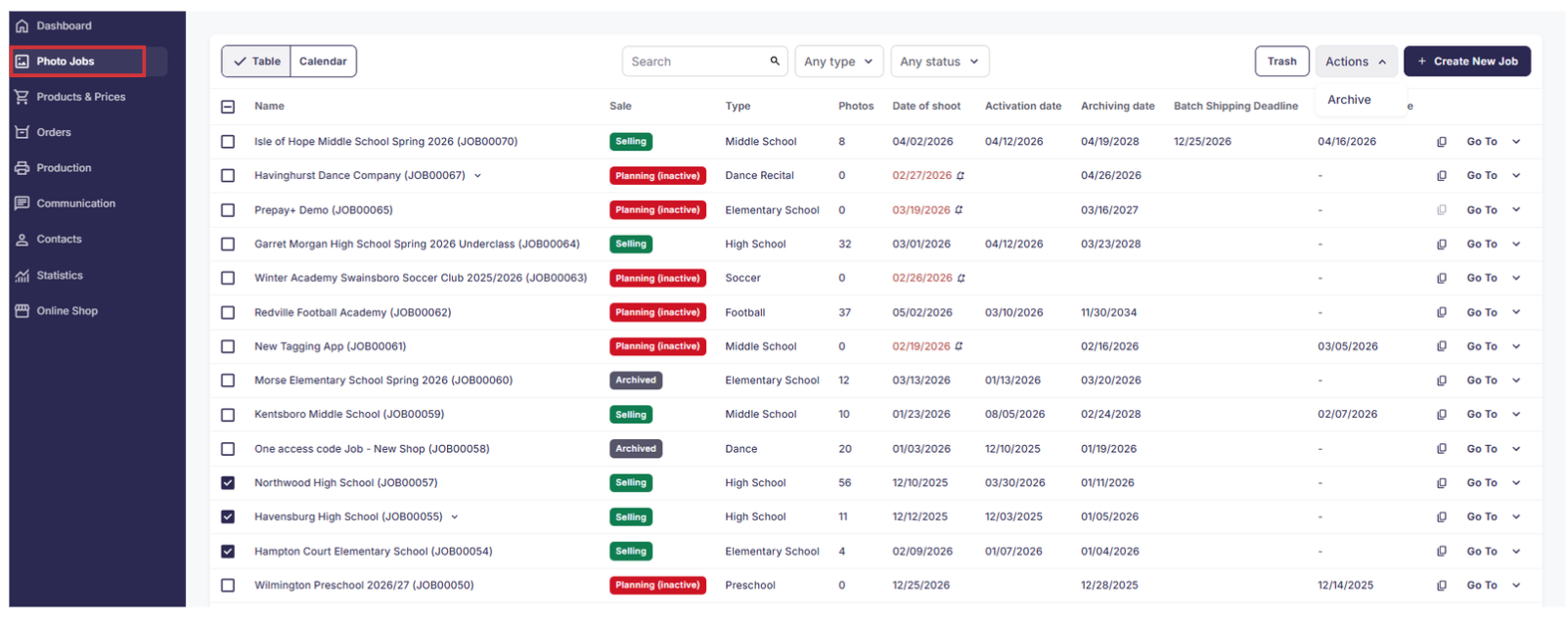
Note: The Photo Jobs page is currently being updated to this new design. We're rolling out the change gradually, so your account may still show the previous layout for now.
The Photo Jobs tab lists all your photo jobs in one place. From here, you can find jobs, check their status and key dates, create new jobs, and archive several jobs at once.
To open the tab, select Photo Jobs in the left navigation.
Switch between table and calendar view
You can view your jobs as a list or by date.
- Table: Shows all jobs as rows with their details. This is the default view.
- Calendar: Shows your jobs on a calendar.
Use the Table and Calendar switch at the top left to change the view.
Find a job
Use search and filters to narrow down the list.
- Search: Enter a job name or job number, for example JOB00057.
- Any type: Show only jobs of a specific type, such as Elementary School, High School, or Dance Recital.
- Any status: Show only jobs with a specific sale status.
Understand the job table
Each row shows one job. The columns give you the most important information at a glance.
| Column | What it shows |
|---|---|
| Name | Job name and job number |
| Sale | The job's sale status (see below) |
| Type | The job type, for example Middle School or Football |
| Photos | Number of photos uploaded to the job |
| Date of shoot | The date of the photo shoot |
| Activation date | The date the job's gallery goes live |
| Archiving date | The date the job will be archived |
| Batch Shipping Deadline | The order deadline for batch shipping |
| Coupon's deadline | The date the job's coupon expires |
The Sale column uses these statuses:
- Selling: The job is active, and customers can order.
- Planning (inactive): The job is set up but not yet open for orders.
- [Prepay only] Prepay (US/CA only): Customers can order products in your Prepay shop.
- Archived: The job has been archived.
Open or duplicate a job
Each row has quick actions on the right.
- Go To: Opens different job tabs.
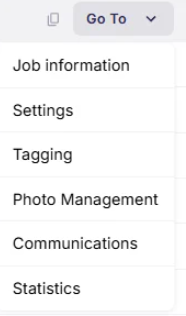
- Duplicate icon: Duplicate your photo job.
Archive multiple jobs at once
You can archive several jobs in one step instead of opening each job.
- Select the checkbox next to each job you want to archive. To select all jobs in the list, use the checkbox in the header row.
- Click Actions at the top right.
- Select Archive.
The selected jobs then show the status Archived.
Create a new job
Click Create New Job at the top right to set up a new photo job.
Find deleted albums
Click Trash at the top right to see albums you have deleted. Albums are stored for 7 days in the trash before they are completely removed.
FAQs
Can I delete multiple jobs at once?
Not yet. You can currently archive multiple jobs at once. We are looking into a bulk delete option.
Can I archive just one job with the Actions menu?
Yes. Select only that job's checkbox, then click Actions > Archive.
Why don't I see a job I'm looking for?
Check whether a filter is active under Any type or Any status, and clear the search field. Also use the pagination, since the job may be on a different page.
The takeaway
- The Photo Jobs tab shows all your jobs in a table or calendar view.
- The Sale column shows each job's status: Selling, Planning (inactive), Prepay (US/CA only), or Archived.
- Use search, Any type, and Any status to find jobs quickly. If a job is still missing, check the other pages.
- Use Go To to open a job tab: Job information, Settings, Tagging, Photo Management, Communications, or Statistics.
- Use the duplicate icon to duplicate a job.
- Select jobs with the checkboxes, then use Actions > Archive to archive several jobs at once.
- Use Create New Job to add a job and Trash to find deleted albums.