The photo job's Settings page is the first page that appears when clicking into a Photo Job. It is also the first page you will see upon creating a new photo job:
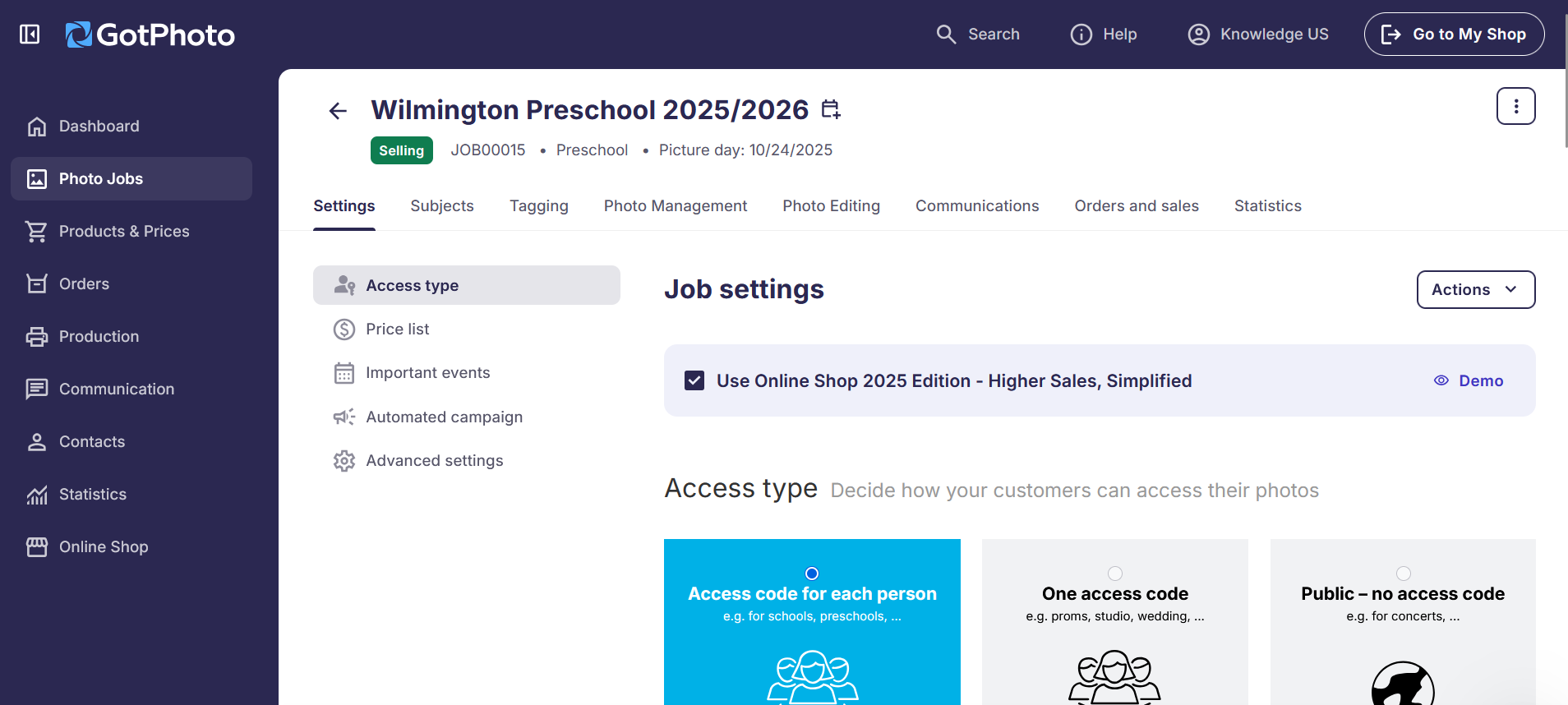
Click any of the links below to learn more:
- Shop selection: Depending on your job type and price list, you can select between the legacy shop and our enhanced new Shop edition.
- Access type : Select how your customers will access photos.
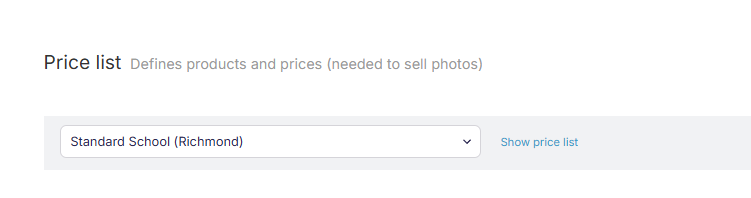
- Price list: Select the Price Profile you would like to attach to your job.
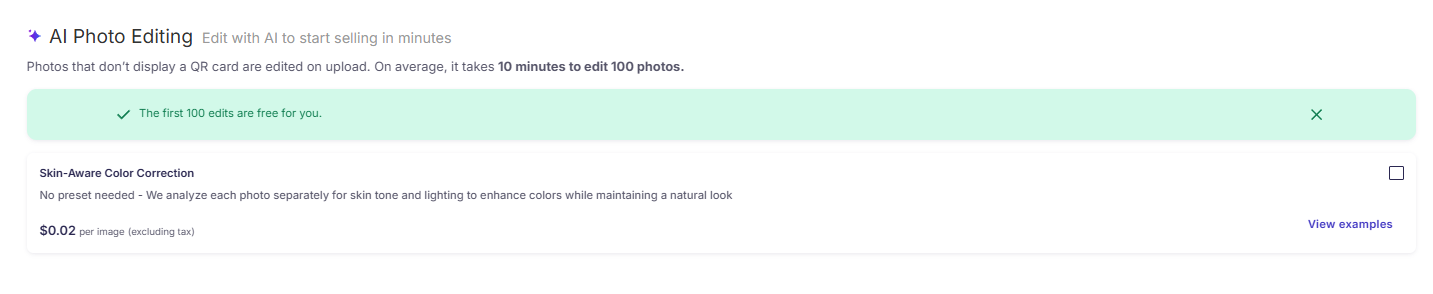
- AI Photo Editing A new AI-powered editing feature that will be gradually rolled out starting February 2026
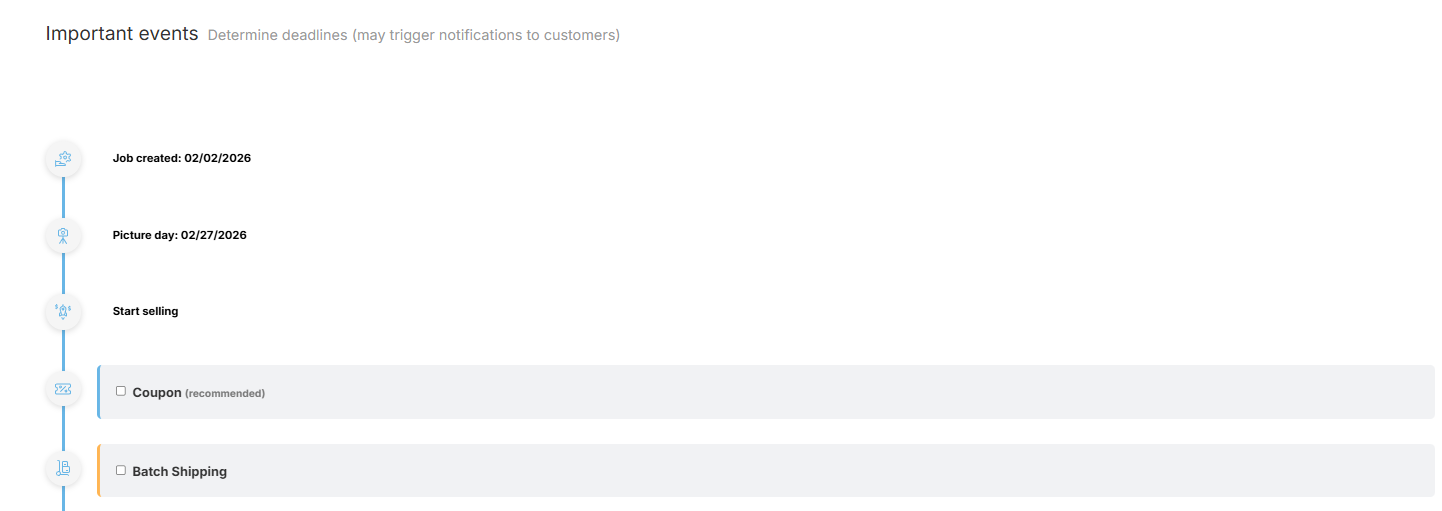
- Important events:
- Displays your photo shooting date
- Displays the day you set the job to Selling.
- Add a job coupon
- Enable batch shipping (if you don't select batch shipping, the job is automatically set to direct shipping)
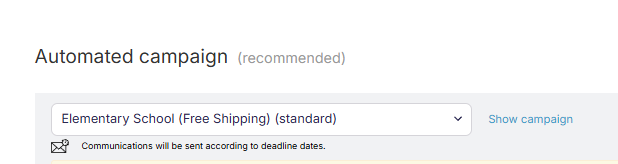
- Automated campaign: Select the automated campaign you would like to attach to your job
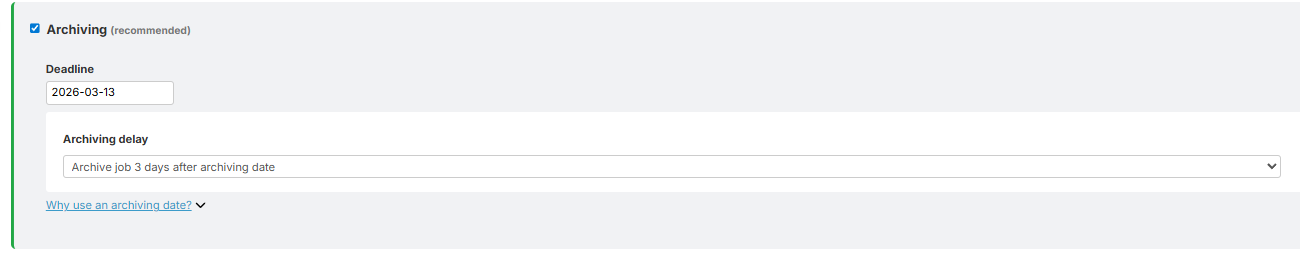
- Archiving settings
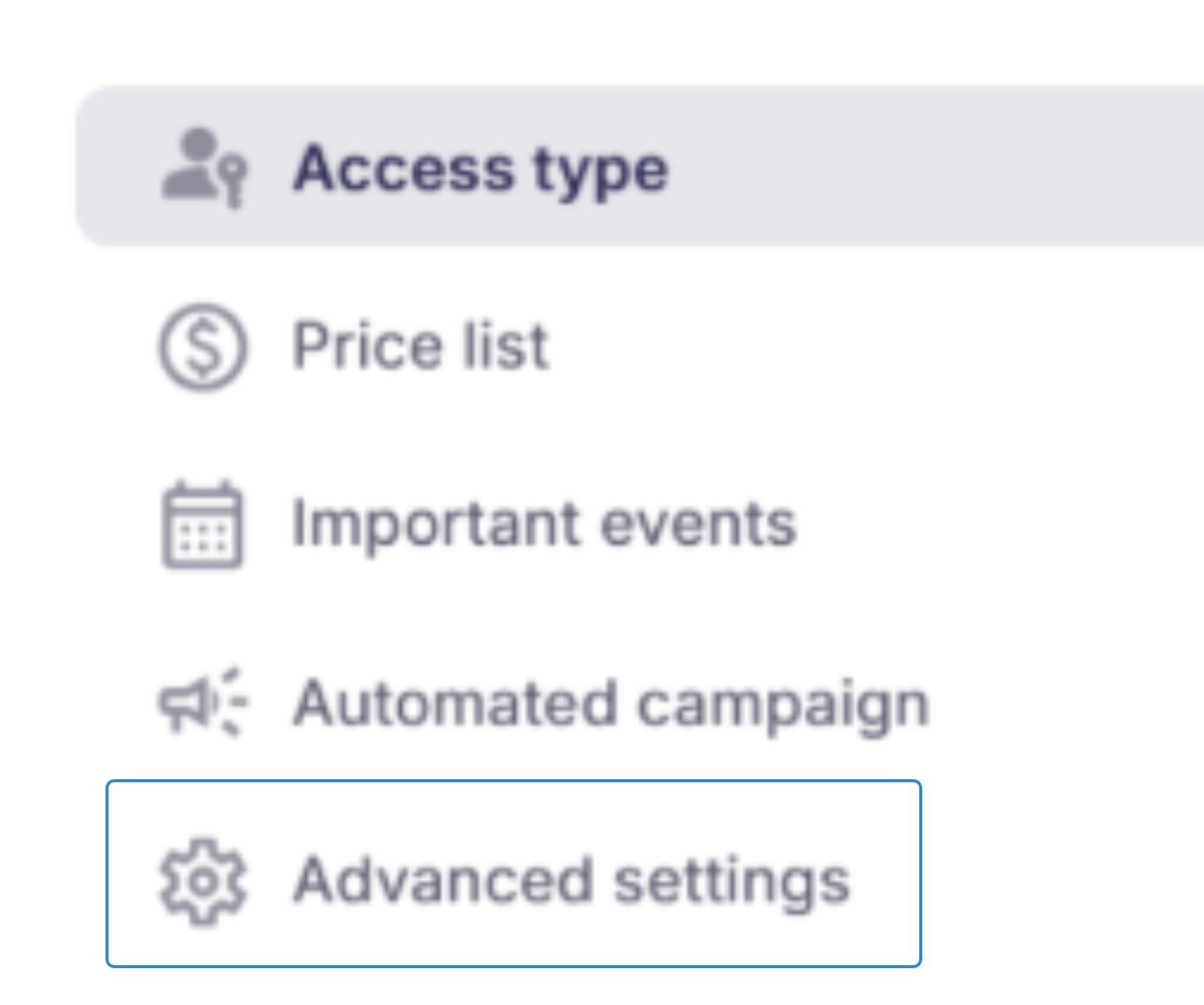
- Advanced job settings: Manage additional job settings as customer registration and Manual Revision.
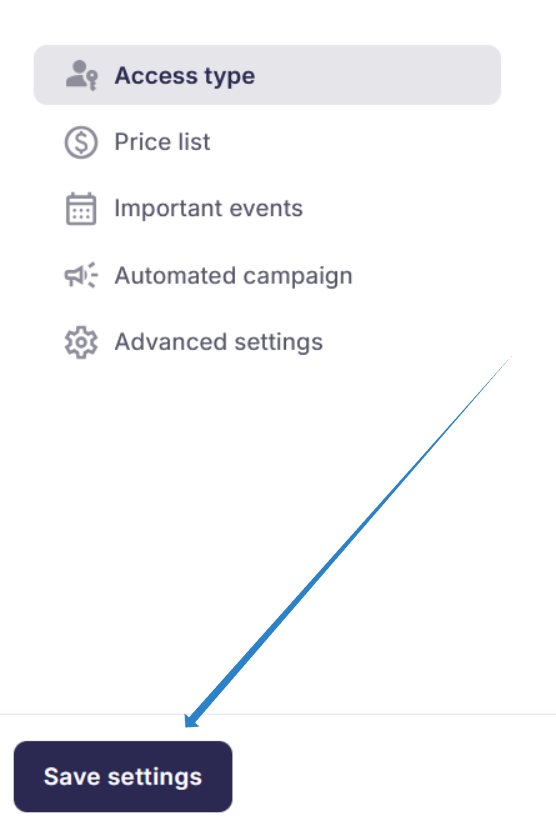
Make sure to click the blue Save settings button on the bottom left of the page after changing any settings.