

Table of contents
- Overview
- Our new hybrid watermarks (April 2026)
- Your default watermark
- Creating your own watermark
- Uploading your watermark to your account
- Applying a watermark to a photo job
- Change your watermark later
- FAQs
- The takeaway
Overview
Adding a watermark to your proofing shop helps protect your work by discouraging unauthorized downloads and preserving the value of your images. While GotPhoto applies a default watermark that is regularly updated as AI evolves, you can add your own branded watermark. In this article, we’ll provide you with the PSD files of our pre-loaded watermarks. Information on how to add and edit a watermark can be found in this article: Add a watermark.
Our new hybrid watermarks (April 2026)
We just added two new hybrid watermarks that combine visual complexity (to confuse AI) with clear copyright language (to deter humans).
Version 1: GotPhoto Watermark - All Rights Reserved (Default)
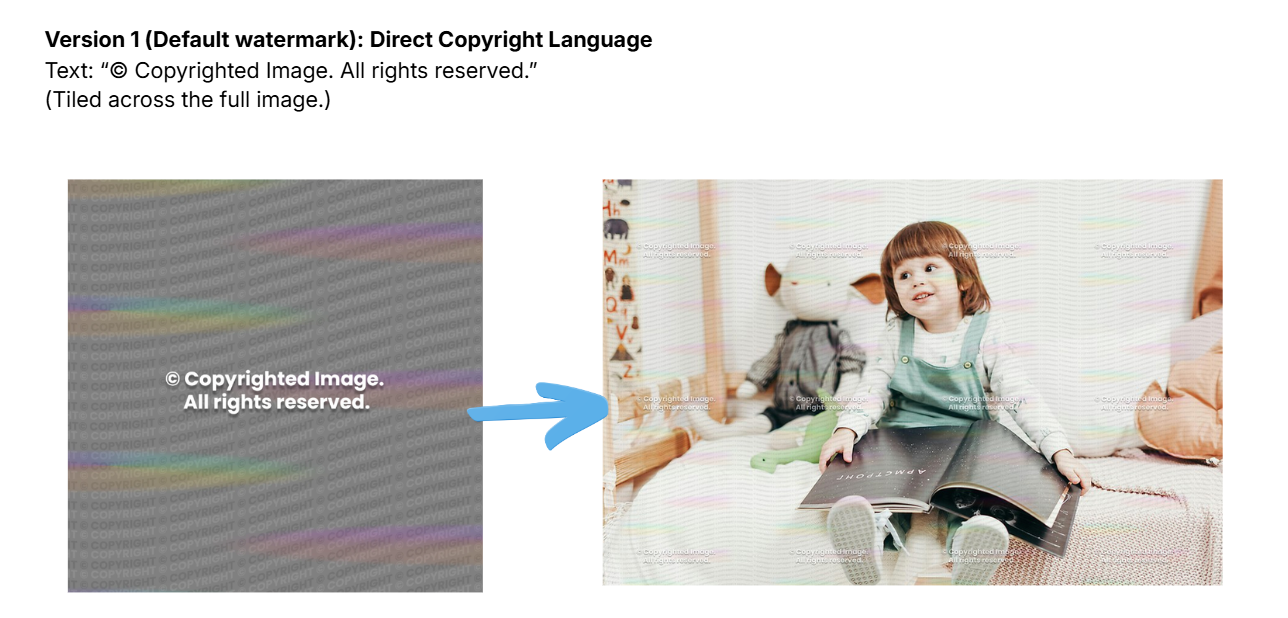 Version 2: GotPhoto Watermark - Respect Copyright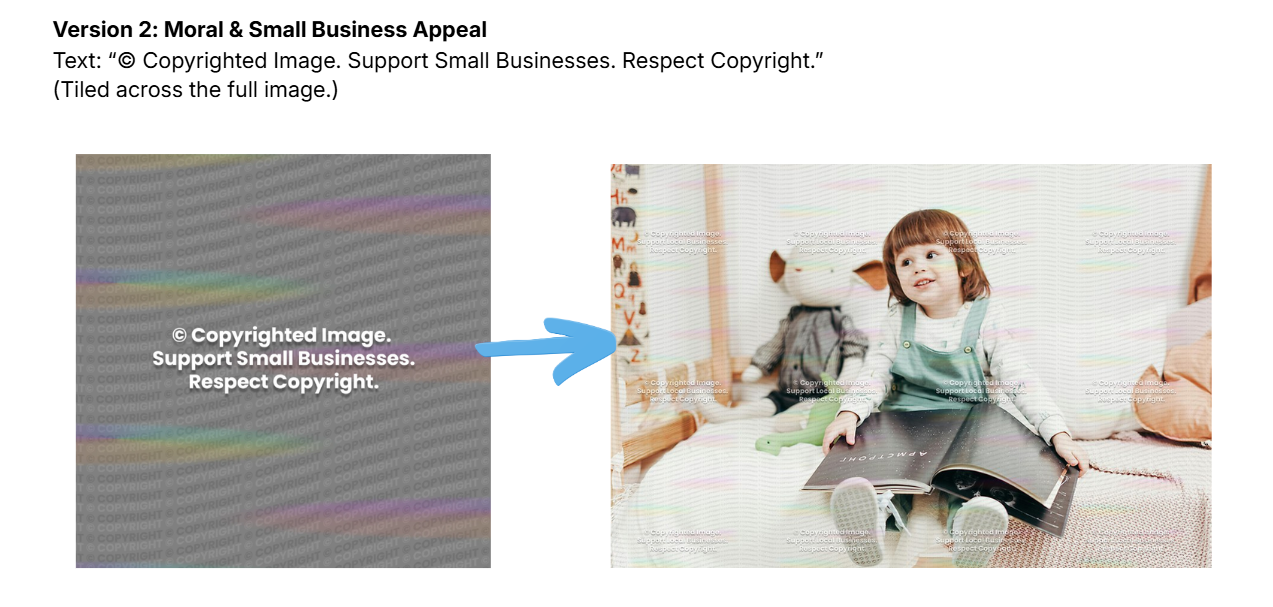
The new watermarks combine repeated copyright text, full-image coverage, and distortion patterns to deter both human misuse and AI-based removal.
Did you know?
Photographers using watermarks make 3.3× more sales. Using watermarks that can easily be removed by AI, rather than GotPhoto's most recently added default watermark, can reduce revenue by ~5.7%.
Your default watermark
The new default watermark (GotPhoto Watermark - All Rights Reserved) is tiled across the full image "GP AI Resistant Watermark No Text (Recommended)" and is automatically applied to all new photo jobs whenever you select a new job type.
Going forward, it will also be applied to new jobs with a job type for which you previously used the default watermark.
Once you customize a watermark for a certain job type, all future jobs of that type will inherit the same watermark automatically, saving you time.
You can also download PSD files of the new GotPhoto watermarks for editing and branding from the GotPhoto watermark downloads page (login required).
Creating your own watermark
[Advanced] Create a watermark file as a PNG with a transparent background.
Watch the video below showing Bob Kenward from Fluvanna Sports Photography creating a watermark designed to resist removal:
Uploading a custom watermark to your account
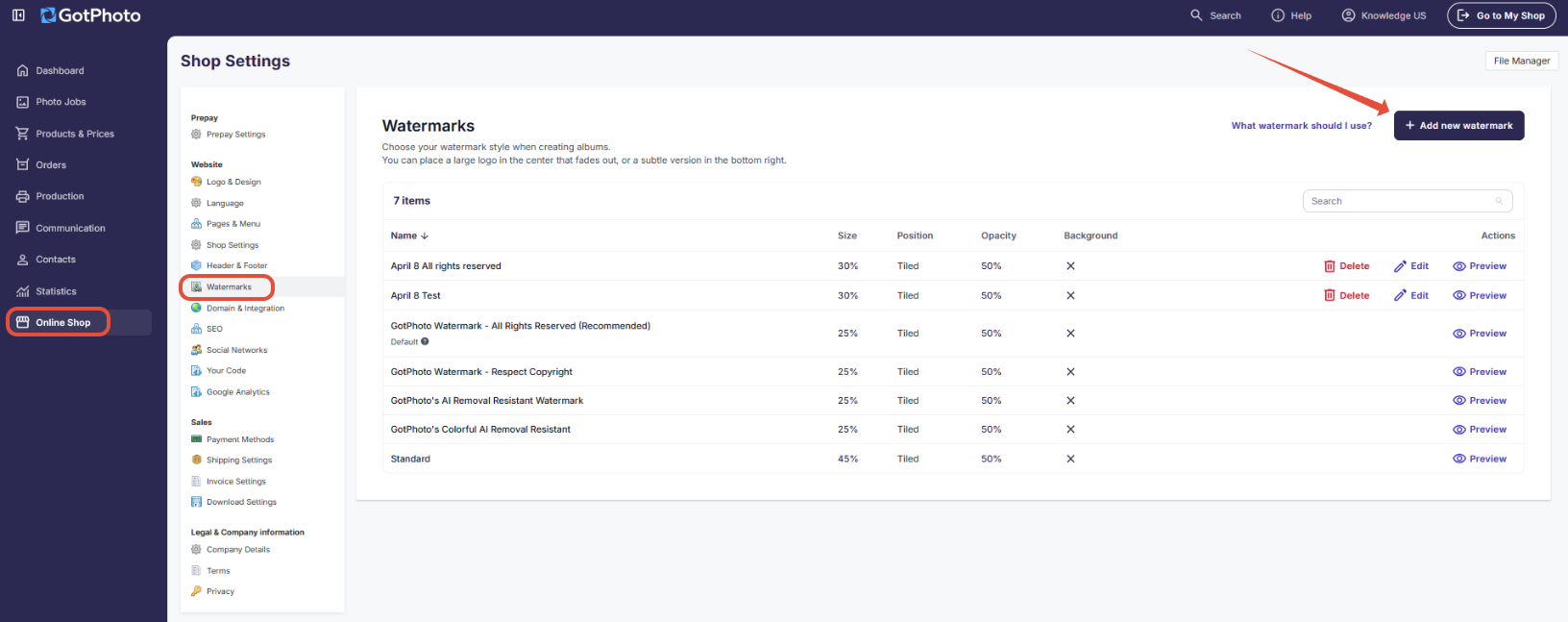
Go to your GotPhoto dashboard: click Online Shop → Watermarks
Click the blue + Add new watermark button to upload your custom PNG watermark.
Watermark file requirements
- Supported formats: PNG, JPG, GIF
- Recommended formats: PNG or JPG
- Maximum width: 1900px (to avoid pixelation)
- File name: No special characters in file name (e.g., . , { })
Enter a name for your new watermark, upload your PNG file, optionally adjust positioning settings, then click Save.
If you want to use the new watermark as the default for all new jobs with a new job type, tick the box next to "Set as default watermark" before saving the settings.
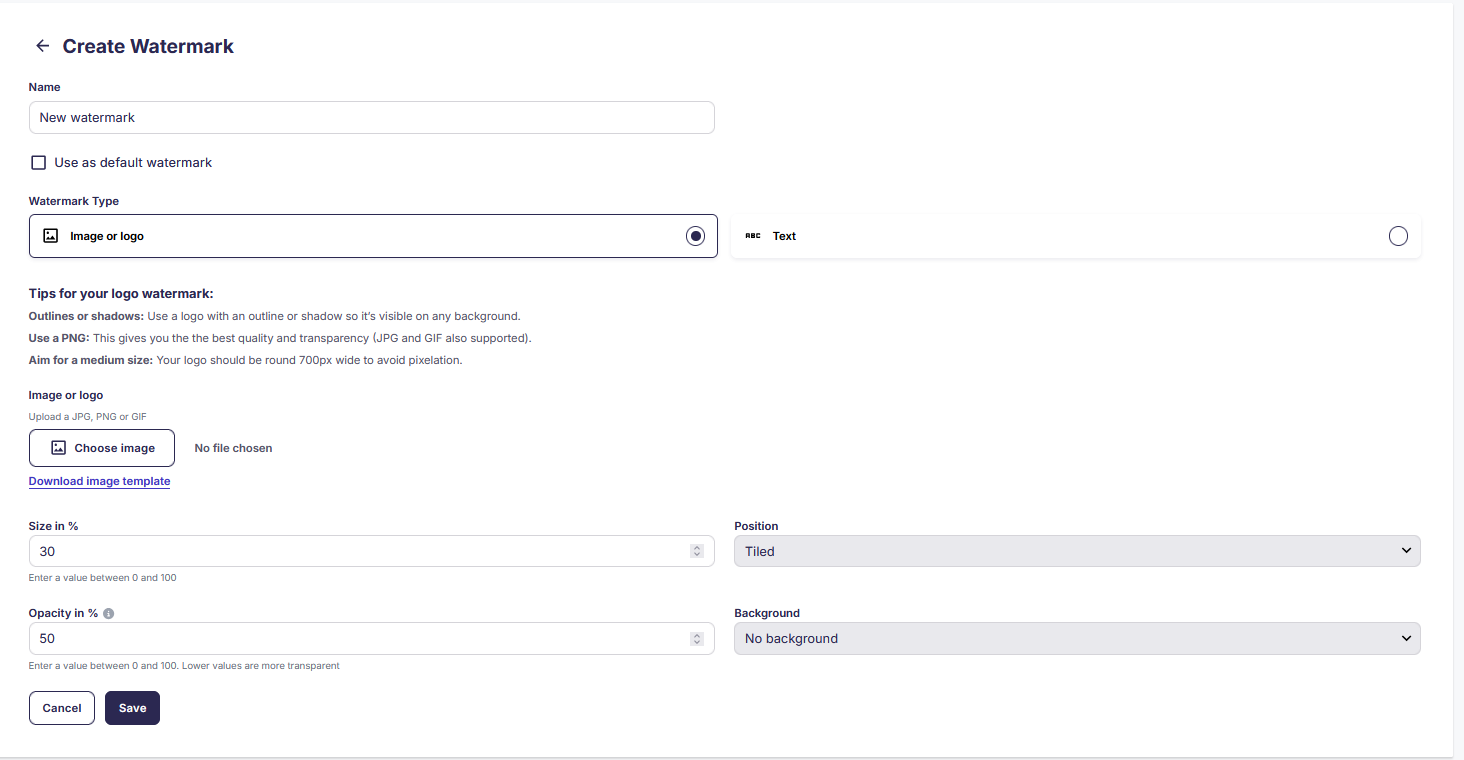
Your custom watermark is now uploaded and available for use.
Pro tip: Why tiling matters (vs. single placement)
- No clean crop zones
- Prevents easy cropping
- AI removal becomes full-frame
- Generative fill must reconstruct large areas
- Increased distortion and visual artifacts
- Higher effort threshold: casual users are unlikely to invest the time
- Consistent visual disruption maintains protection regardless of composition
Applying a watermark to a photo job
Once your watermark is uploaded, follow these steps:
- Open the photo job and go to the Photo Management tab.
- Under Step 1, select your desired watermark from the dropdown:
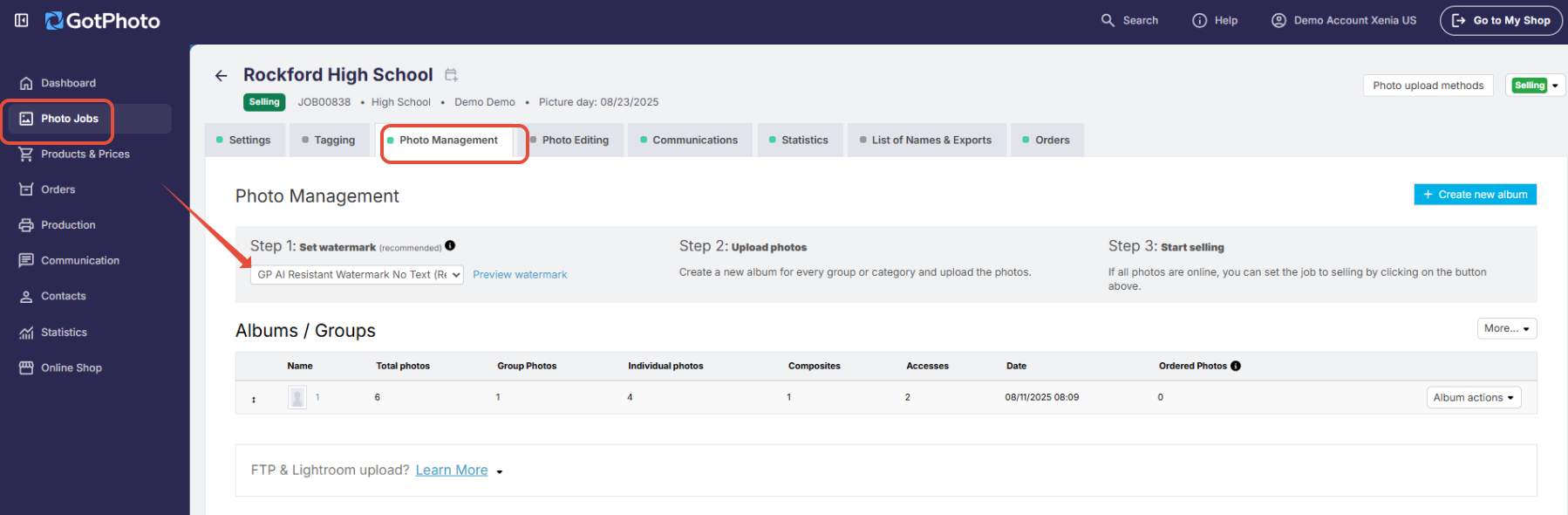
- Click the blue Preview watermark link to see how it looks:

- [Advanced] To create or edit an existing watermark, go to Online Shop→ Watermark.
Change your watermark later
You can change watermarks on already uploaded pictures at any time. Note that preview images need to be regenerated, which may take extra time.
To change it:
- Go back to the job’s Photo Management area
- Select your new watermark from the dropdown
If the watermark doesn’t appear within 10 minutes, use a hard refresh (Ctrl+F5 or Shift+F5).
FAQs
- Can I reuse a watermark across multiple jobs?
- Yes. Once you apply a custom watermark to a job type, future jobs of that type inherit it automatically.
- What file format should my watermark be?
- Use PNG with a transparent background for best results. Image dimensions must not exceed 1920×1920 pixels.
- Will changing the watermark affect already-uploaded photos?
- Yes. Changing a watermark triggers preview image regeneration, which can take anywhere from a few minutes to several hours, depending on job size. If you don’t see the new watermark applied within 10 minutes, try refreshing your browser.
- Does GotPhoto use screenshot-blocking technology, and how can I enable or manage it?
- Yes, our new shop includes screenshot-blocking technology on desktop devices and disables long-press actions on mobile devices. Learn more here: Content protection feature.
- Can watermarks prevent screenshots or theft?
- Watermarks cannot fully prevent theft. They act as a deterrent. GotPhoto uses a layered defense strategy:
- Platform-native deterrence: Desktop screenshot protection and disabled long-press saving on mobile.
- Smart watermarking: Hybrid watermarks combining visual complexity and copyright messaging.
- Path of least resistance: Fast checkout makes buying easier than stealing.
- Customer education: Clear communication about legality and value. A new shop notice will be introduced shortly, requiring customers to actively confirm that they have read and acknowledged the information regarding screenshot usage.
Learn more about these layers here: The Integrity of the Image (US) ( | The Integrity of the Image (UK)
The takeaway
Watermarking your proofing images is a simple yet essential way to protect your work. GotPhoto includes AI-resistant watermark options by default, and you can add your own branded watermark to help maintain sales value and reinforce your identity.
Related articles: