

Table of contents
- Overview
- Set up the Global Access Code for your job
- Album view for the Global Access Code
- Album preview image
- FAQs
- The takeaway
Overview
The Global Access Code gives schools, organizations, and their authorized staff access to all photos in a photo job using a single code. In this article, we’ll show you how to set up a Global Access Code and explain the available album view and photo access options.
Set up the Global Access Code for your job
You can create a Global Access Code for a photo job and share it with authorized school or organization staff, such as school administrators or coaches. The code provides access to all photos in the photo job.
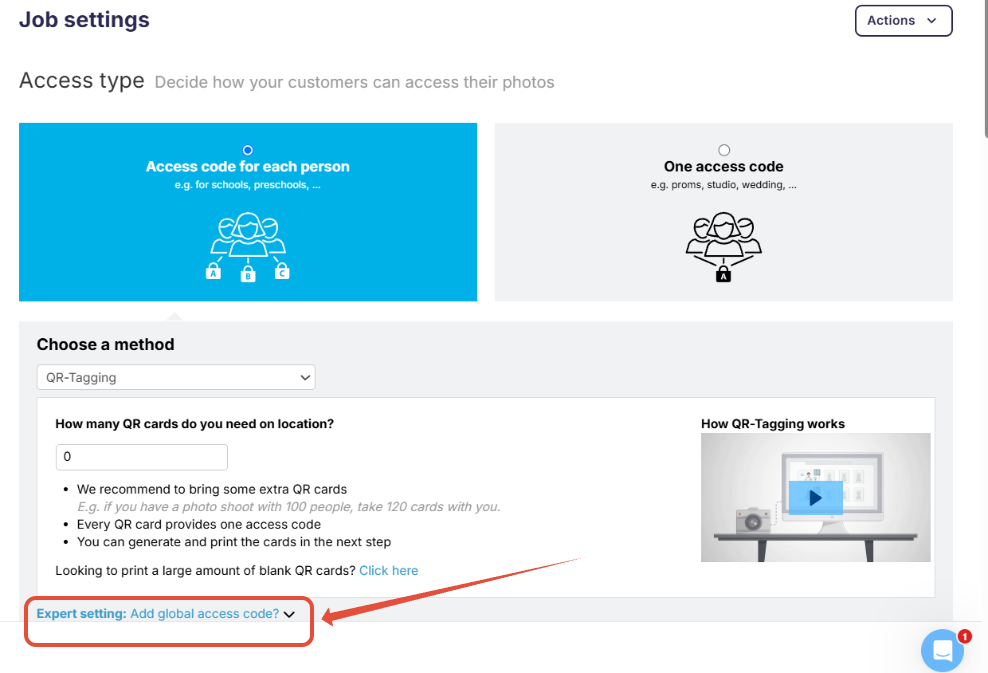
- From the Main Settings Page of your photo job, select the access type "Access code for each person", choose your tagging method, and click "Expert setting: Add global access code" at the bottom of the Access Type section of the page:
- Type the desired access code in the text box that appears.
- Save your changes by clicking the blue "Save Settings" button on the left side.
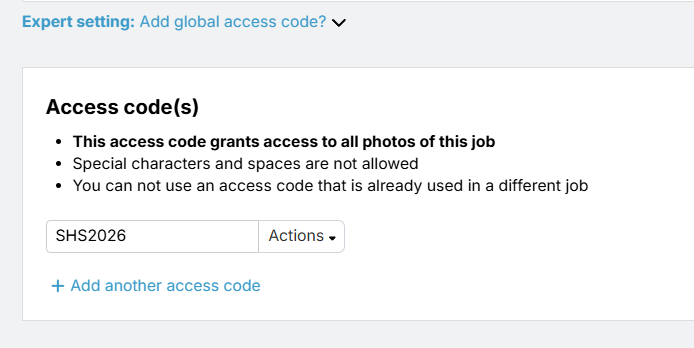
- The Global Access Code is now active. Provide it to the authorized school or organization staff.
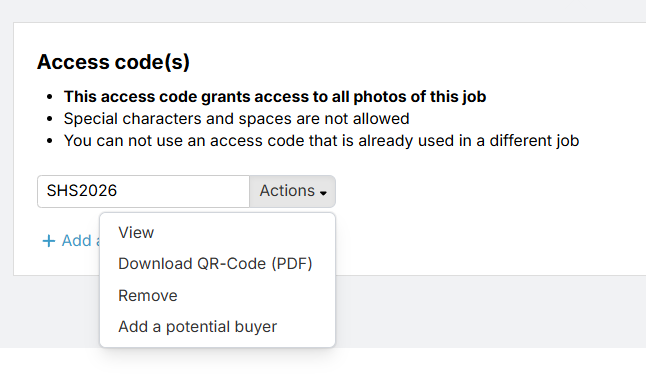
Under Actions, you’ll then find these options:
- View: shows the photos available for the Global Access Code
- Download QR code (PDF): useful when sharing the code with authorized school or organization staff
- Remove
- Add potential buyers
Album view for the Global Access Code
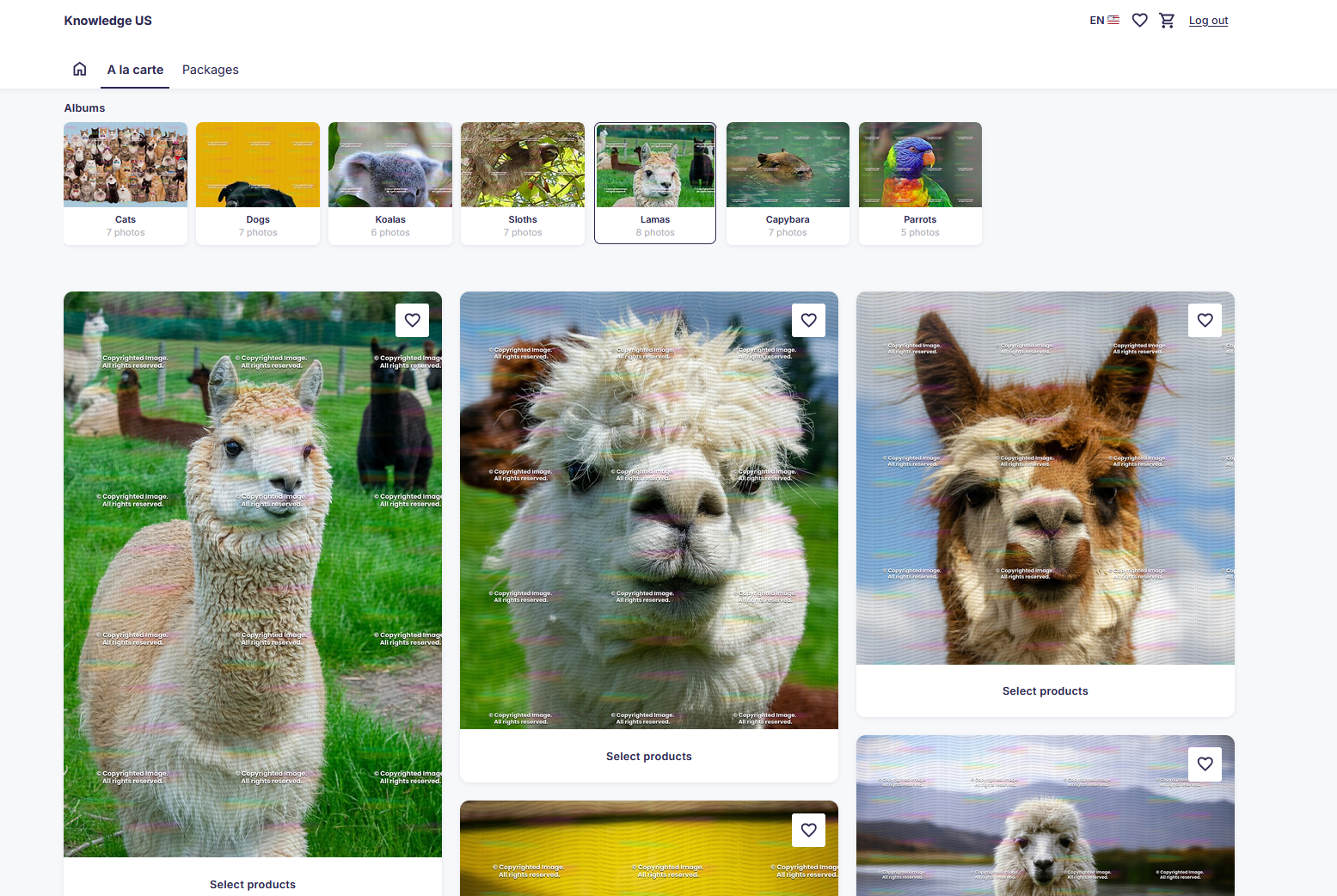
The new shop supports the album view in the shop's A la carte section (US/CA) / Single Products section (UK). This lets authorized users of the Global Access Code browse photos within albums and save them to a wishlist.
Desktop view
Mobile view
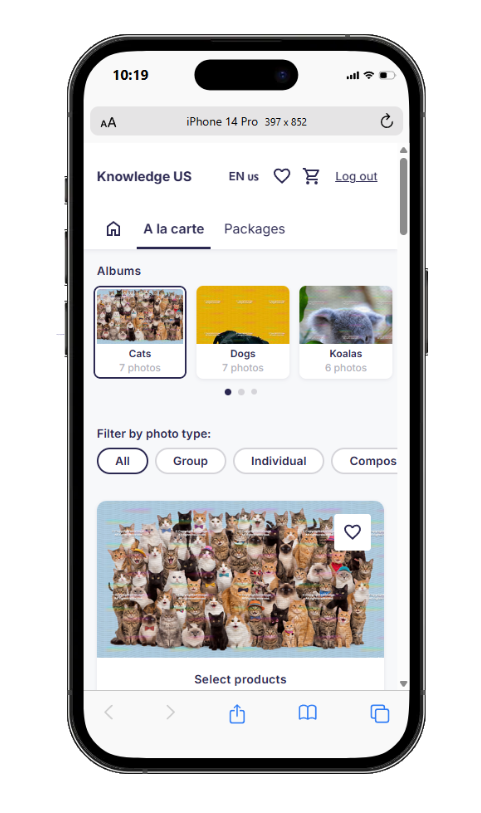
If albums include multiple photo types (individual photos, group photos, or composites), users of the Global Access Code can filter by each photo type.
Video preview: Album view with photo type filter
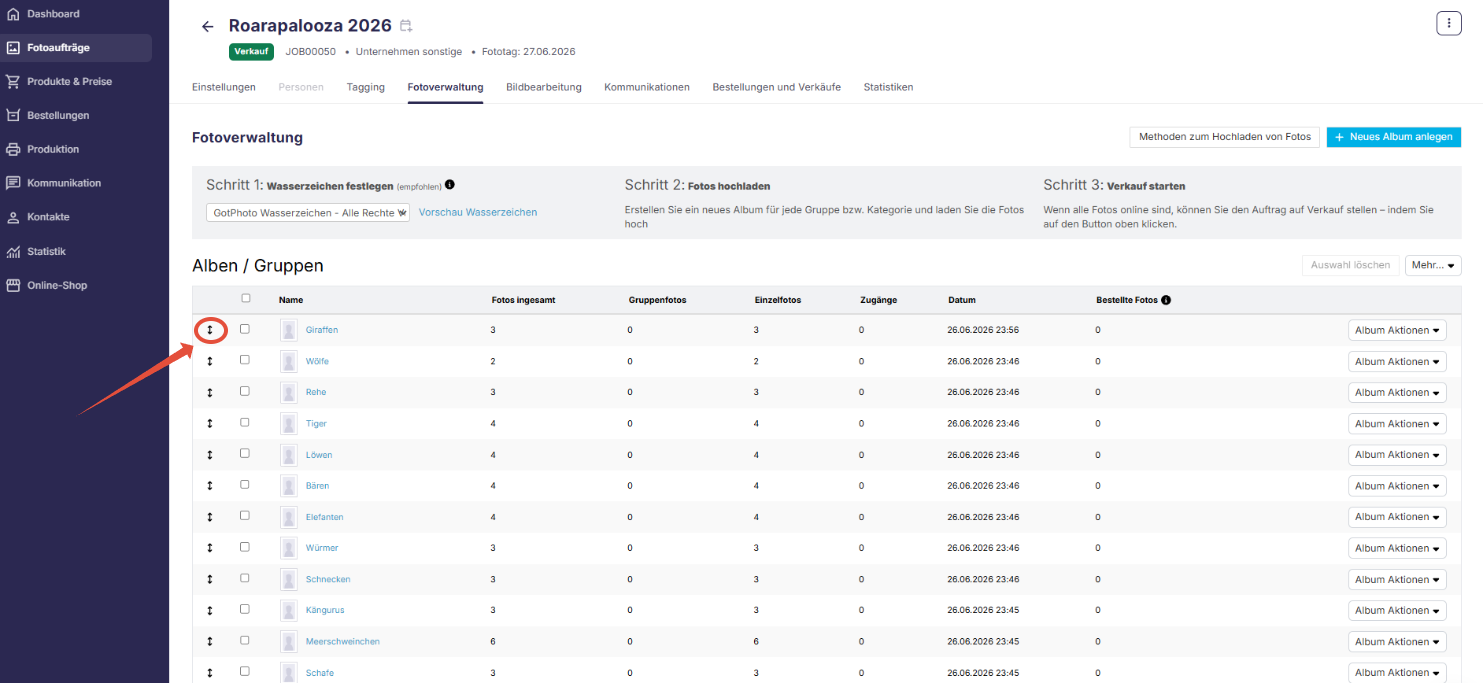
How to change the order of the albums in the shop:
Open the desired job and switch to the Photo Management tab.
Click and hold the move icon (↕) to the left of an album.
Drag and drop the album to the desired position.
The new order is saved automatically and is then applied in the shop as well.
Album preview image
The album preview image is selected automatically using the following logic:
1. If at least one group photo is available:
The first group photo is used as the album preview image in the shop (displayed at the top left of the Group Photos section).
If you have multiple group photos and want to change the album preview image, simply upload the desired photo last. It will be added as the first image in the album and automatically become the album preview.
2. If no group photos are available:
The first photo in the Individual Photos section is used as the album preview image.
To choose a different preview image, apply a 5-star rating to the desired photo.
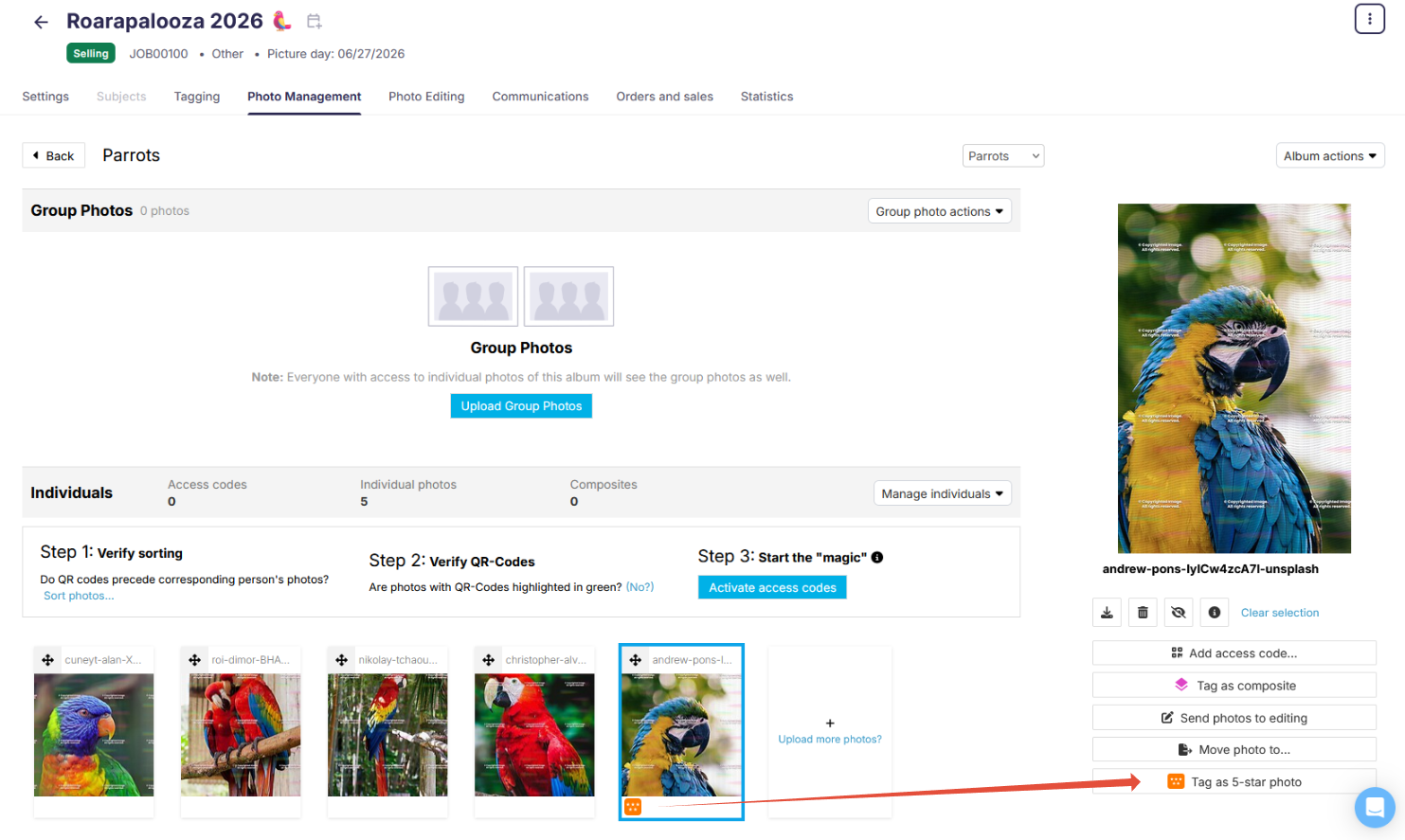
If multiple photos have a 5-star rating, the system uses the first 5-star-rated photo as the album preview image.
3. If no group or individual photos are available, but composite photos are:
The first composite photo is used as the album preview image. You can change the selection by using the 5-star rating.
Albums with the setting "Available for everyone"
Please note: If your job has individual access codes and an album with the "Available for everyone" setting, the included group photos won't be displayed as a separate album. Instead, they will be mixed in with the photos for each individual access code.
FAQs
Is the Global Access Code supported in the new shop?
Yes. The Global Access Code is supported in the new shop, including the album view and wishlist.
Who should I share the Global Access Code with?
The Global Access Code is intended for authorized school or organization staff who need access to all photos in the photo job, such as school administrators or coaches.
Can a Global Access Code be used to place an order?
Yes. Authorized organization staff can use the Global Access Code to place an order if needed. However, upselling options for packages are not available if the photo job has more than 199 images.
The takeaway
Use the Global Access Code to give authorized school and organization staff access to all photos in a photo job.