

Table of contents
- Overview
- 1. Holiday lab deadlines
- 2. Price lists and automated campaigns for the holidays
- 3. Reactivate offers for the holidays
- 4. Un-archive jobs
- 5. Send a one-time message
- Some things to keep in mind:
- 5. GDPR notice (UK customers only)
Overview
Get ready for the holiday season with this guide to key order deadlines and practical tips to maximize your holiday sales. From setting up seasonal price lists to reactivating past offers, you'll find everything you need to make the most of this festive period while ensuring timely deliveries for your customers.
1. Holiday lab deadlines
Here you will find an overview of the order deadlines for photo products that are due to arrive before December 24th (as specified by the labs).
Please note:
- Deadlines may change slightly at short notice. You can find the latest information on the Partner Labs page under the Products & Prices tab in your account.
- All deadlines are based on unmixed, single-variety orders (e.g., an order deadline for "canvases" only applies to purely canvas orders).
- For mixed orders, the deadline is the longest delivery time plus one day.
- If applicable, postal delivery timeframes may be extended due to high volume.
- Dates for batch shipping and direct shipping sometimes differ, please keep this in mind.
| US Lab Deadlines | Canada Lab Deadlines | UK Lab Deadlines |
ACI: December 5 APS: December 12 Alkit: December 12 Ark-La-Tex: December 15 Bay: December 5 BWC: December 5 Color Inc: December 10 CPQ: December 12 D&M Imaging: December 9 Digital Pro Lab: December 8 Diversified Lab: December 12 Filmet: December 8 Full Color: December 8 H+H: December 11 Marathon: December 8 Marco: December 8 McKenna: December 12 Millers: December 6 NEO Pro: December 15 Professional Color Service: December 8 Richmond: December 10 Total Image - Capitol Filmworks: December 8 UPI: December 12 | Photolab Yves Thomas: December 9 Spectra Visuel: December 9 Technicare: December 12 Don’s Photo: December 15GTA: December 10 | Digitalab Eco Batch: 5th December Direct: 12th December DS Colour Labs Batch: 17th December Direct: 19th December Digitalab Batch: 5th December Direct: 12th December Loxley Colour Batch: 10th December Direct: 12th December One Vision Imaging 22nd December SIMLAB Batch: 9th December Direct: 10th December DS Colour Labs Batch: 17th December Direct: 19th December |
2. Price lists and automated campaigns for the holidays
Using special automated campaigns and price lists for the pre-Christmas period is a great way to get customers back in your shop!
- Price list: Adapt your price list offerings for the season to include more gift-related items and seasonal items listed in the print lab product inventory.
- In addition to our Christmas email templates, there are also automated campaigns that you can use for your photo orders. Use these as-is, or tailor them to your needs.
Pro Tip: Timing
Use these campaigns on orders that go on sale 7 - 14 days before your lab deadline.
Note: The coupon deadline should ideally be December 3rd 2025.
Please note that these are general guidelines. Review the order deadlines of your lab to make sure you set appropriate dates.
3. Reactivate offers for the holidays
Have you taken a lot of photos this year? Then you can make use of them again at the end of the year! With the one-time message function, you can boost repeat orders and new orders around the holidays by re-activating previous photo jobs.
Please note: For additional sales at Christmas, your orders should have been archived some time ago, preferably in spring or summer.
- Holiday products
Adjust your product offer or price list beforehand. Create new packages so customers get added value.
Why? If customers find the exact same offer again, it may harm trust. Frame it as a one-off promotion with exclusive products. - Use vouchers
Give a 15% discount on the basket and set expiry three days after sending. Use a seasonal voucher code. More about vouchers.
4. Un-archive jobs
To make an archived Photo Job available for sale again:
- On the Photo Job Main Settings page, remove the tick from Archiving, or set a new future date.
- Deactivate your automated campaign for the Photo Job, or set a new one such as the Christmas campaign.
- To start the secondary sale, set the job status back to "Selling".
5. Send a one-time message
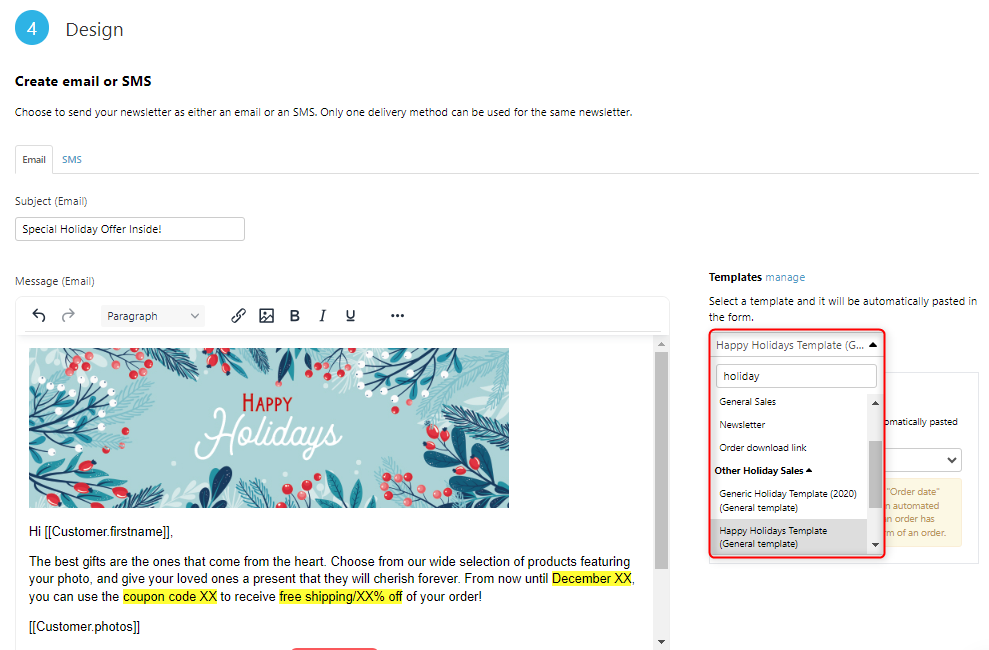
You'll want to send out a newsletter to your customers to notify them of your sale and incentives. When creating your one-time message, search for "holiday" or "Christmas" in templates. Adjust placeholders as needed.
Some things to keep in mind:
- Subject Lines: Keep them specific, clear, and 50–60 characters long.
- Design: Use holiday graphics (download here) and placeholders like [[Customer.photos]].
- Timing:Send three emails:
- Email 1: Nov 24 – Advent shoppers, focus lightly on deadlines.
- Email 2: Dec 1 – Late buyers, stress exact deadlines.
- Email 3: Dec 15 – Downloads only, adjust price list to downloads.
Most recipients read in the morning or evening. Set send times accordingly.
5. GDPR notice (UK customers only)
Disclaimer: Non-binding information, not legal advice. For individual advice, seek legal counsel.
GDPR requires consent for marketing emails. Opt-out is not sufficient; consent must be explicit and voluntary.
- Separate consent for notifications is required.
- You must document consent.
- Consent must be easy to understand, voluntary, and clear.
- You may cover it in your Terms & Conditions, but only buyers who accepted them may be contacted.
Have you possibly already obtained consent with GotPhoto?
- For all orders since 25 May 2018, GotPhoto has collected consent on your behalf.
- These customers agreed to receive order-related info, which includes Holiday campaign notifications.