

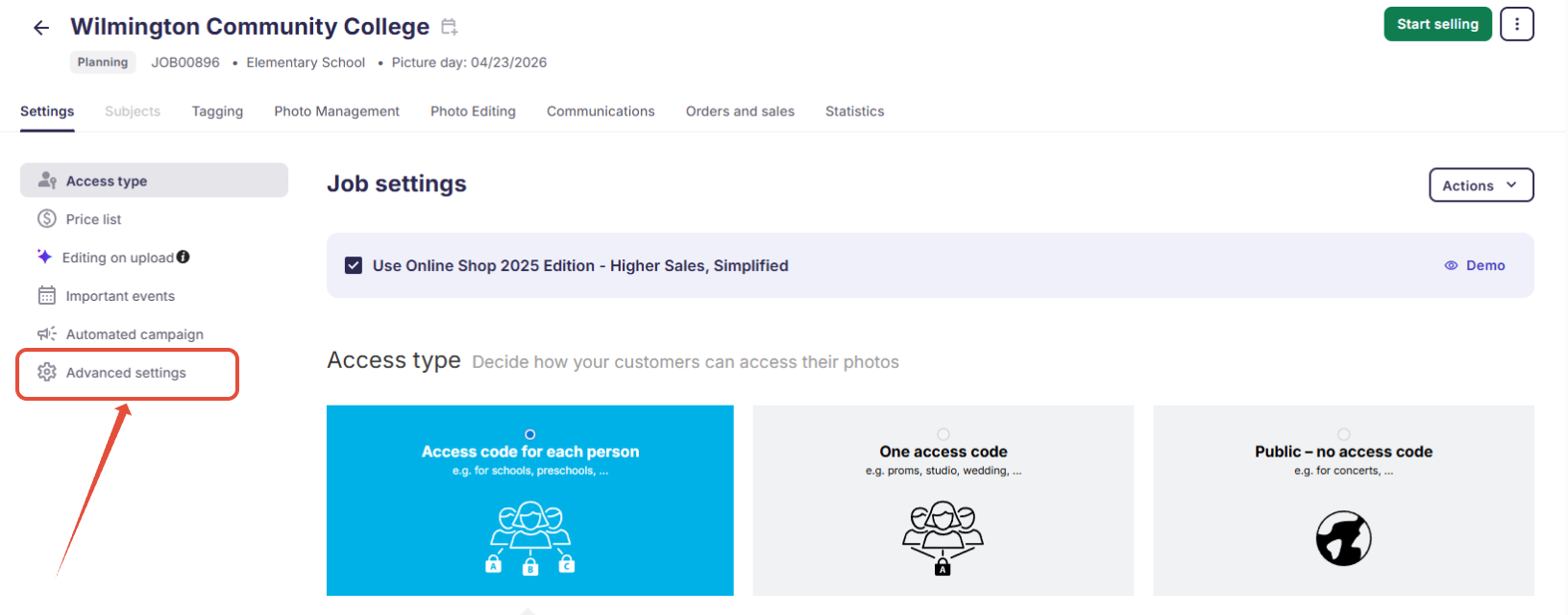
You can access the Advanced Job Settings directly from the left-side menu on the main Settings page of your Photo Job by selecting Advanced settings.
On the next screen, you can adjust the following settings:
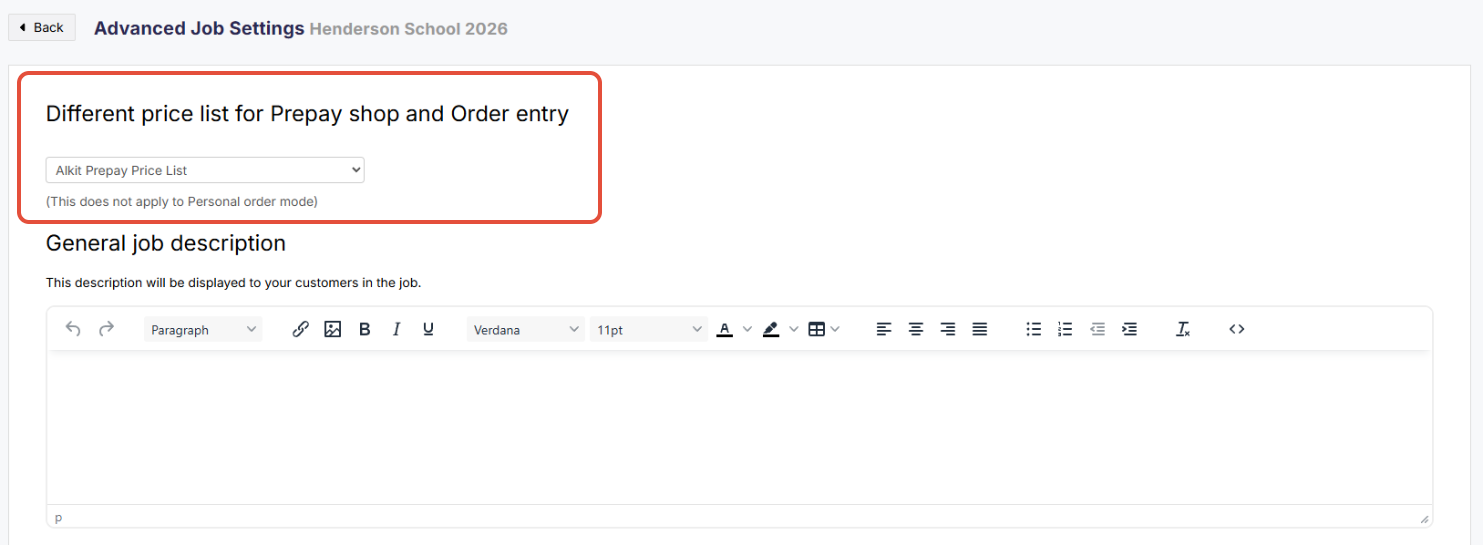
- Different price list for Prepay shop (applicable to US/Canada) and Order entry: If you would like to use a different price list for Prepay and Order entry orders, select it from the dropdown here.
- General job description: This section allows you to add a welcome message or highlight something specific about your job to customers in your online shop. If there are any issues on your site, this is a great place to inform your customers as well.
Pro Tip: Keep it short and sweet, as customers will see a preview photo for the first time and are excited to continue to access the shop.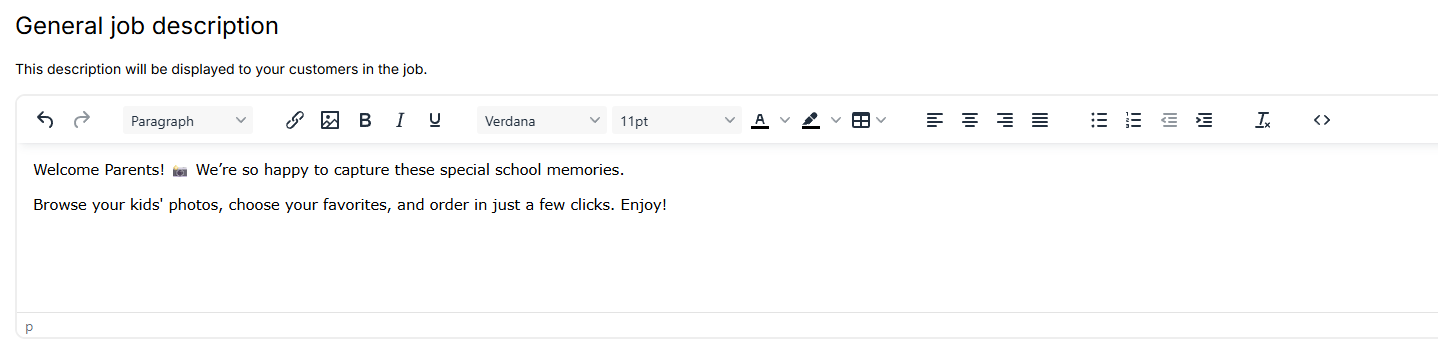 Image below: Sample collapsible job description, seen by customers in mobile view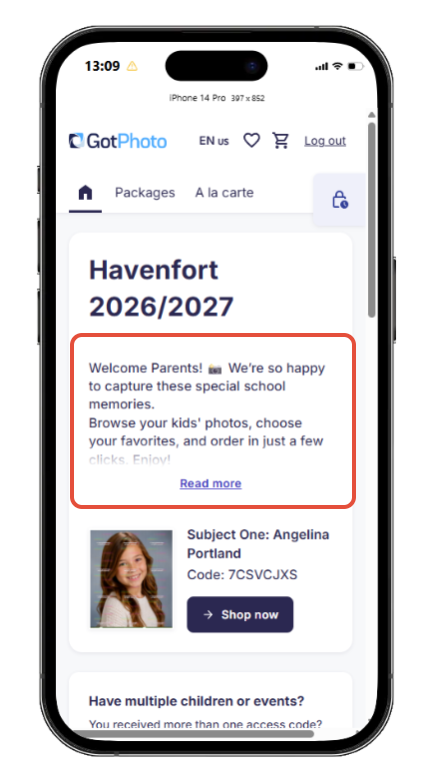
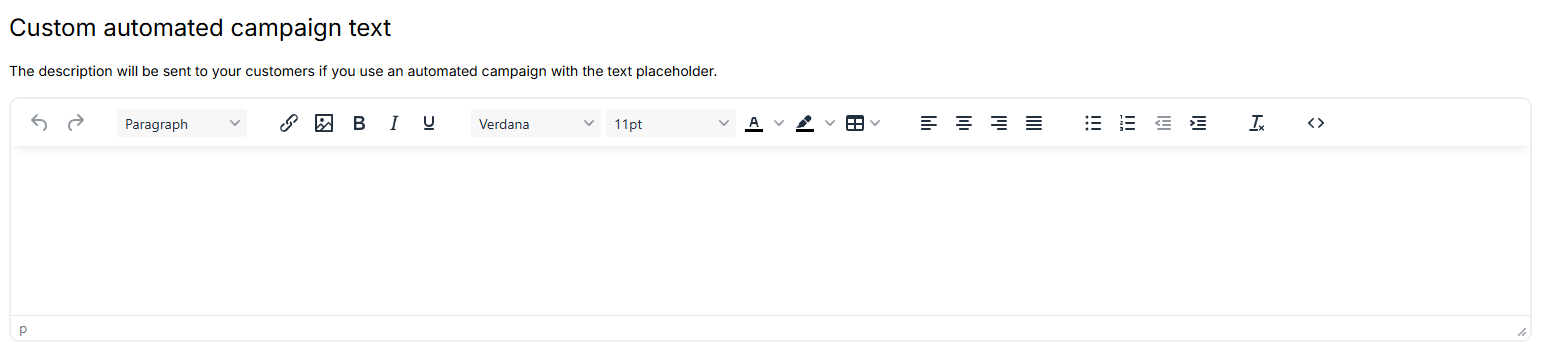
- Custom automated campaign text: Add custom text here that you can then easily pull into your automated campaign using the [[Job.custom_text]] placeholder. Learn more here: Add custom text to a customer notification.
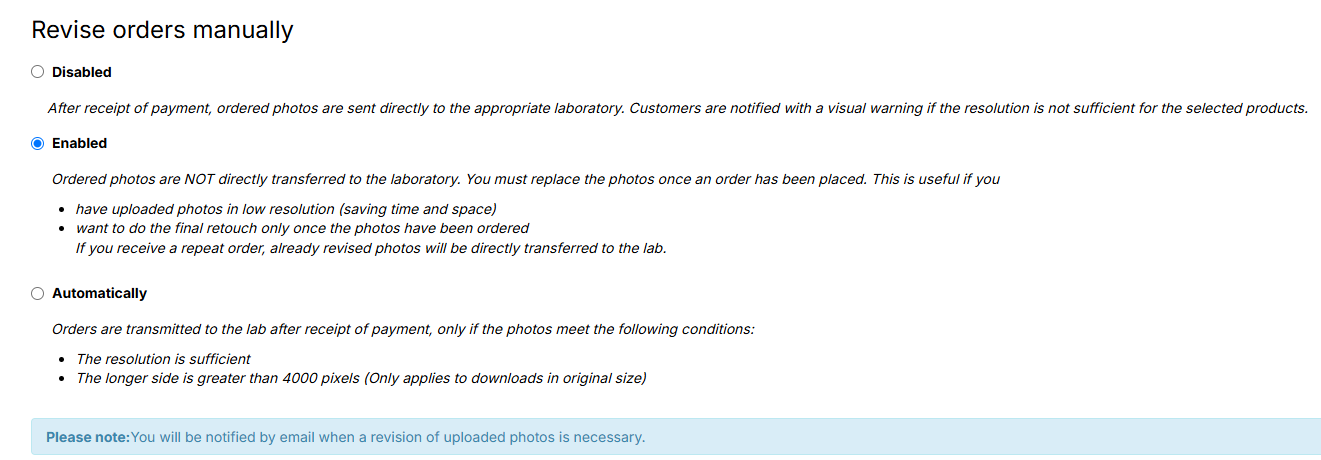
- Revise orders manually: Enabling Manual Revision will have purchased images go to you for revision before being sent to the lab. This is especially useful for situations in which you would like to swap out the original image with a retouched one or a composite image. Read more about Manual Revision here.
Registration: If you don't have buyer contact details from your organization, make sure to make customer registration an optional or required step in the ordering process. Even if they don't buy anything, if they complete the registration form, you'll have their details stored and can send them additional reminders (including abandoned cart reminder emails). Find more details here: Set up customer registration.
 After all adjustments, make sure to press Save to save your changes.