
Table of contents
- Overview
- Editing options
- Essential requirements
- Setting up your photo job for basic editing
- The takeaway
Overview
GotPhoto offers basic editing services via our partner, Pro Image Experts. This guide covers editing types, how to submit a job, requirements, pricing, and timelines.
Editing options
Pro Image Experts provides three types of edits. You can select one or combine them as needed.
| Culling | Cropping | Photo enhancement | |
|---|---|---|---|
| Process | Removes poor-quality photos or keeps a set number per access code or group. | Adjusts crop and orientation for consistency. | Applies reference-based improvements including exposure, white balance, sharpness, and more. |
| Pricing | $0.04 / C$0.06 / £0.03 per original photo | $0.04 / C$0.06 / £0.03 per cropped photo | $0.12 / C$0.18 / £0.09 per edited photo |
| Turnaround time | 3–5 business days | 3–5 business days | 3–5 business days |
Essential requirements
Before you begin, ensure the following criteria are met:
- File format: Use JPGs (max 7500px long edge). Avoid PNGs with transparent backgrounds.
- Job type: See editing service availability by job type.
- Order of operations: Basic editing must be completed before background extraction.
- Reference photos: Required for the cropping and photo enhancement service (details below).
Setting up your photo job for basic editing
Follow these steps to request editing services once requirements are met:
- Sort your photos and make any necessary adjustments.
- Activate access codes to hide QR images.
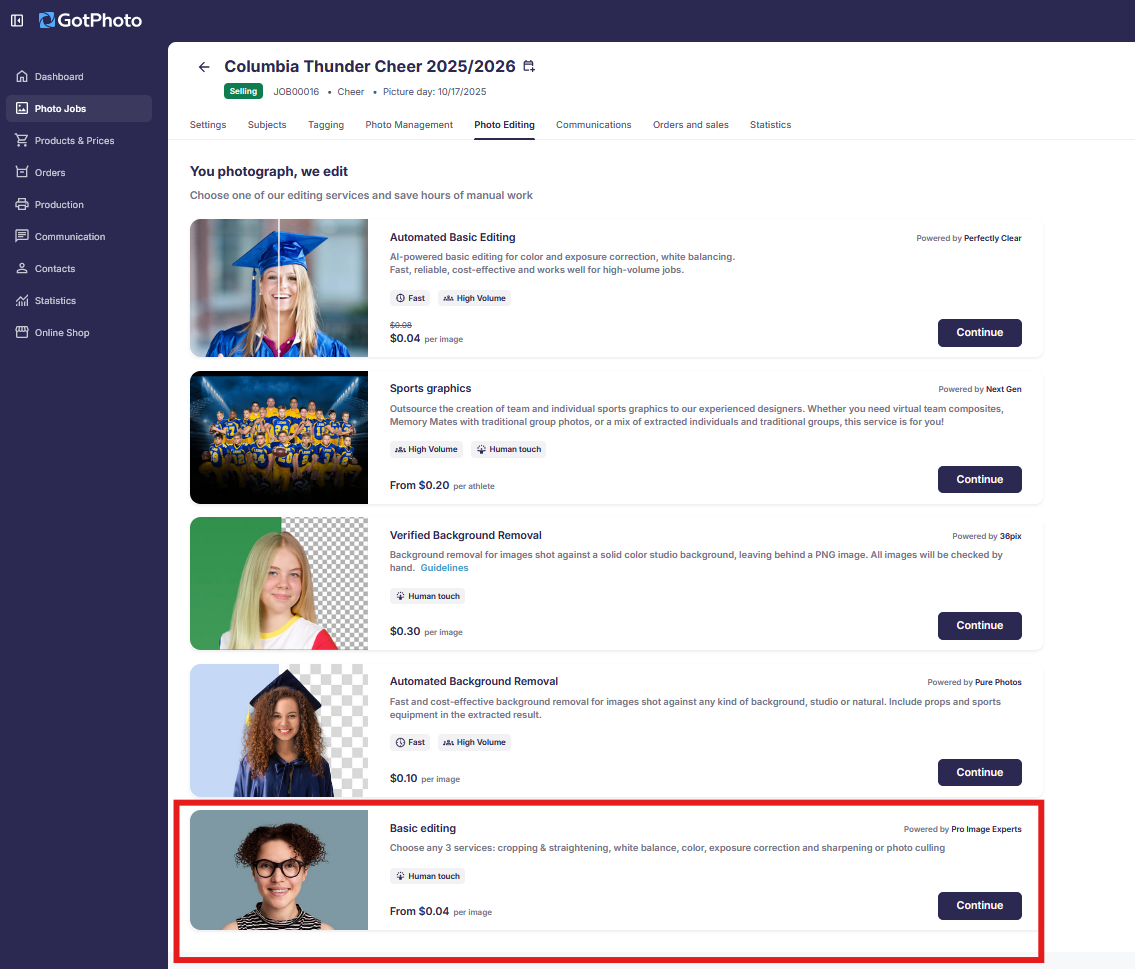
⚠ Skipping this will undo culling edits. ⚠ - Go to the Photo Editing tab and click Continue under Basic Editing.
- Select the desired service(s):
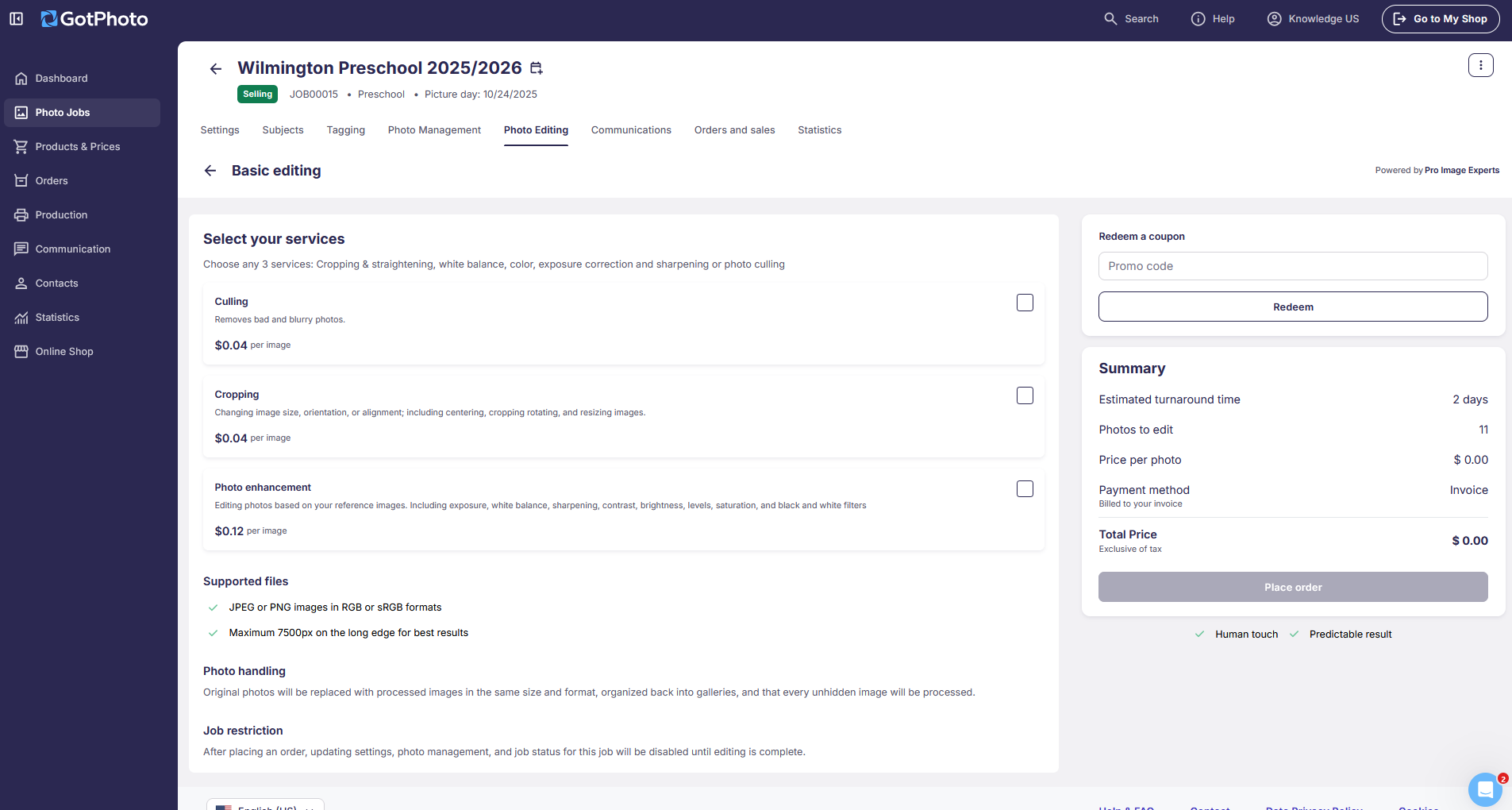
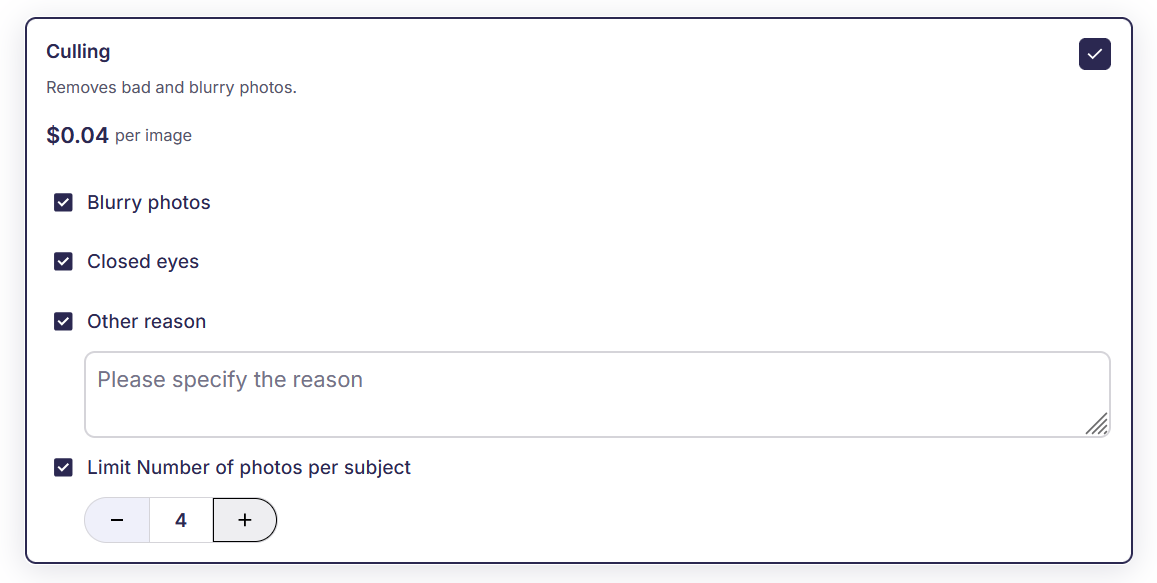
Culling
Remove images based on the following options:
- Blurred photos
- Closed eyes
- Custom reasons (add comments)
- Limit per subject (enter a number)
Cropping
Adjust crop, alignment, and orientation using:
- Crop ratio: Select from the available options
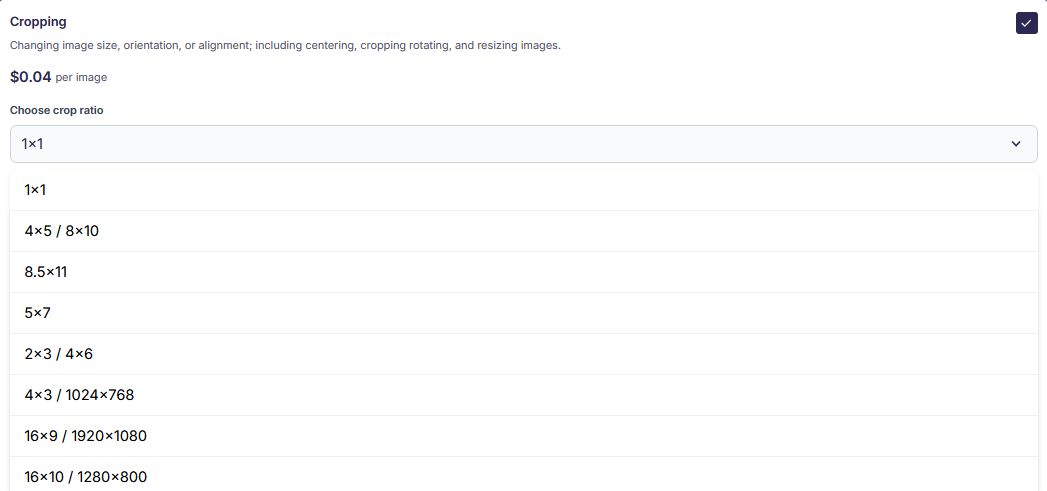
- Crop type: Choose between loose and tight crop, and upload a set of 5 before-and-after images as a reference. For detailed instructions on how to create your reference set, please review the following section, "Photo enhancement".
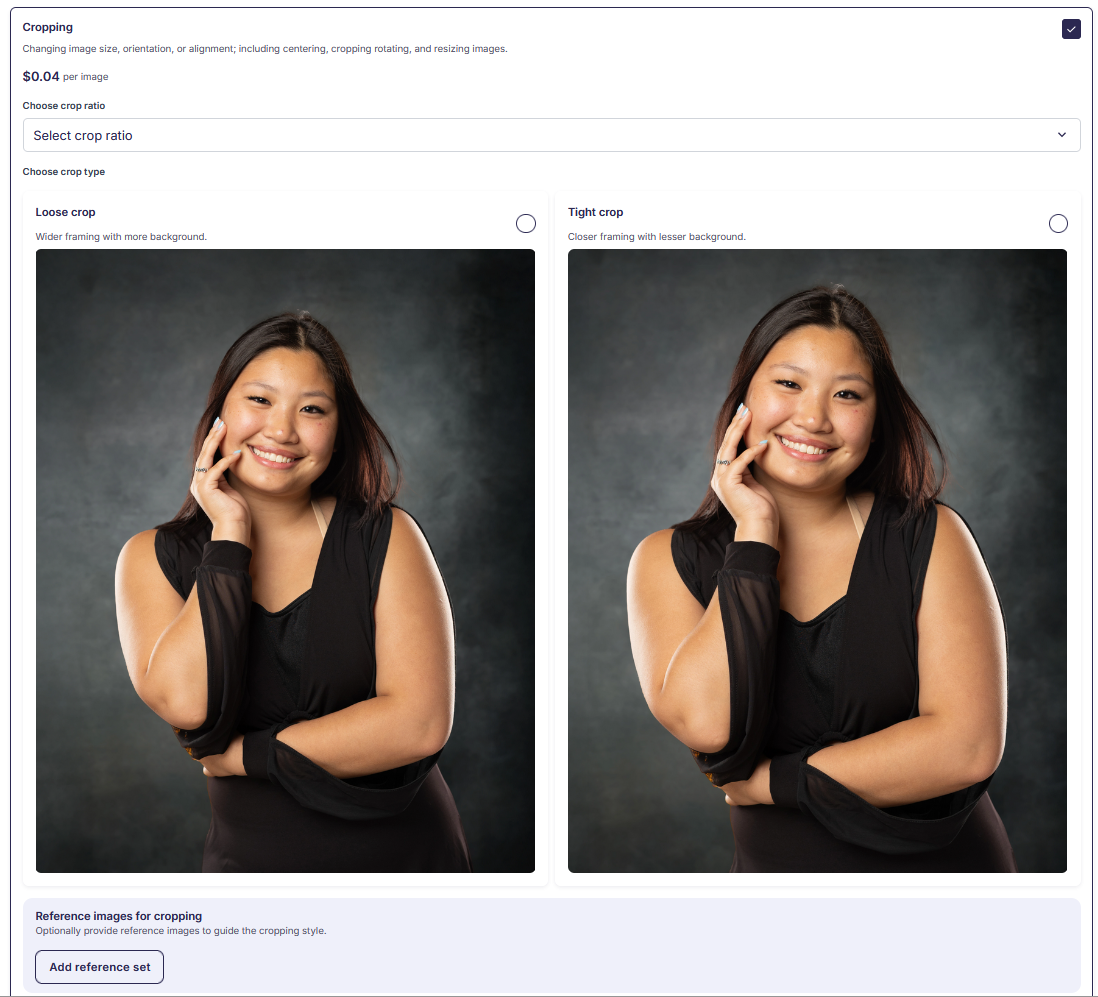
Photo enhancement
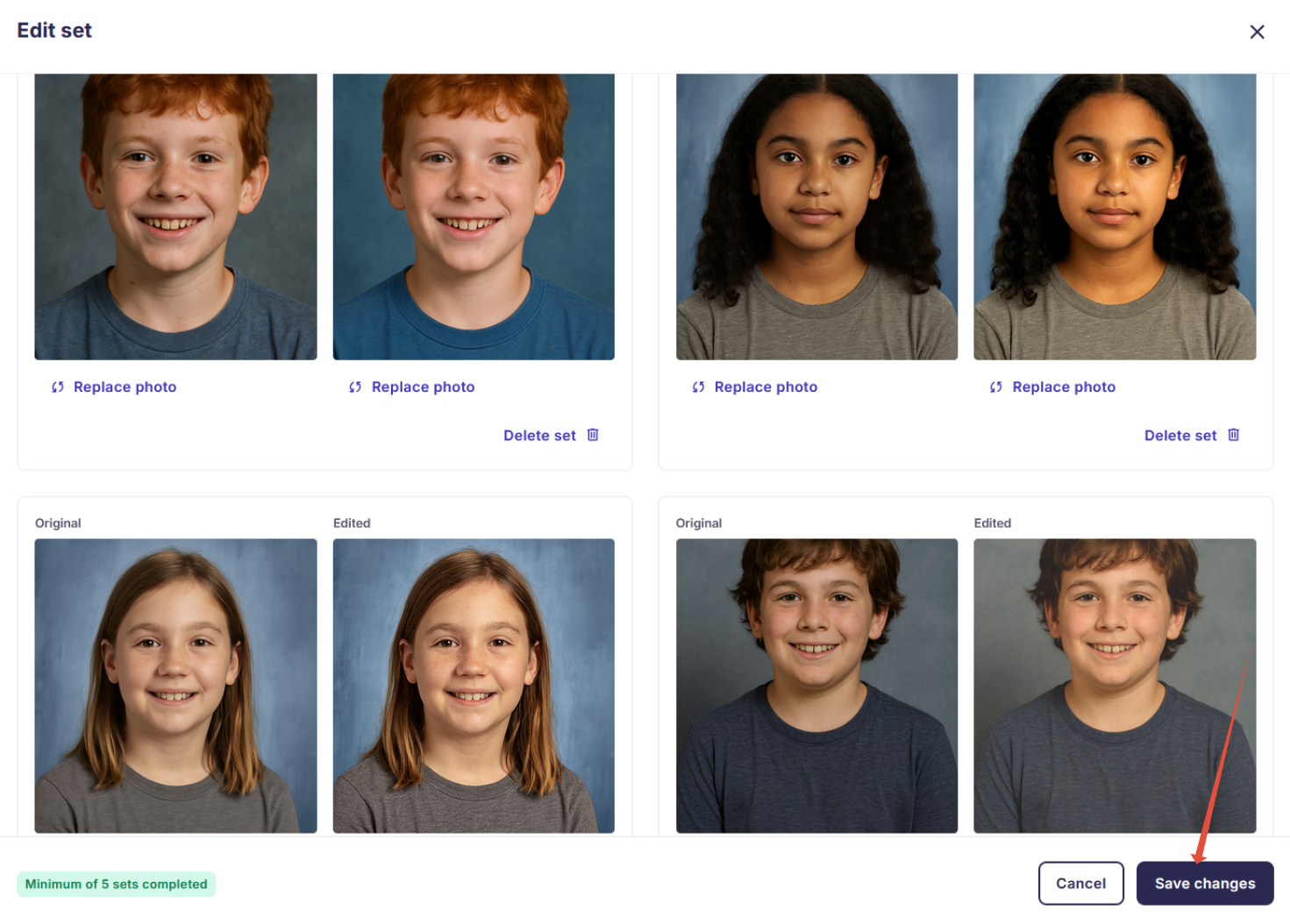
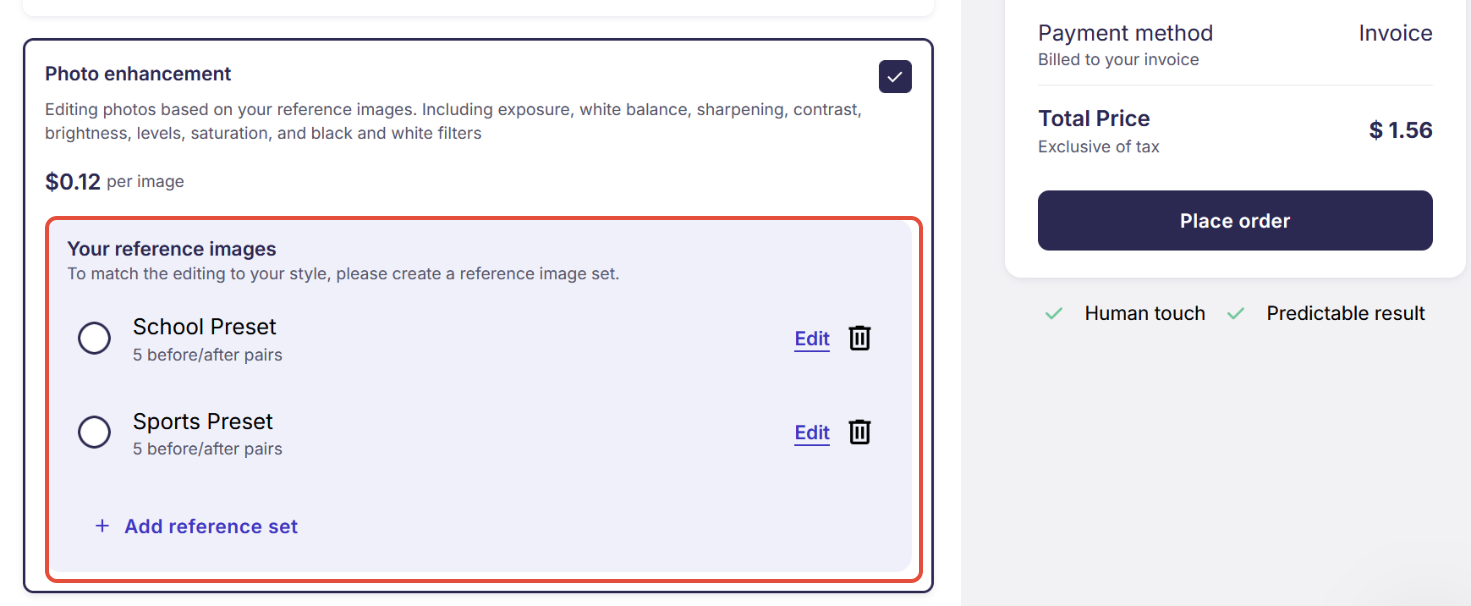
- Upload 5 before-and-after image sets for your first preset. Click Add reference set.
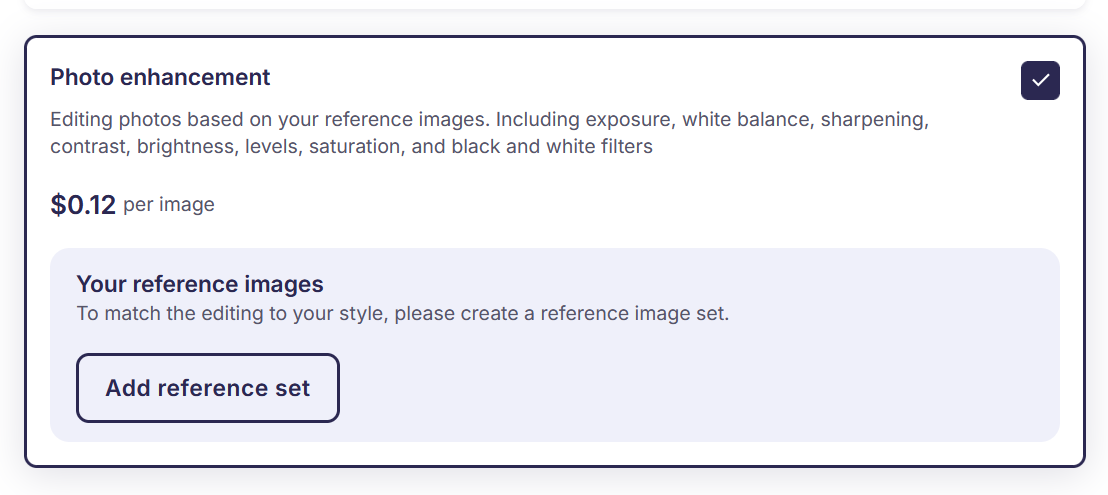
- Name the preset (e.g., "School preset"). Upload originals and edited versions for all 5 sets.
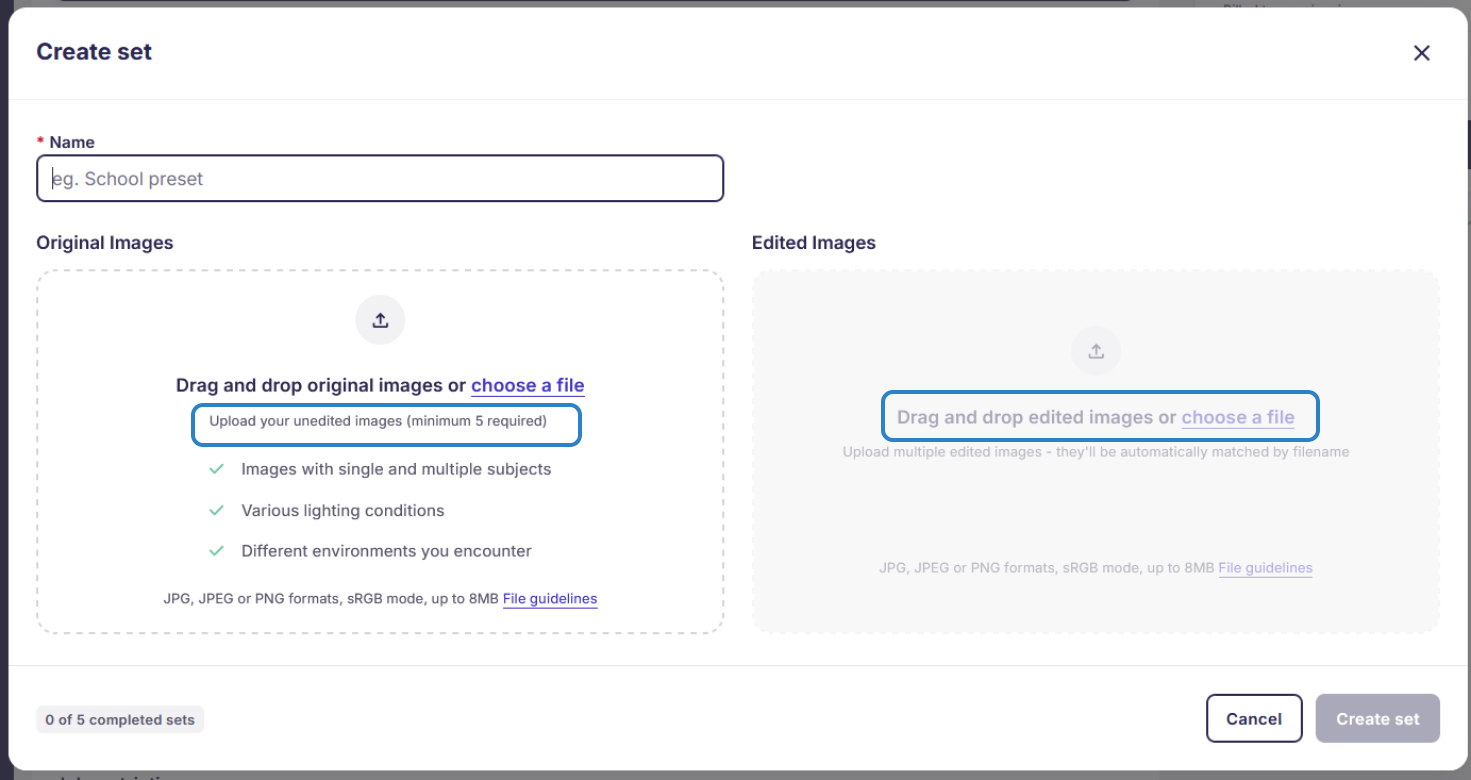
- Click Save changes after uploading all five sets.
- Select your preset for your current job.
Why your reference set matters:
- Aligns expectations – Editors know exactly how images should be cropped and enhanced.
- Ensures consistency – Different editors deliver uniform results across the same job.
- Prevents delays – Without clear guidance, editors may hesitate, make inconsistent choices, or require rework, which slows down the whole workflow.
- Reduces revisions – Fewer corrections are needed when the target result is well defined.
- Scales efficiently – Once a reference set is created for a specific job type (e.g., school portraits), it can be reused for future jobs of the same type, saving time and effort.
- Click Place order. The request status will change to in progress.
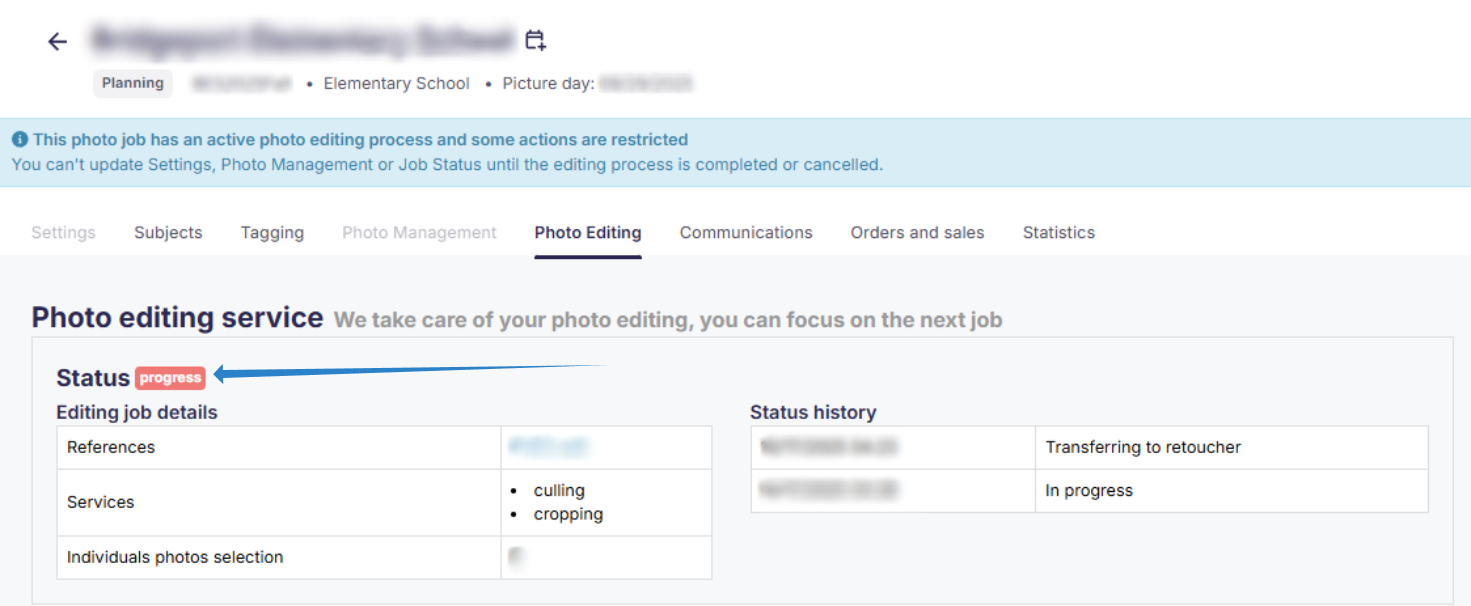
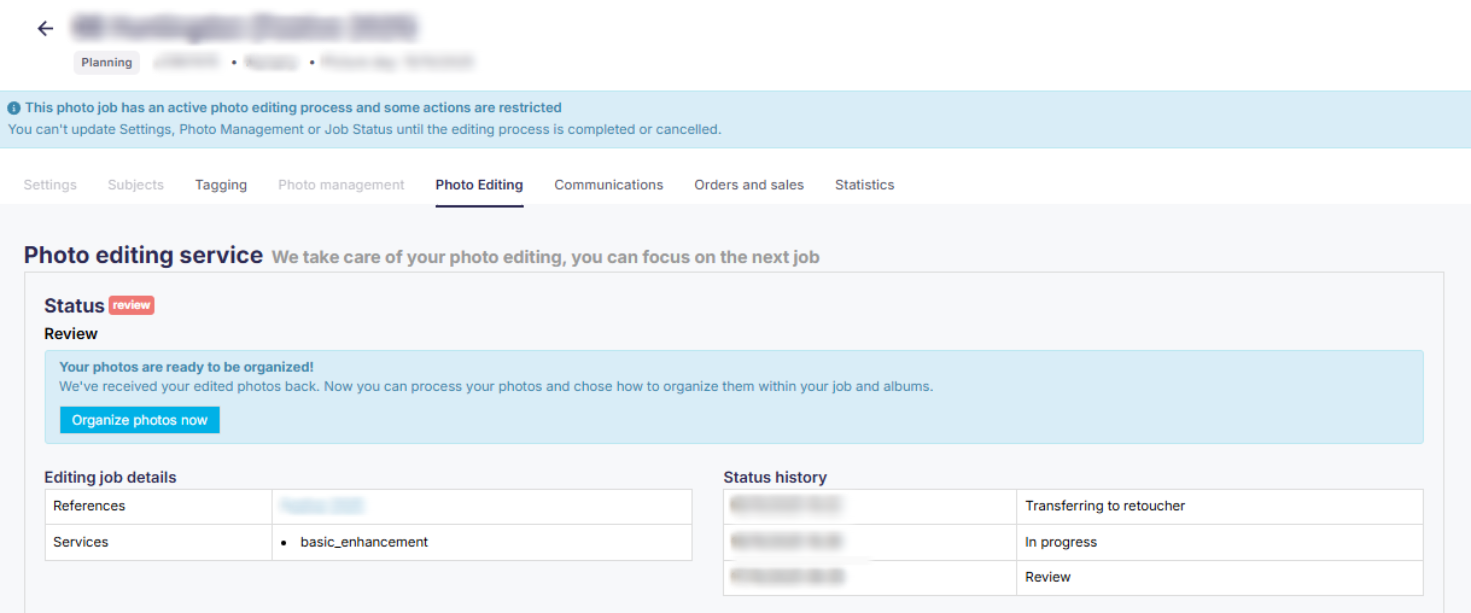
[Optional] If you submitted your request too early, our Customer Care team will need to review whether it can still be canceled. - Once edits are complete, you'll get an email. Review results in the Photo Editing tab.
The takeaway
Pro Image Experts' human-powered editing service helps streamline your post-processing with fast, affordable options. Choose culling, cropping, or enhancements - or combine all three for high-quality results in just a few days.