

Table of contents
- Overview
- What are the signs of missing students or photos?
- Why are students missing from the Student Data Export?
- Understand red and yellow warning flags in the export
- Fix missing student data (red)
- Fix missing photos (yellow)
- The takeaway
Overview
This guide explains why students may be missing from the Student Data Export (SDE), why photos may not appear, and how to fix these issues so that t Data Export (SDE), why photos may not appear, and how to fix these issues so all required students are included in your export. Missing students or missing photos in the export are usually caused by incomplete subject data or missing photo assignments. In the Student Data Export preview, these issues are marked with warning flags so you can identify what needs to be corrected before exporting.
What are the signs of missing students or photos?
You may notice:
- Students missing from the export file
- Warnings about missing student data or missing photos
- Students not appearing in the Ready to Export section
- Incomplete records in the Student Data Export preview
Why are students missing from the Student Data Export?
When creating a Student Data Export, warning flags may appear if required data is incomplete.
If these issues are not resolved, some students will be excluded from the export or marked as incomplete in the preview.
Understand red and yellow warning flags in the export
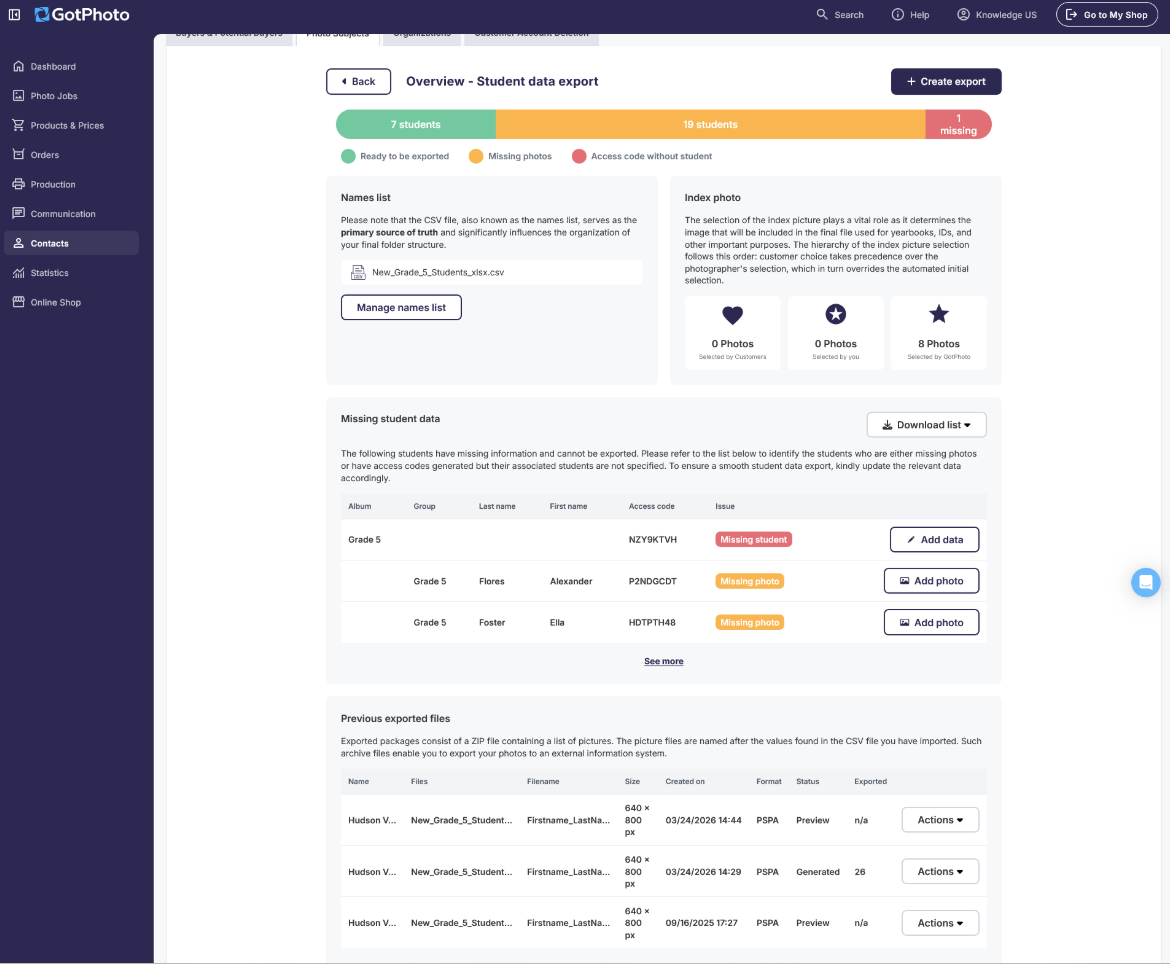
Students are omitted or flagged as missing on the Student Data Export preview page when required data is incomplete.
What the warning colors mean:
- Red: Photos exist and are linked to an access code, but no student record is attached in the names list. These records cannot be exported until student data is added.
- Yellow: A student record exists, but no photos are linked. These students will not appear in the export unless you enable the option to include students without photos or incomplete data.
Fix missing student data (red)
This section explains how to resolve cases where photos exist, but student information is missing.
Fix individual missing students
- Open the Student Data Export overview page.
- Locate the affected row and select Add data.
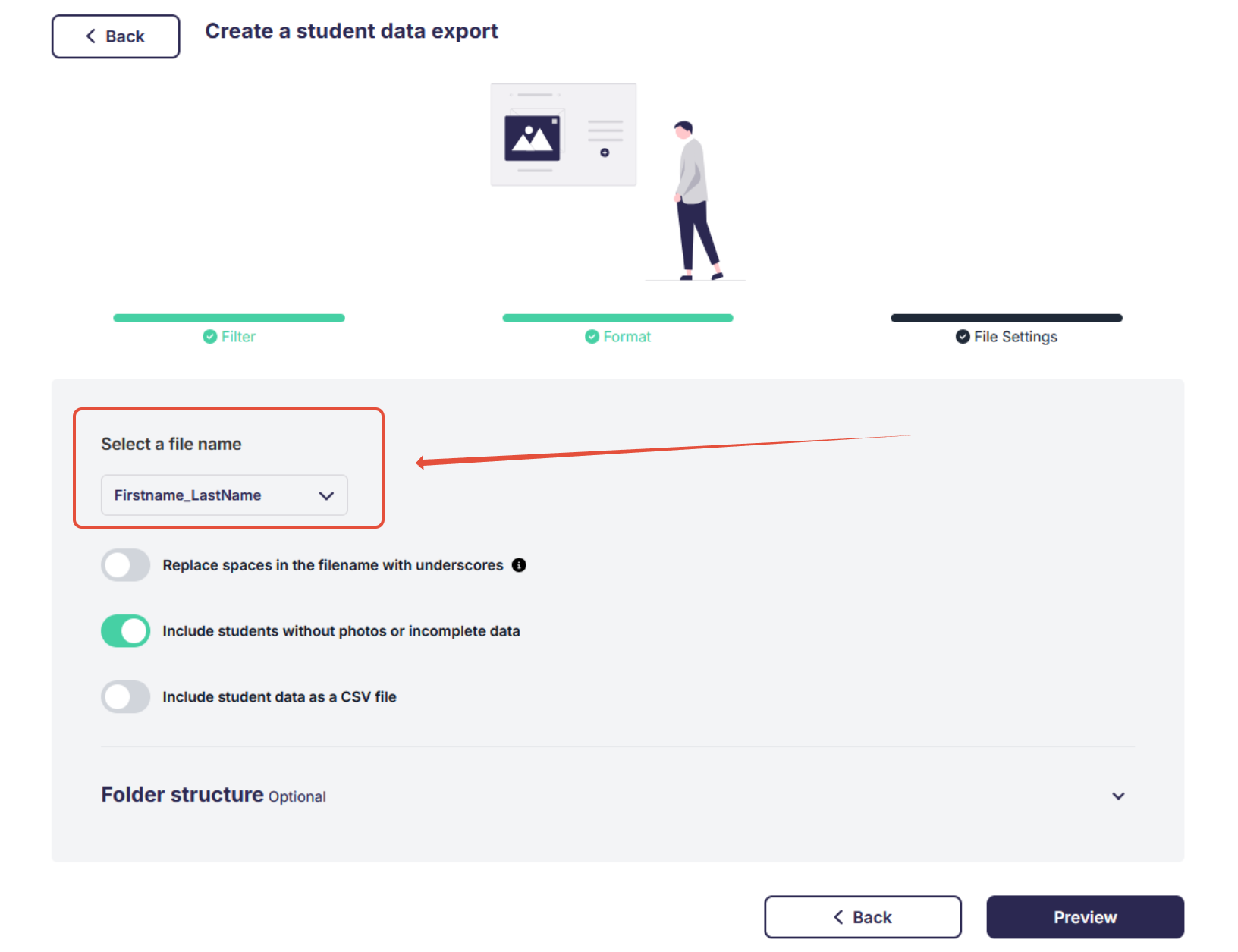
- Enter the missing student details, such as first name, last name, class or group, and identifier. The required data depends on the file name pattern selected for the export, for example, Firstname_Lastname.
- Save your changes.
Fix multiple missing students in bulk
[Recommended for large datasets]
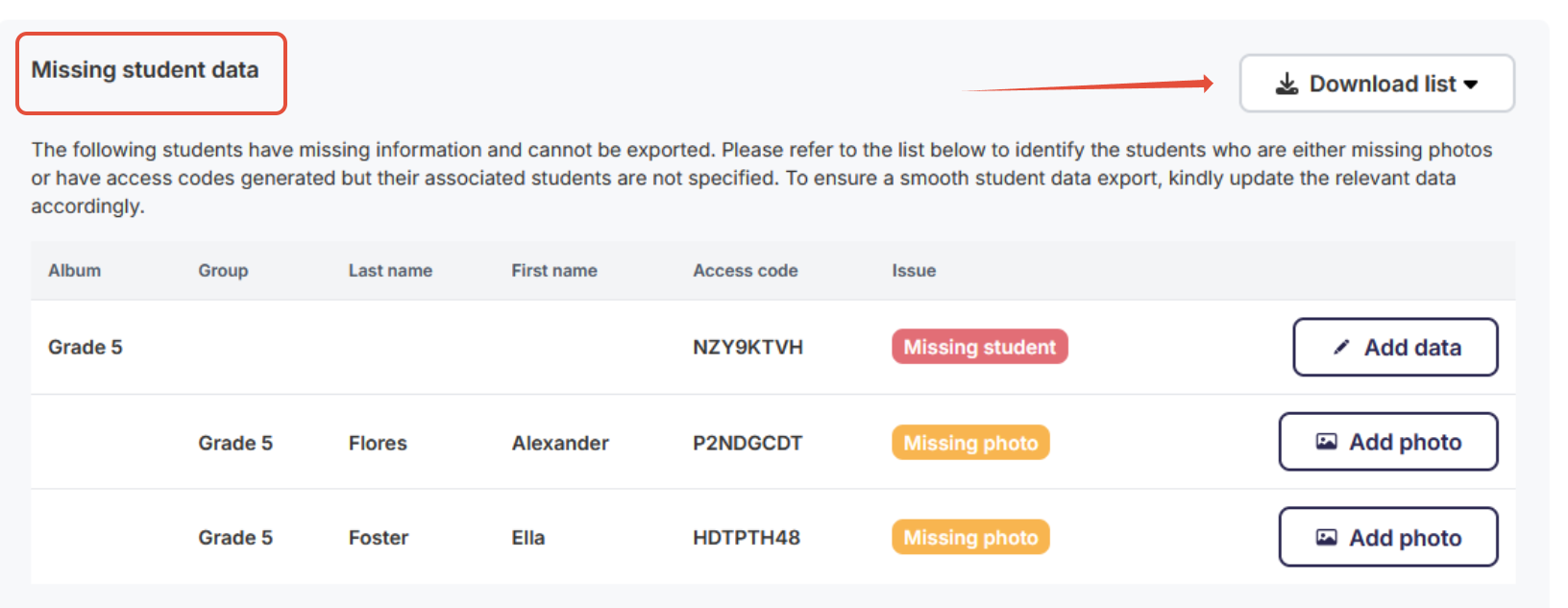
- Download the missing students list using Download list (CSV file).
- Fill in the required fields directly in the file.
- Upload the updated file via:
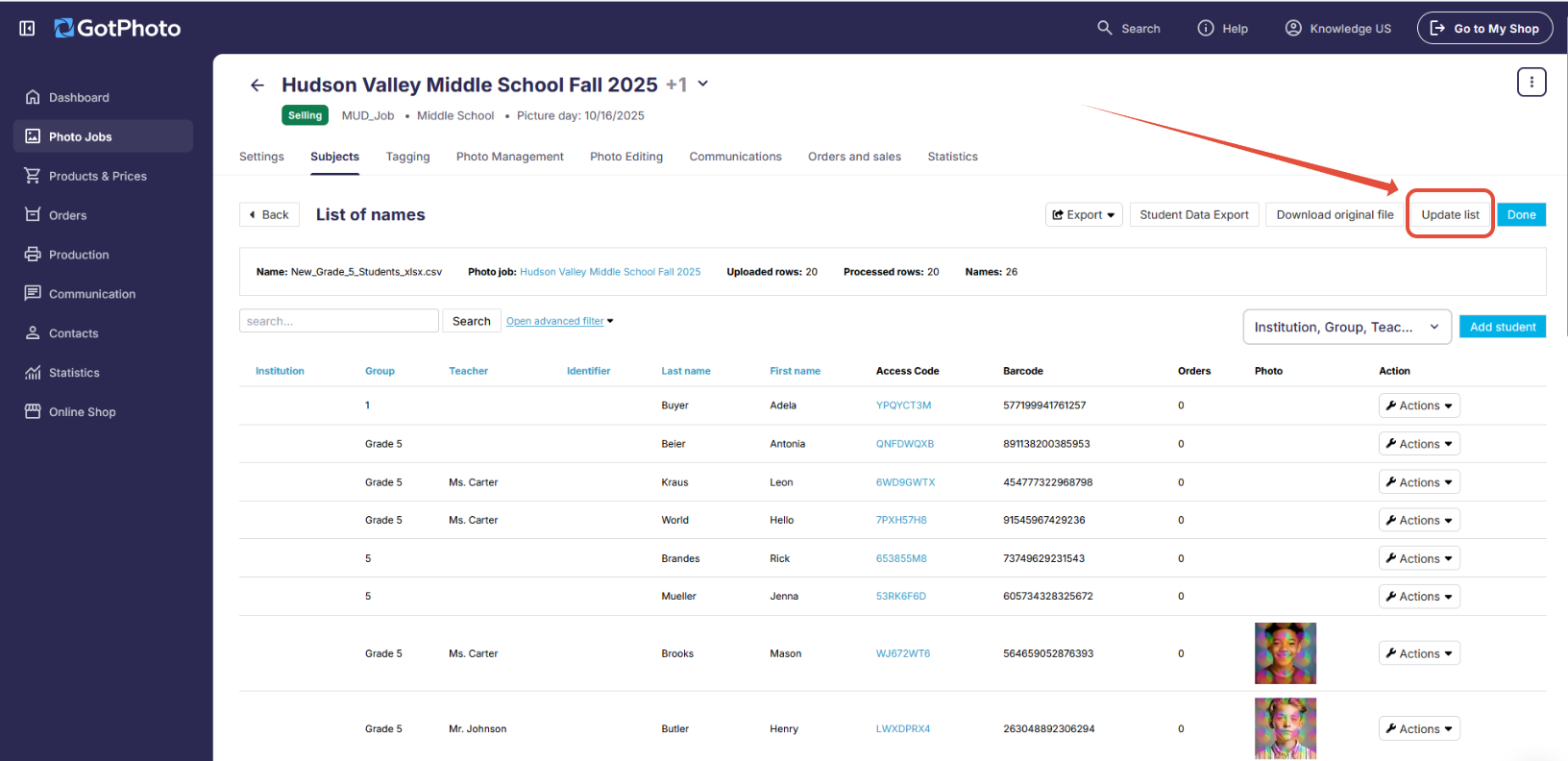
- Go to the job's Subjects tab.
- Choose Update list.
- Upload the edited list.
Important:
- Do not delete or modify access code or barcode columns.
- Preserve the existing file structure and column order.
After updating:
- Return to the Student Data Export overview page.
- Refresh the page if it was open in another tab.
- Verify that affected students now appear in the Ready to Export section of the Student Data Export preview.
Fix missing photos (yellow)
This section explains how to resolve cases where student records exist but photos are missing.
Step 1: Confirm whether the student was photographed
- Review each flagged student and confirm whether a photo was taken.
If the student was photographed
- Open the Photo Management section using Add photo in the export overview.
- Verify that:
- Photos are uploaded
- Photos are not hidden
- Photos are linked to the correct access code
- If needed, correct the assignment by re-tagging or moving images to the correct access code.
- Return to the Student Data Export overview page and refresh it.
- Confirm that the student now appears under Ready to Export.
If the student does not have a photo
By default, they won't be included. However (optional), you can enable the option Include students without photos or incomplete data in the export settings.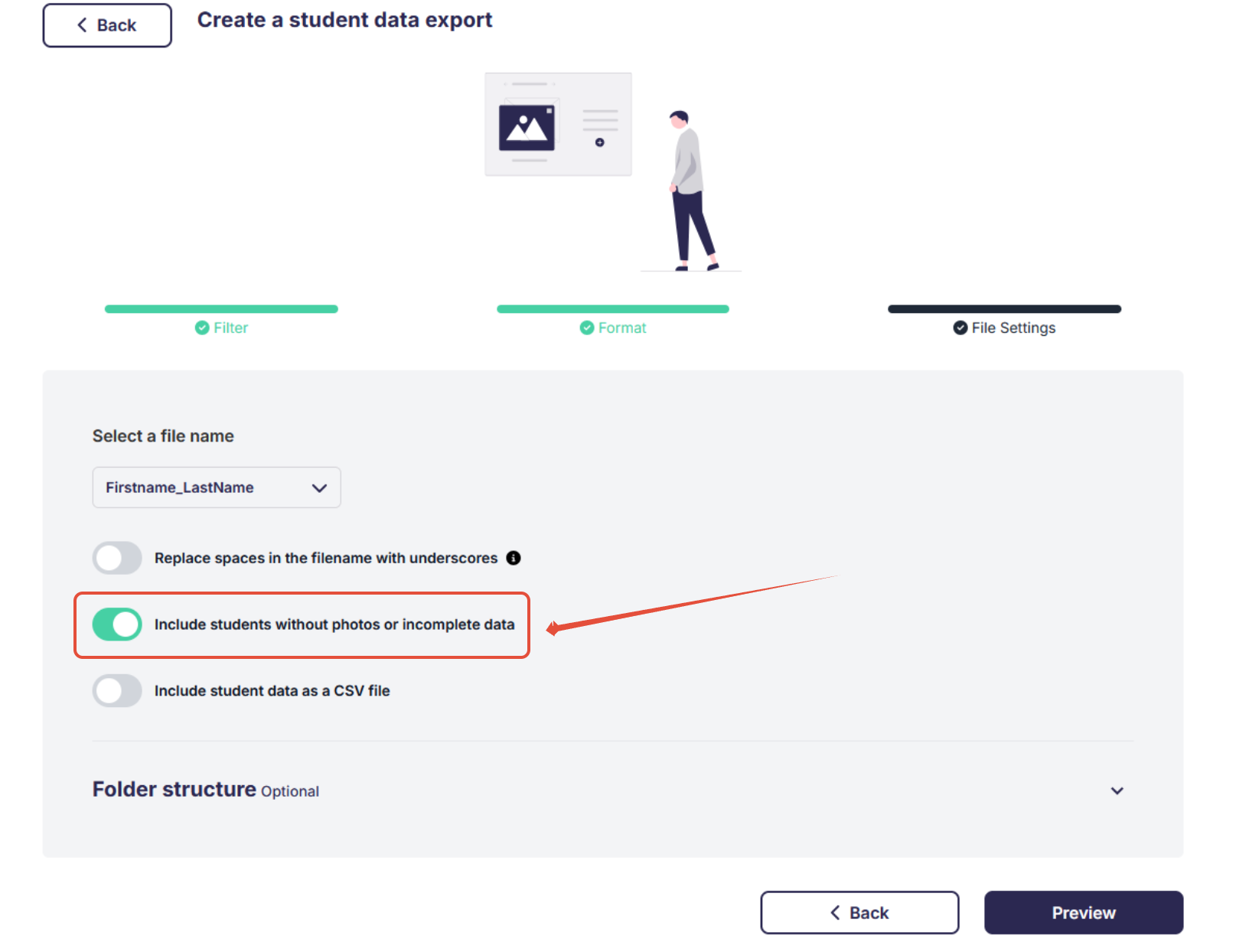
Use this option only if the school requests placeholders or planning files. The system will generate placeholder images that meet PSPA requirements.
The takeaway
Students missing from the Student Data Export are usually caused by incomplete data in one of two areas:
- Red: Photos exist, but student data is missing → add the missing student details manually or upload a corrected list.
- Yellow: Student data exists, but photos are missing → upload, link, or reassign the photos correctly.
Once these issues are resolved, the affected students should move into the Ready to Export section and be included in the export preview.
Related articles