

Note: This article refers to the new GotPhoto Tagging App (Beta). For the current Entagged App, see this help center section: Entagged
Table of contents
- Overview
- What is the beta app?
- Access the beta app
- Use with Entagged and Name List
- Use Name List QR (no Entagged device)
- Switch tagging methods
- Scan codes with Entagged
- Manage devices
- App settings
- Device status bar
- Filter options
- Multi-tagging subjects
- Key takeaways
Overview
The GotPhoto app is a mobile solution for photo tagging on picture day. It works for all GotPhoto users, whether or not you use a physical Entagged device.
The app enables fast, paperless tagging directly from your smartphone or tablet, even in environments with limited or unstable internet connectivity.
This beta version introduces a redesigned experience with improved usability, simplified navigation, and better device management. While the core workflow remains familiar to Entagged users, the interface is now more intuitive and optimized for touch.
This article explains how to access the app and use its key features.
What is the GotPhoto app (beta)?
[Beta] The beta app is an early version of the new GotPhoto tagging app that is still being developed and improved.
This means:
- Features may change or be refined.
- Some functions may not yet be fully available.
- Updates may be released frequently.
- User feedback directly influences development priorities.
Access the GotPhoto app
Download and install the app based on your device type:
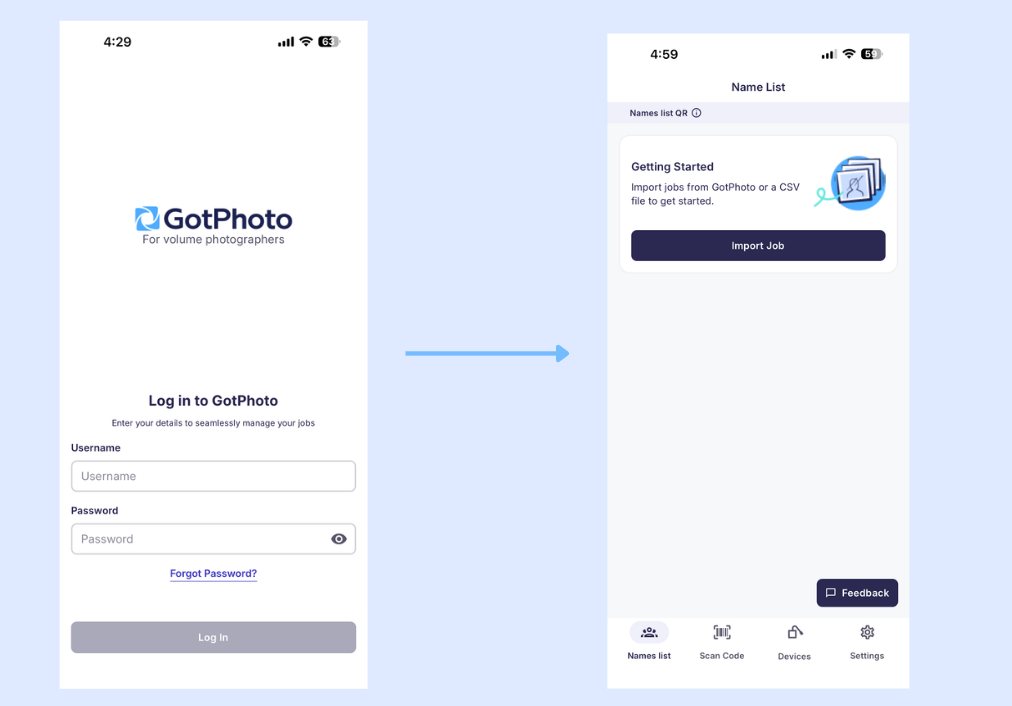
Log in to your account
- Open the app.
- Log in using your GotPhoto credentials.
Use the app with a physical Entagged device and Name List subscription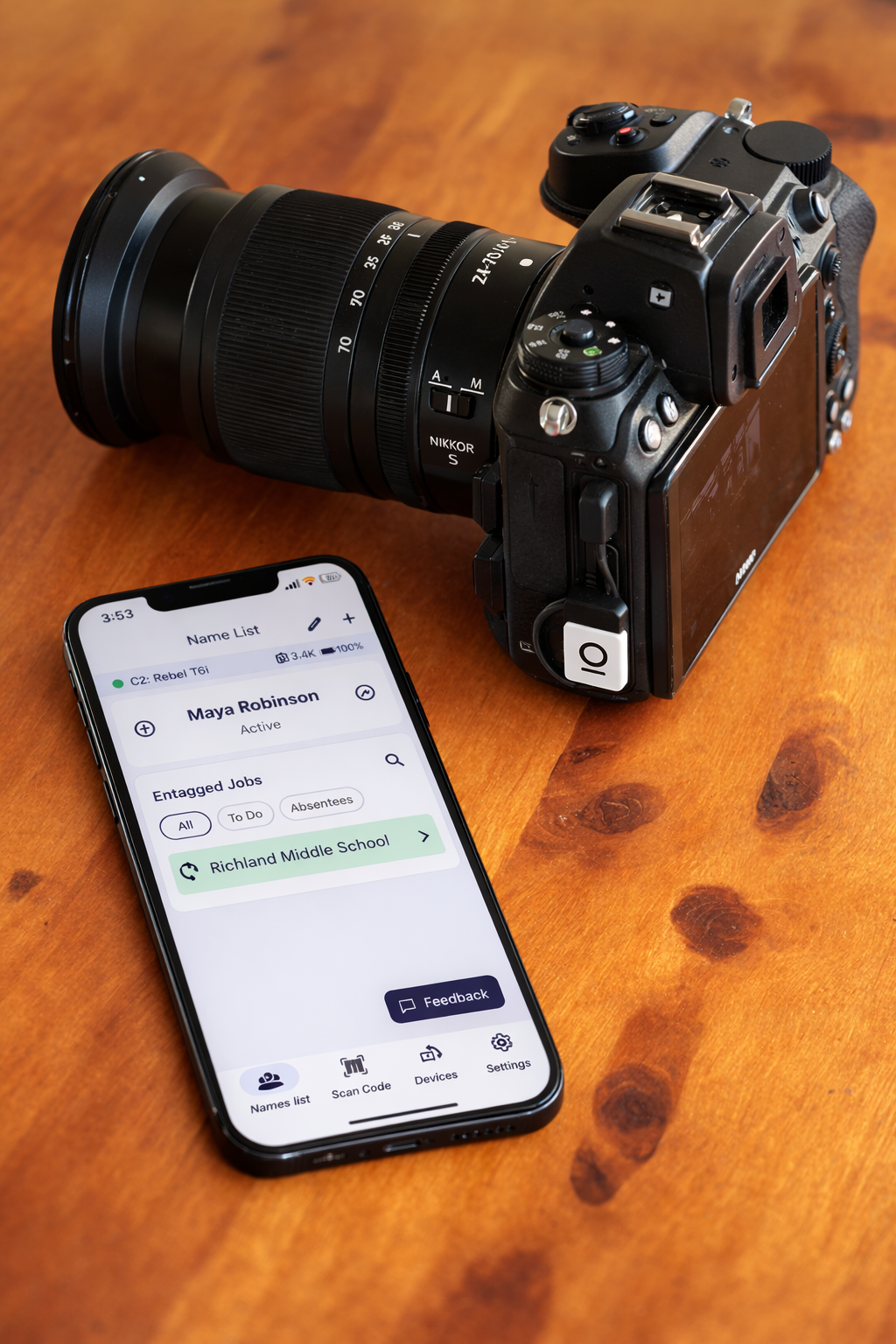
This section applies if you use a physical Entagged device and have an Entagged Name List subscription.
If you do not use an Entagged device, continue with Use the Name List QR feature (no Entagged device required).
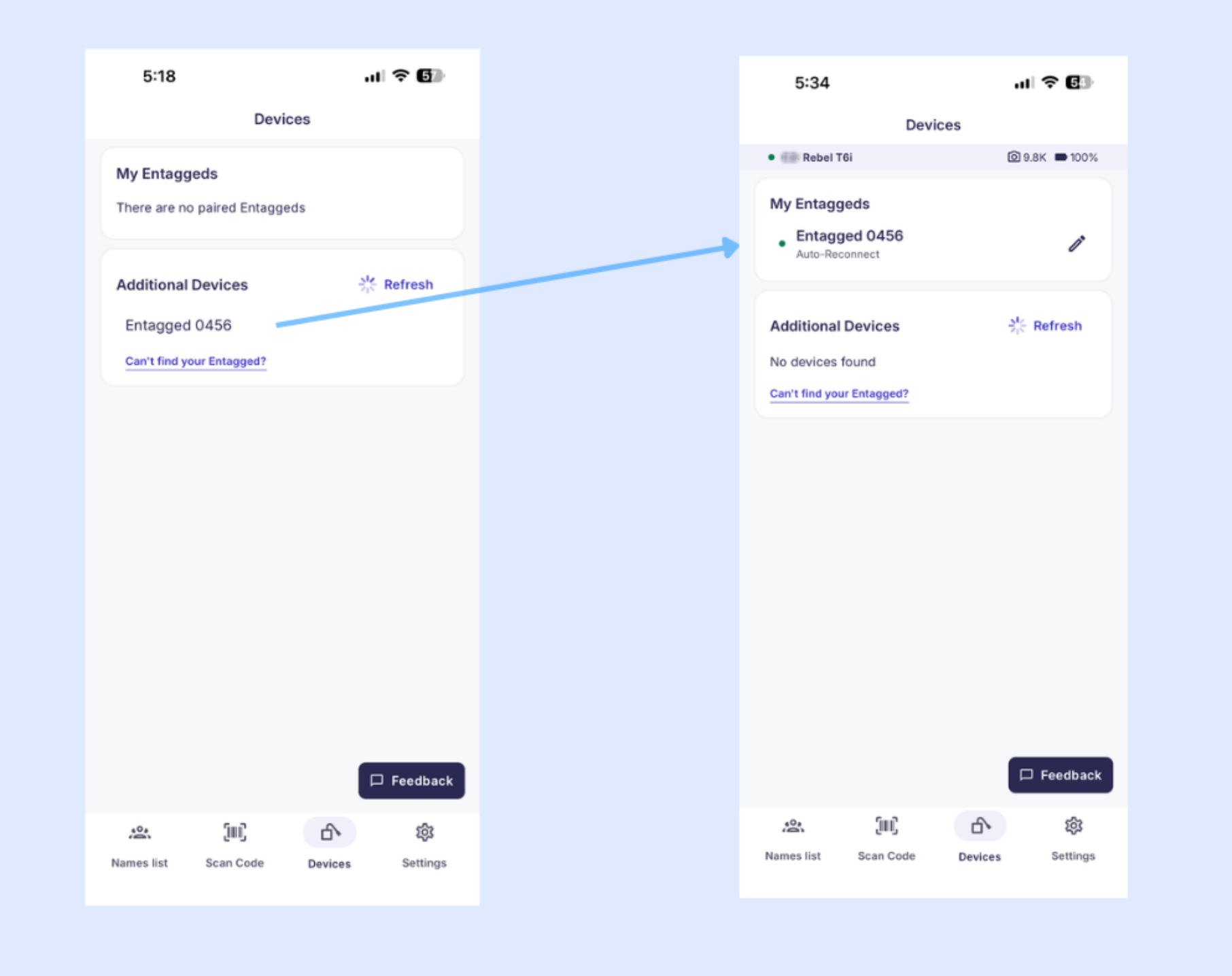
Pair your Entagged device
- Tap Devices in the app.
- Pair your Entagged. The process is similar to the pairing process in the Entagged app.
- Select the device under Additional Devices.
- Confirm pairing. The device will move to My Entaggeds.
If a new firmware update becomes available, you will see a notification here.
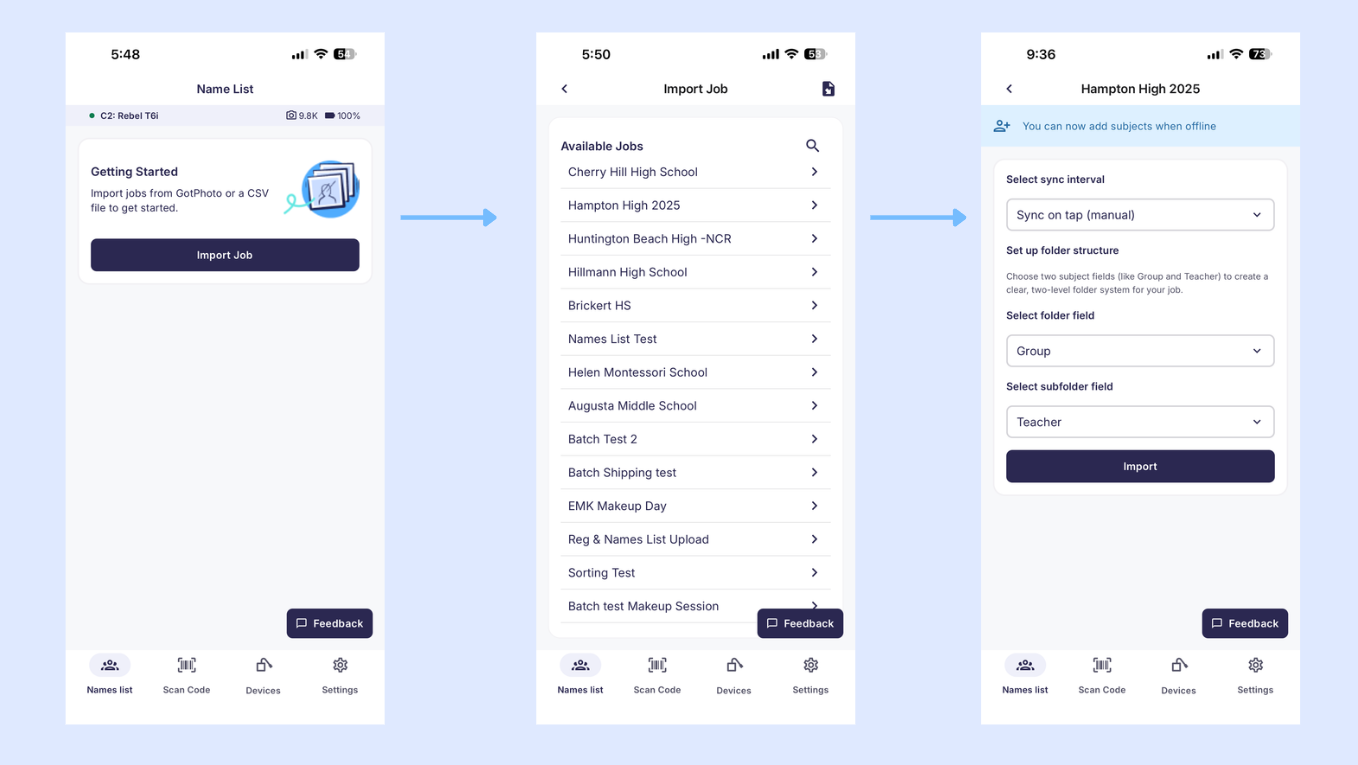
Import a Name List
Use the navigation panel to access the Name List page.
- Tap the left-most navigation button.
- Import your job’s Name List.
Follow the picture day workflow
Watch the walkthrough below to see how the workflow looks on picture day when using a physical Entagged device together with a Name List subscription.
Use the Name List QR feature (no Entagged device required)
This workflow allows you to tag photos using digital QR cards directly in the app.
No physical Entagged device is required to use this feature. All you need is a GotPhoto account.
Please note: Editing and adding names to a names list requires an active Entagged Names List subscription.
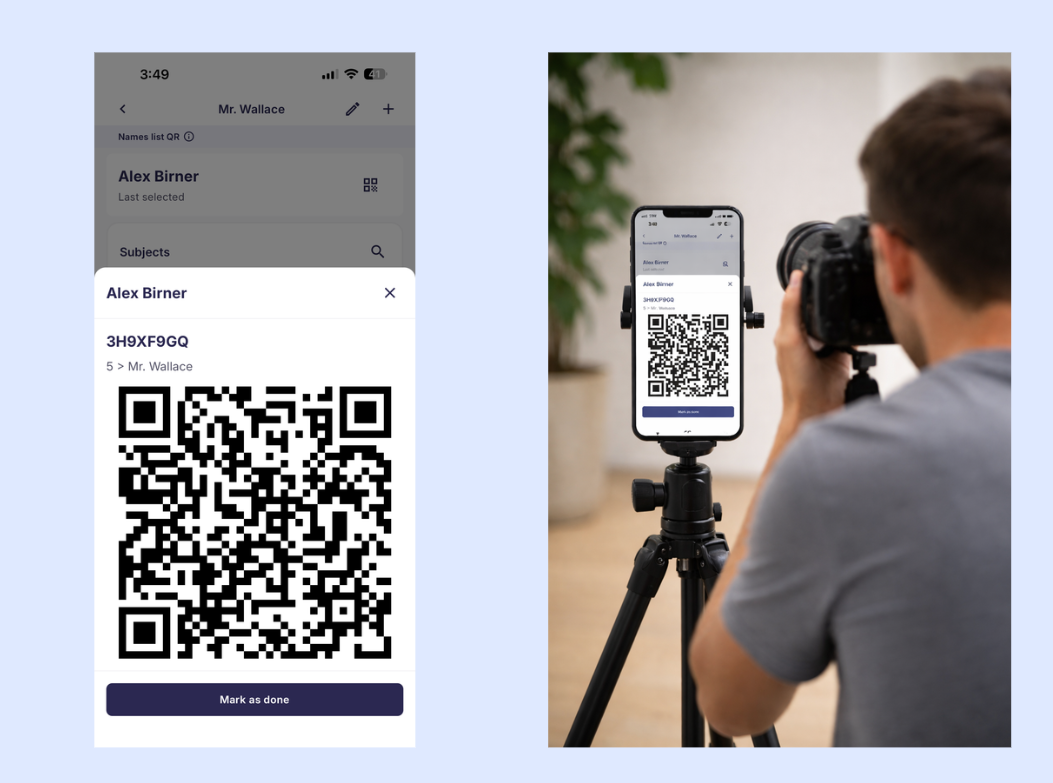
Follow the digital QR workflow
- Select a job’s Name List.
- Select a subject.
- Photograph the QR code displayed in the app.
- Take the subject’s photos.
- Repeat for the next subject.
Switch from Entagged barcode tagging to Name List QR
You can switch to Name List QR whenever your Entagged device is disconnected. This allows you to access your job’s Name List, select a subject, and photograph their digital QR code directly from the app.
Important: If you switch mid-session from using the physical Entagged device to photographing digital QR codes:
- Delete the last saved code from your camera’s metadata. If you use a Sony camera, turn your camera off and on again before continuing. This removes the last saved code from your camera.
- Upload photos to separate albums.
- Upload all photos tagged using the Entagged device into one album.
- Upload all photos where you photographed digital QR codes into a different album.
Uploading both types of photos into the same album will cause activation issues.
Scan codes with Entagged
This feature requires a physical Entagged device. An additional Bluetooth scanner is [Optional]. The app includes a built-in scanning feature.
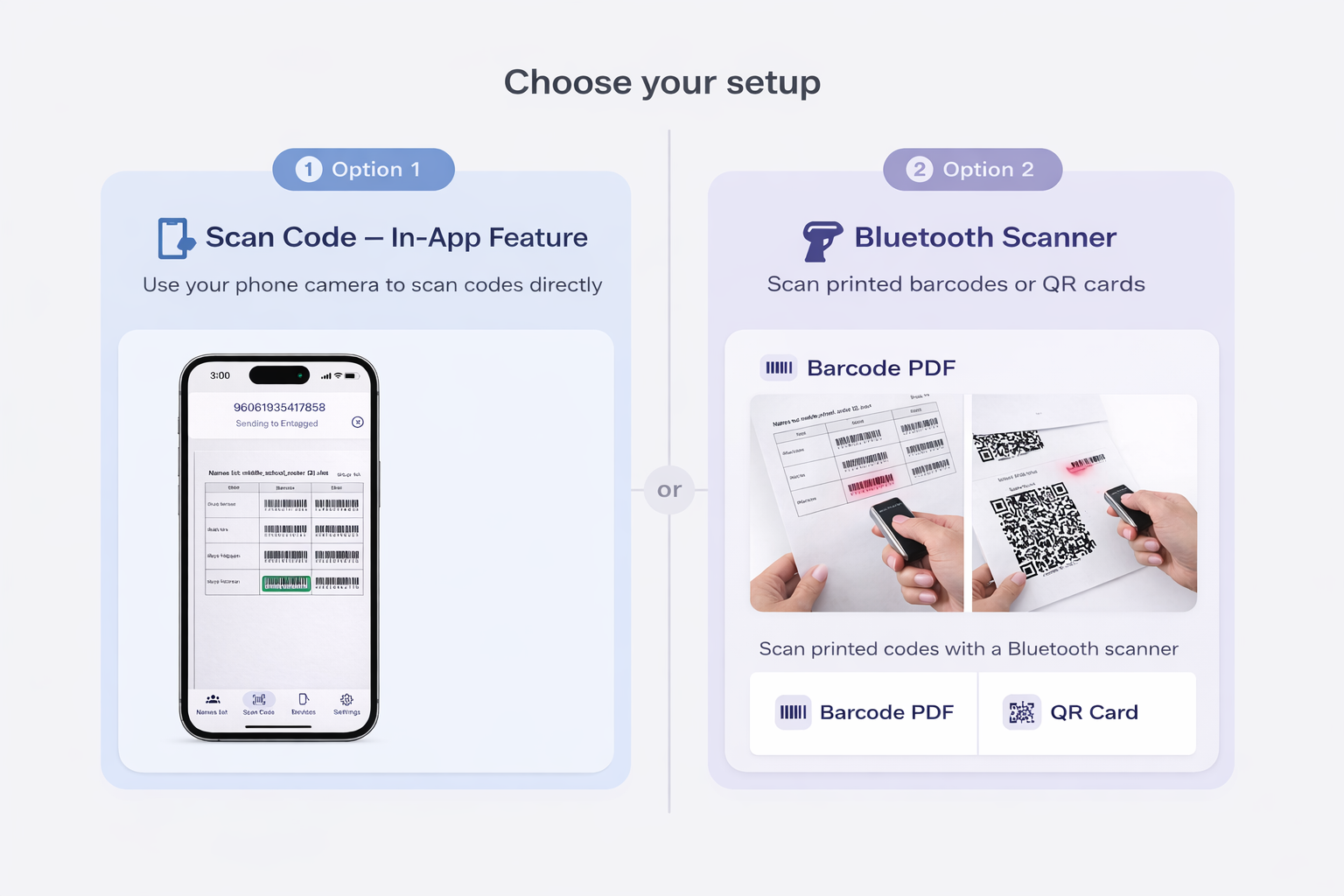
Scan a barcode
- Tap Scan code.
- Use the built-in scanner or a supported external barcode scanner.
- Confirm the scanned code in the app.
- Photograph the subject.
- Repeat for the next barcode.
For full job planning instructions, see the Entagged barcode scanning workflow article.
Manage devices in the Devices screen
This screen is only relevant if you use a physical Entagged device.
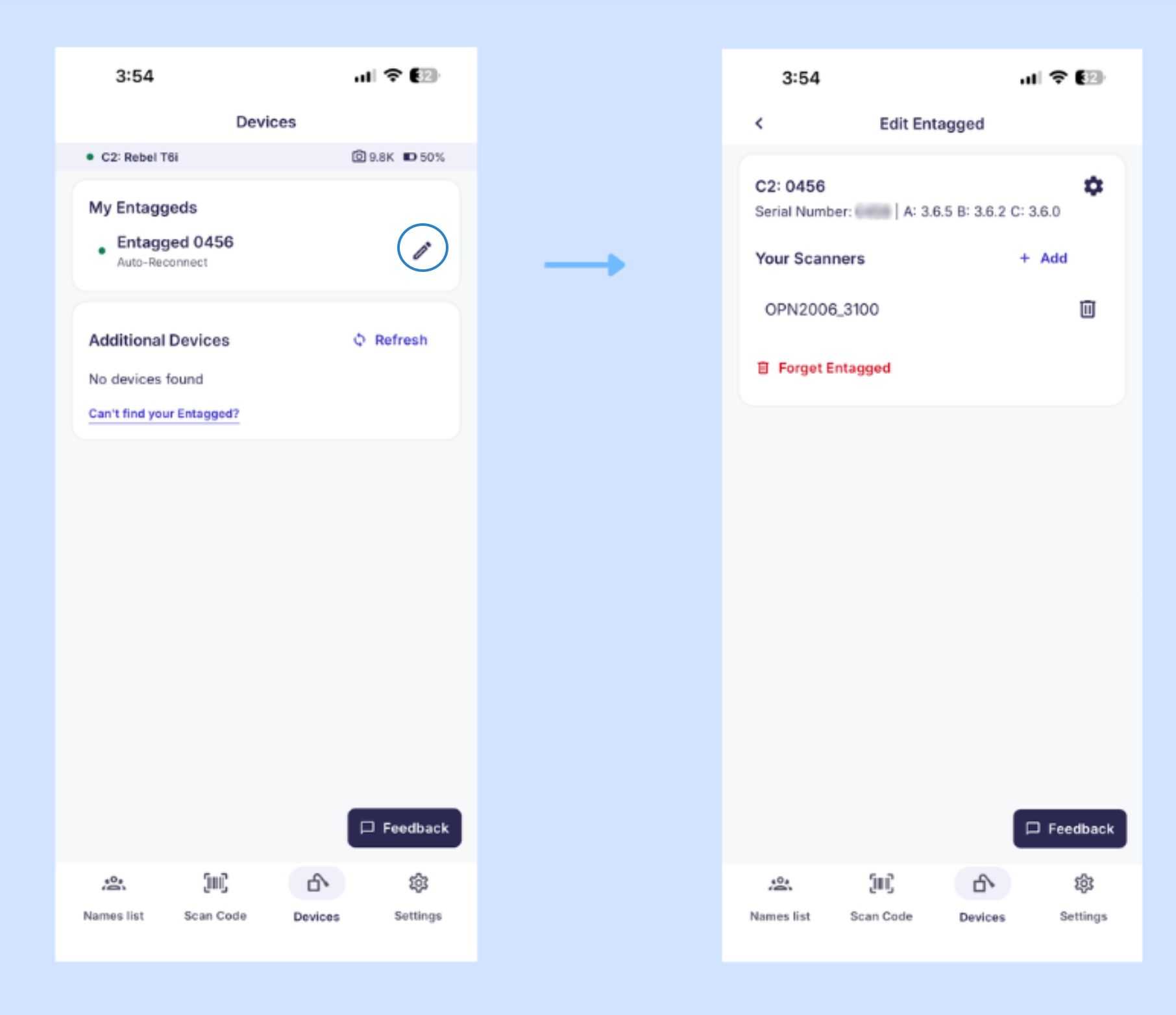
Disconnect an Entagged device
- Tap the pencil icon next to the device.
- Select Forget Entagged.
- Confirm your choice.
Reconnect an Entagged device
- Select the device under Additional Devices.
- Complete pairing.
- The device will move to My Entaggeds.
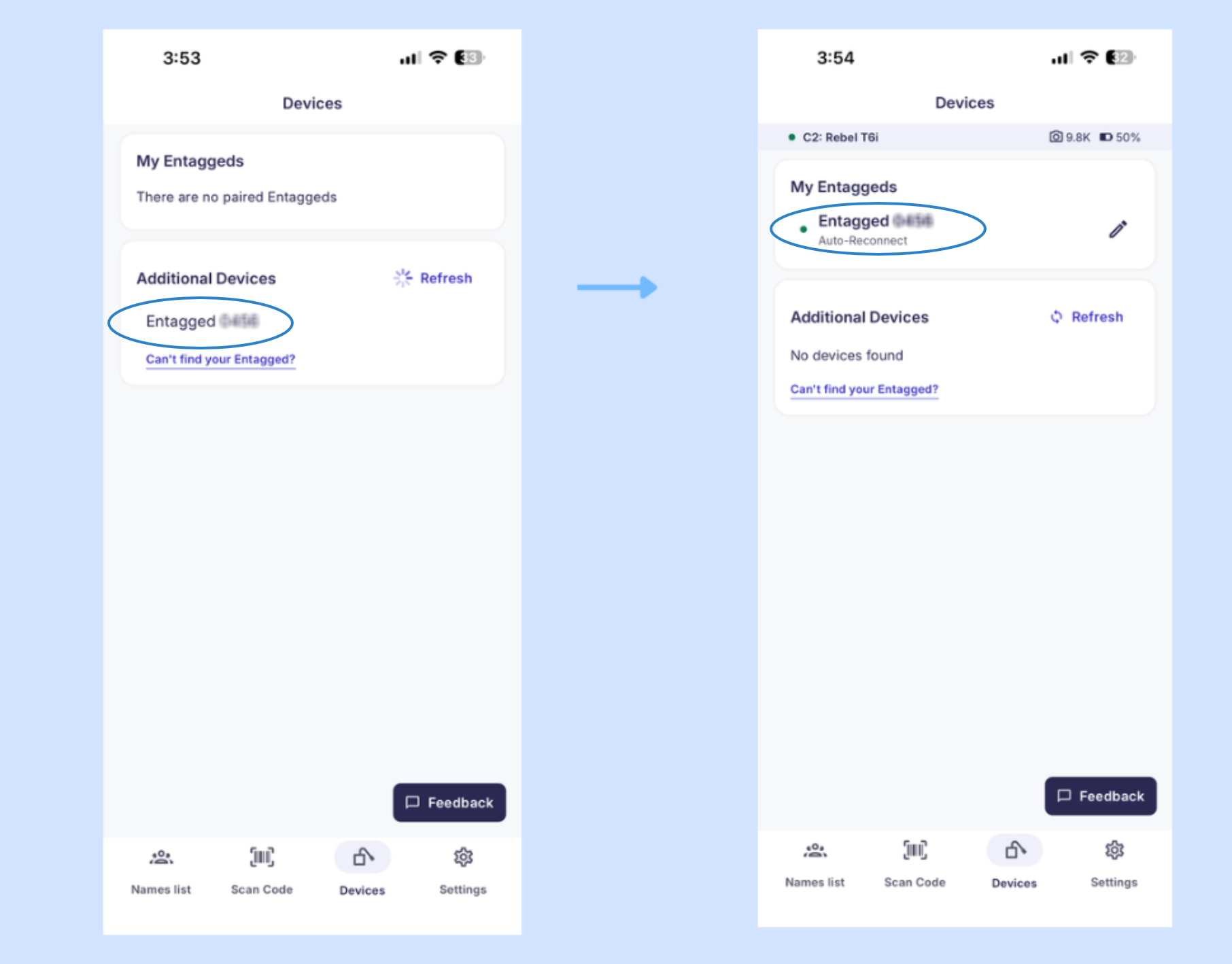
You can also connect or disconnect a Bluetooth scanner from this screen.
Manage app settings in the Settings tab
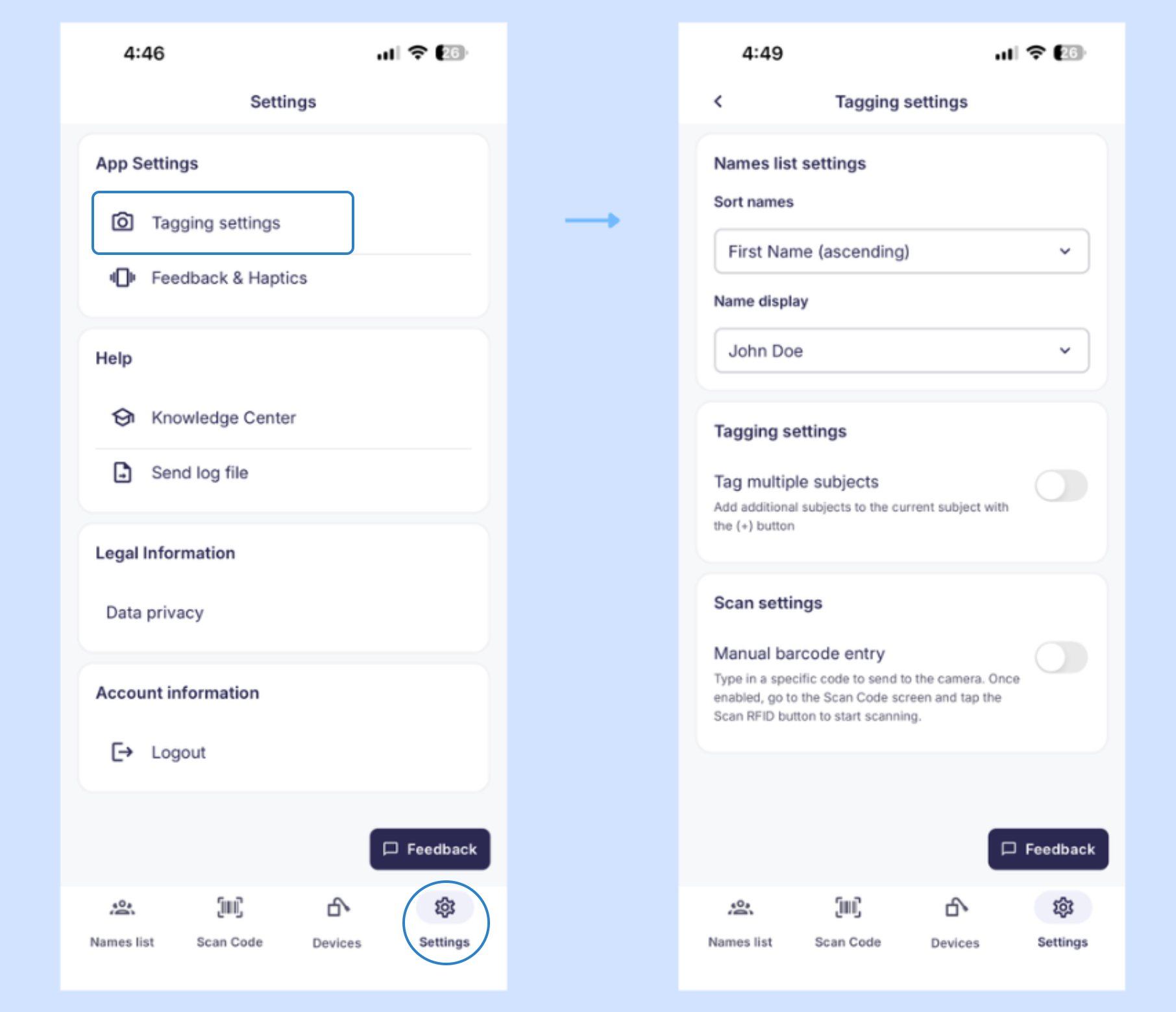
Use the Settings tab to change account and tagging preferences and access help resources.
Tagging settings
- Change the sorting of your Name List.
- Choose whether names are displayed starting with the first or last name.
- Enable tagging multiple subjects in one image.
- Enable manual barcode entry.
Other settings
- [Beta]Feedback and Haptics: Coming soon.
- Knowledge Center: Access the Entagged Help Center. GotPhoto app documentation is being added as new features are released.
- [Beta]Send log file: Not available yet. This feature will allow you to share a diagnostic report with the support team.
- Legal information: Access GotPhoto’s Data Privacy Notice.
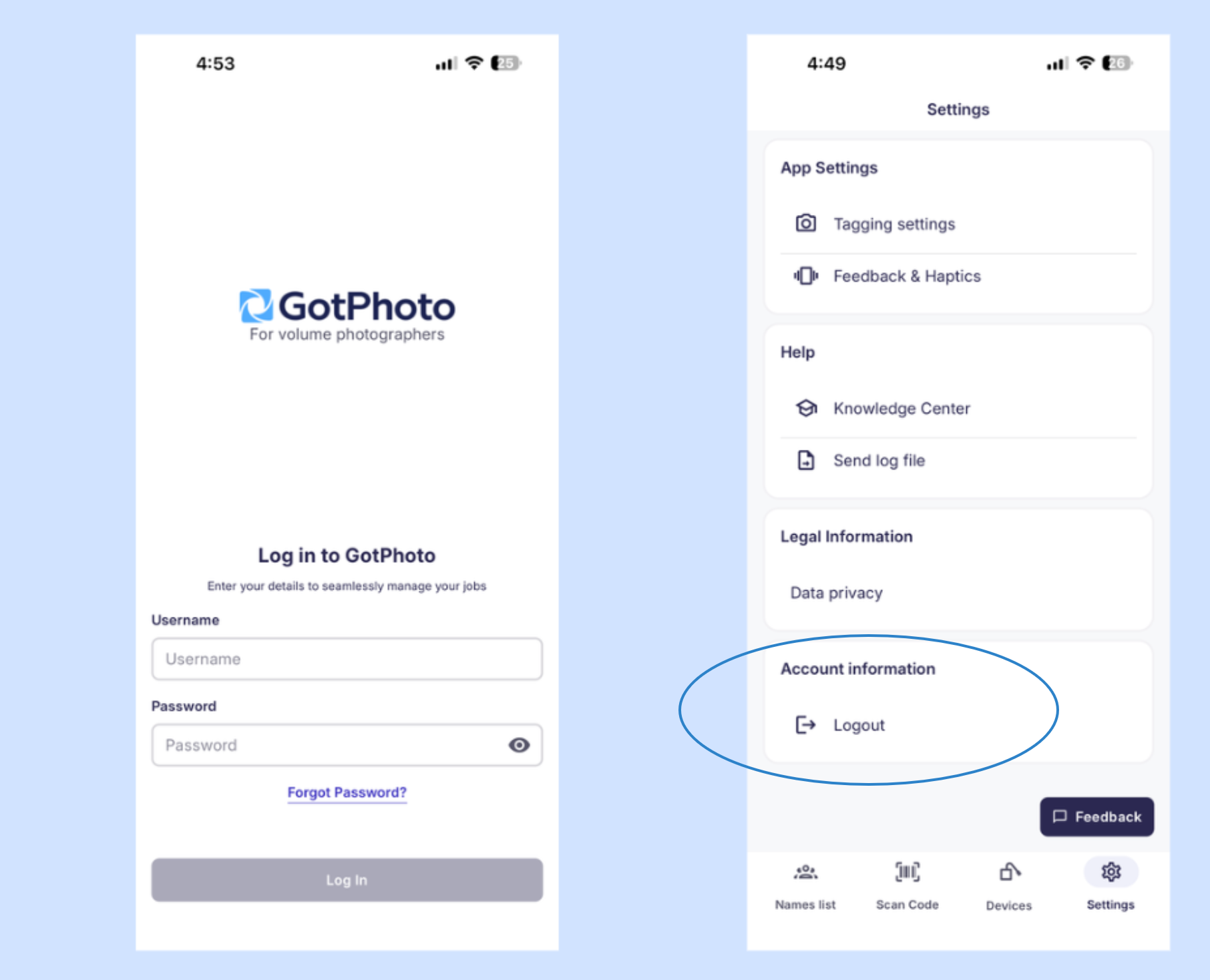
- Account information: Access your GotPhoto login screen and log out of your account.
Understand the device status bar
At the top of the Name List and Scan code screens, a colored dot indicates the connection status of the Entagged device:
- Green: Entagged is connected.
- Yellow: Entagged is initializing and establishing a connection.
- Red: Entagged is disconnected.
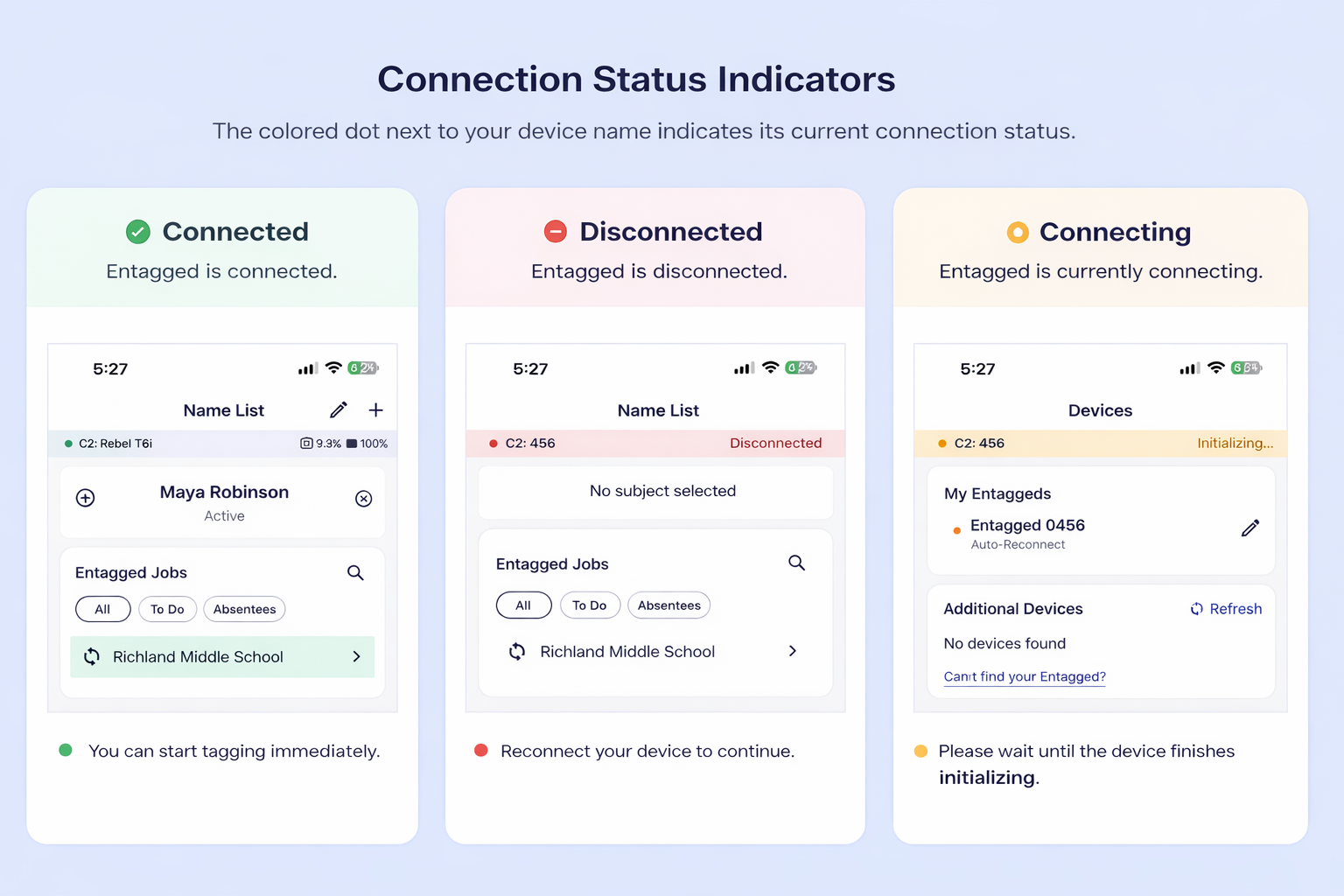
Next to the status dot, you will see the Entagged model and either the serial number (while connecting) or the camera model name (once fully connected). On the right side, you will find the SD card storage indicator and camera battery level.
Your filter options in the GotPhoto app
With the filtering options in the GotPhoto app, you can easily manage subject lists and complex picture day setups.
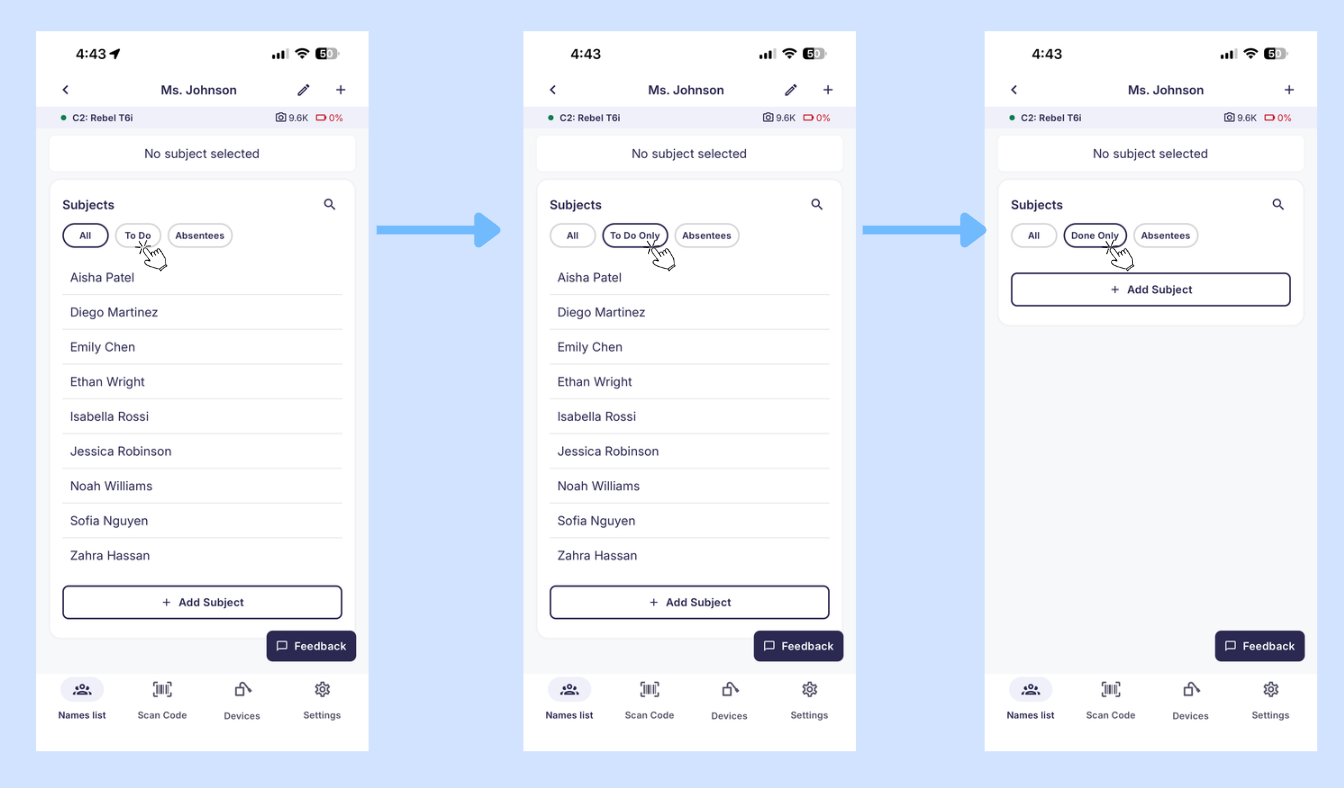
Filters help you quickly identify the tagging status in the app:
- "All": Displays all subjects in the job, regardless of their tagging status.
- Tap "To Do": The filter changes to "To do only" and displays only untagged subjects.
- Tap "To Do Only": The filter changes to "Done only" and displays only tagged subjects.
- Tap "Done only": This resets the filter back to "All".
Note: If all devices running the app are connected to the internet, the Done status syncs automatically across devices.
The filters also help you identify photo availability for the corresponding job, for example "Absentees" and "Retakes", especially when working across multiple sessions or makeup days (US/CA).
Here's how to use these filters:
- Absentees:[Optional] Ideal for Makeup Day jobs, but usable in any job. Tap once to show subjects with no uploaded photos in GotPhoto. The filter will display “Absentees only.”
- Tap again to show only subjects who already have uploaded photos. The filter will display “Retakes only” for retakes or additional pictures.
- Tap a third time to remove all filters. The filter will display “All.”
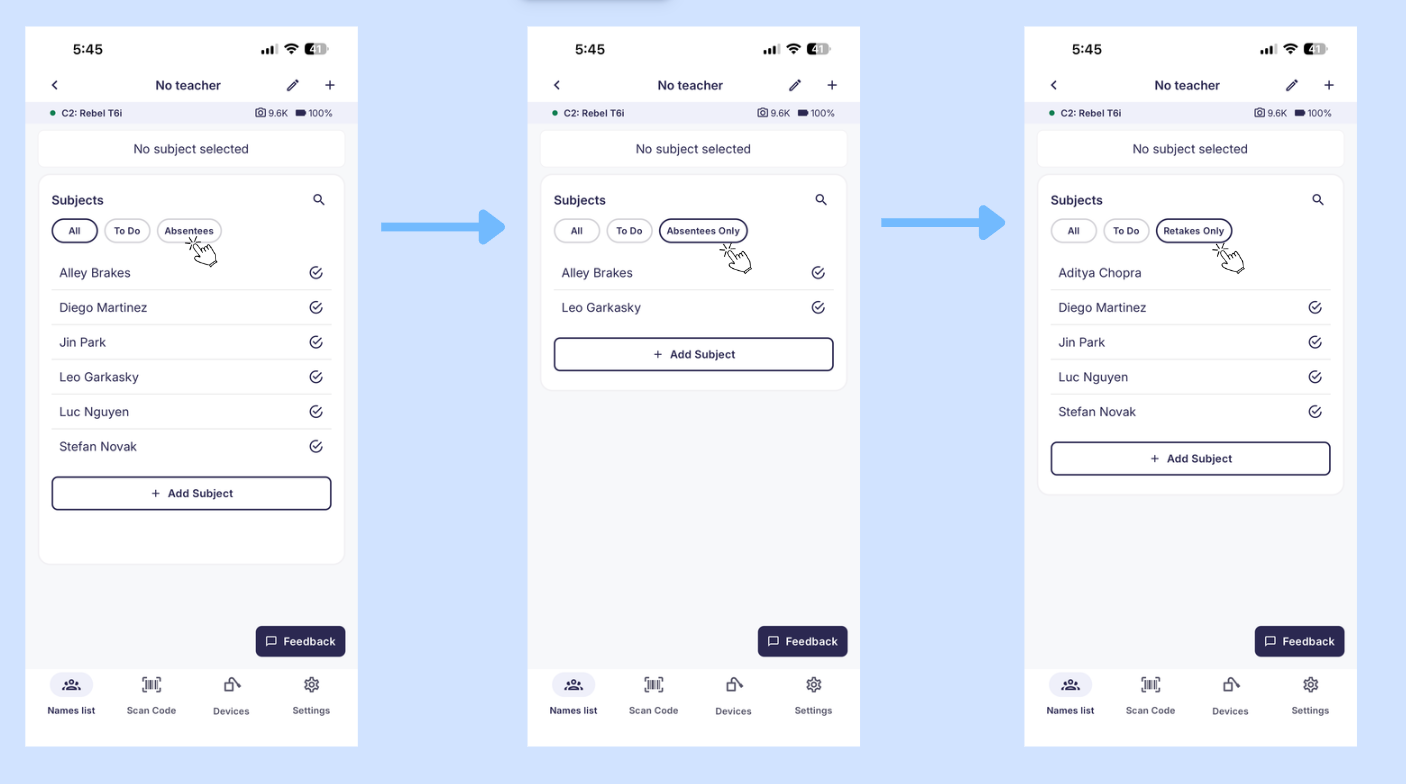
This dynamic filtering helps you quickly focus on the right group, whether you are managing absentees or staying organized across multi-day shoots.
Multi-tagging subjects when using an Entagged device
To multi-tag subjects:
- Select the first subject so it appears as “Active” in the selection field.
- Swipe the selection field to the right and tap “To Multi-tagging”. This allows you to add up to 4 subjects. The limit of subjects (barcodes) you can add depends on your camera:
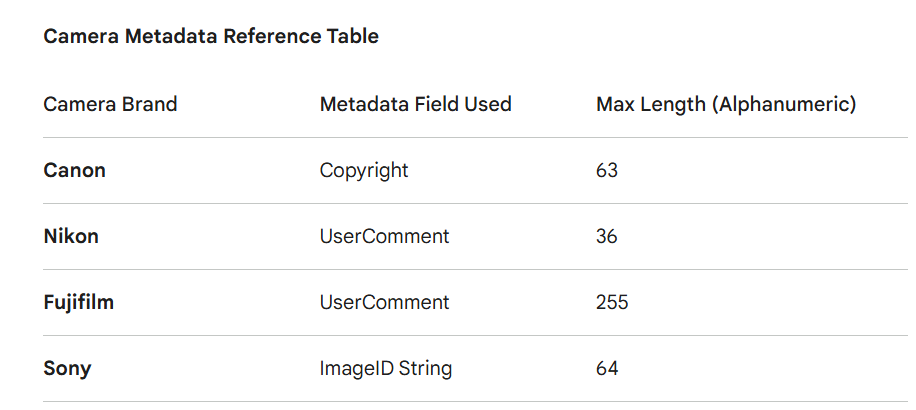
- Select the additional subjects. If needed, remove a subject you selected accidentally by tapping the cross icon.
- Once you reach the limit of accepted codes for your camera, you will see the warning: “Camera cannot accept more subjects.” Adding more subjects is no longer possible.
- Take the buddy or siblings' pictures.
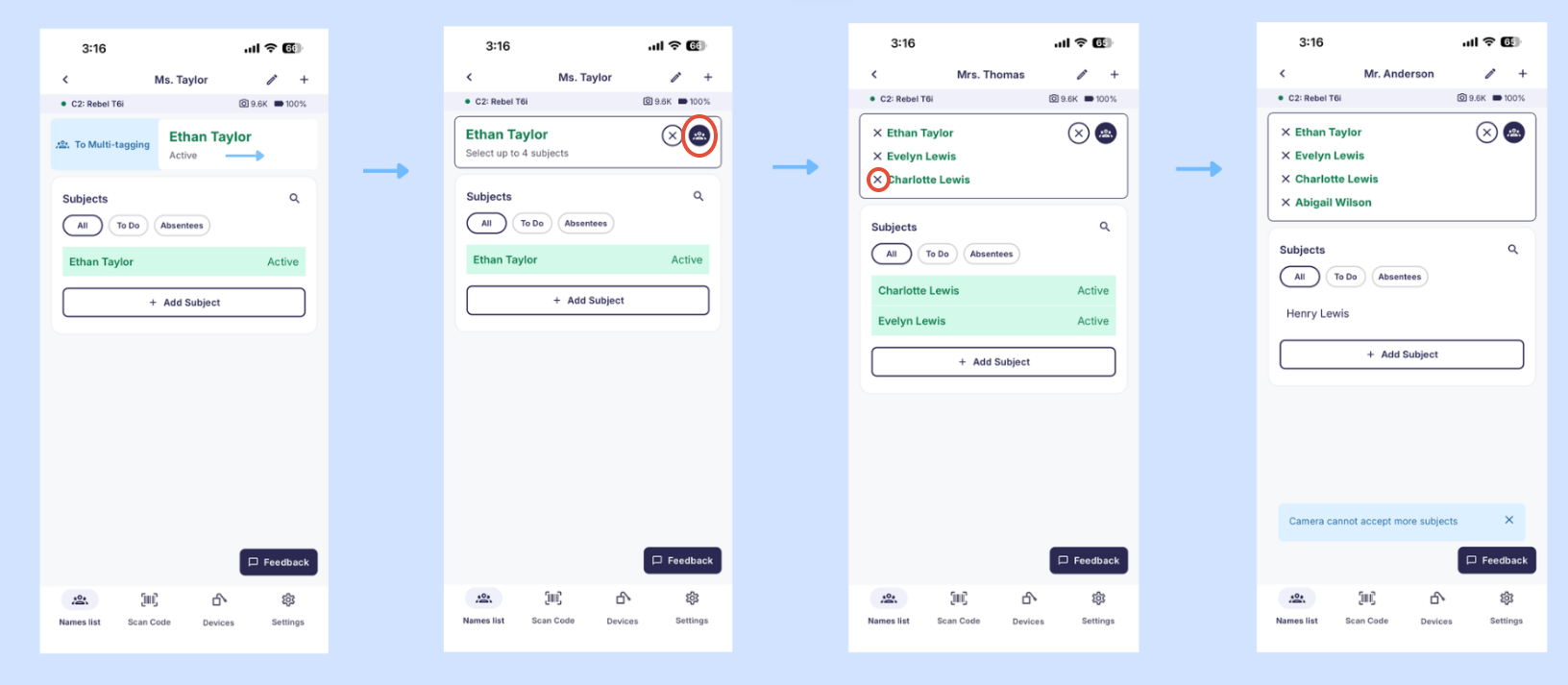
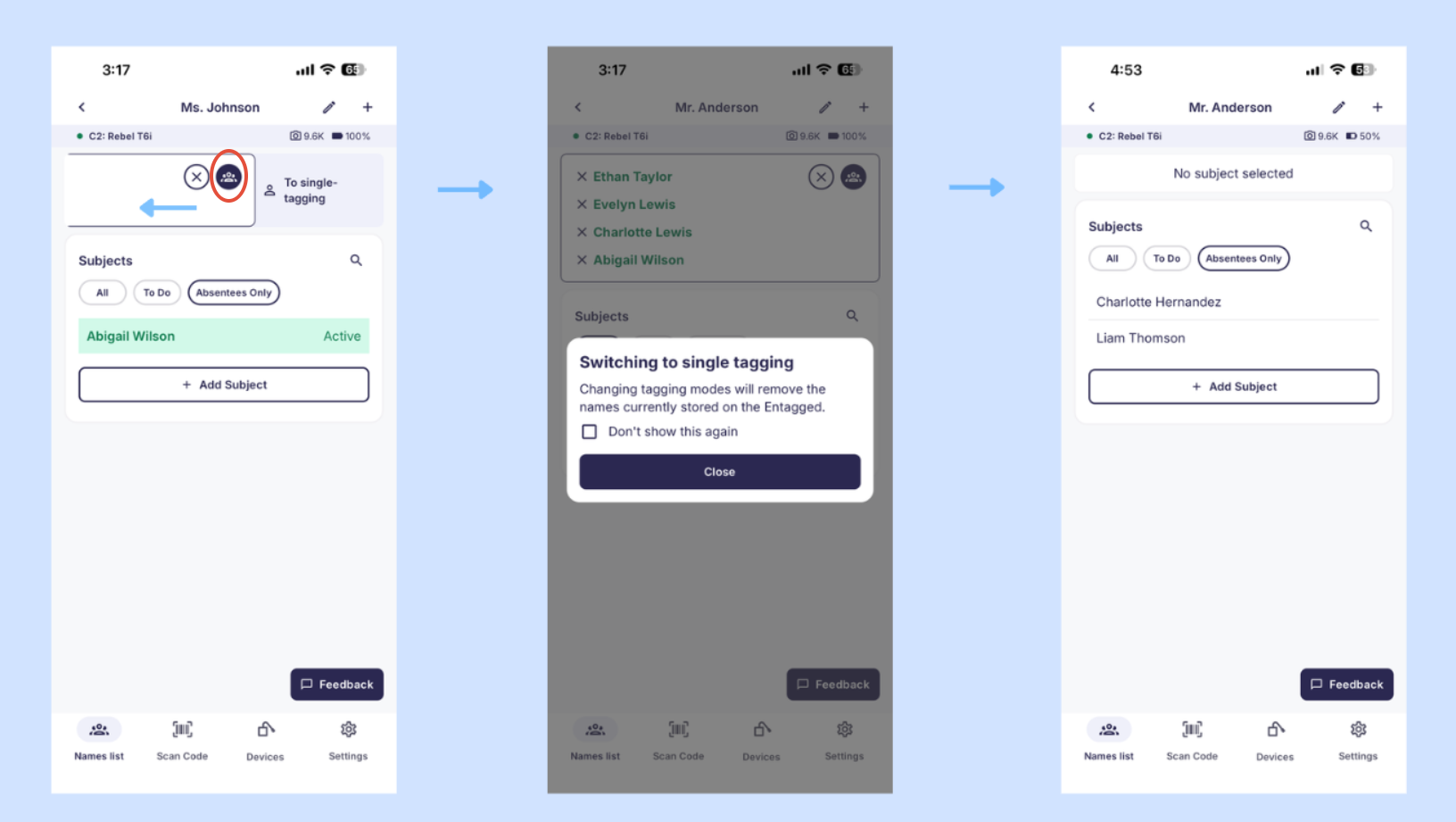
To switch back to single-subject tagging:
- Swipe the selection field to the left or tap the group icon.
- A confirmation message will appear, informing you that you are switching to single-subject tagging.
- (Optional) Select “Don’t show this again” if you no longer want to see this message. You can reactivate these help messages at any time in your app's tagging settings.
- Close the window.
You can now continue tagging the next subject.
FAQs
I'm using the Names List QR workflow. Why is the option to add or edit names grayed out?
Adding and editing names requires an active Names List subscription. If the option is grayed out, check whether your subscription is active. If you don't have a Names List subscription or it has expired, you'll need to activate or renew it to use this feature.
Key takeaways
The GotPhoto beta app offers a flexible and modern tagging experience for picture day.
- Use a physical Entagged device for barcode-based tagging workflows.
- Use Name List QR for a fully digital tagging workflow without additional hardware.
- Do not mix tagging methods within the same album. Upload them separately to avoid activation issues.
- Switch between methods carefully to ensure clean metadata and smooth processing.
- Share feedback during the beta phase to help improve the final version.