

Table of contents
- Overview
- Global Access Codes use cases
- Set up the Global Access Code for your job
- New: Album view for the global access code in the new shop
- The album preview image is selected automatically using the following logic:
- Global Connection Code (restricted legacy feature)
- Find Your Access Code (restricted legacy feature)
- FAQs
- The takeaway
Overview
Whether you want to grant full access to staff members or use a single code to simplify access for parents in the new shop, GotPhoto offers flexible options for accessing photos. In this article, we’ll walk you through the different methods available and how to set them up.
Global Access Codes use cases
1. Global Access Code for the school / institution
A Global Access Code can be created from a photo job to share with school staff or coaches. It provides access to all photos in the photo job.
2. Global Access Code for customer orders in the new shop
In the new shop, you can also use the global access code for your customers. It replaces the function that was provided in the legacy shop via jobs with a single access code (“One access code”).
With a global access code, customers can access all photos in the job.
Set up the Global Access Code for your job
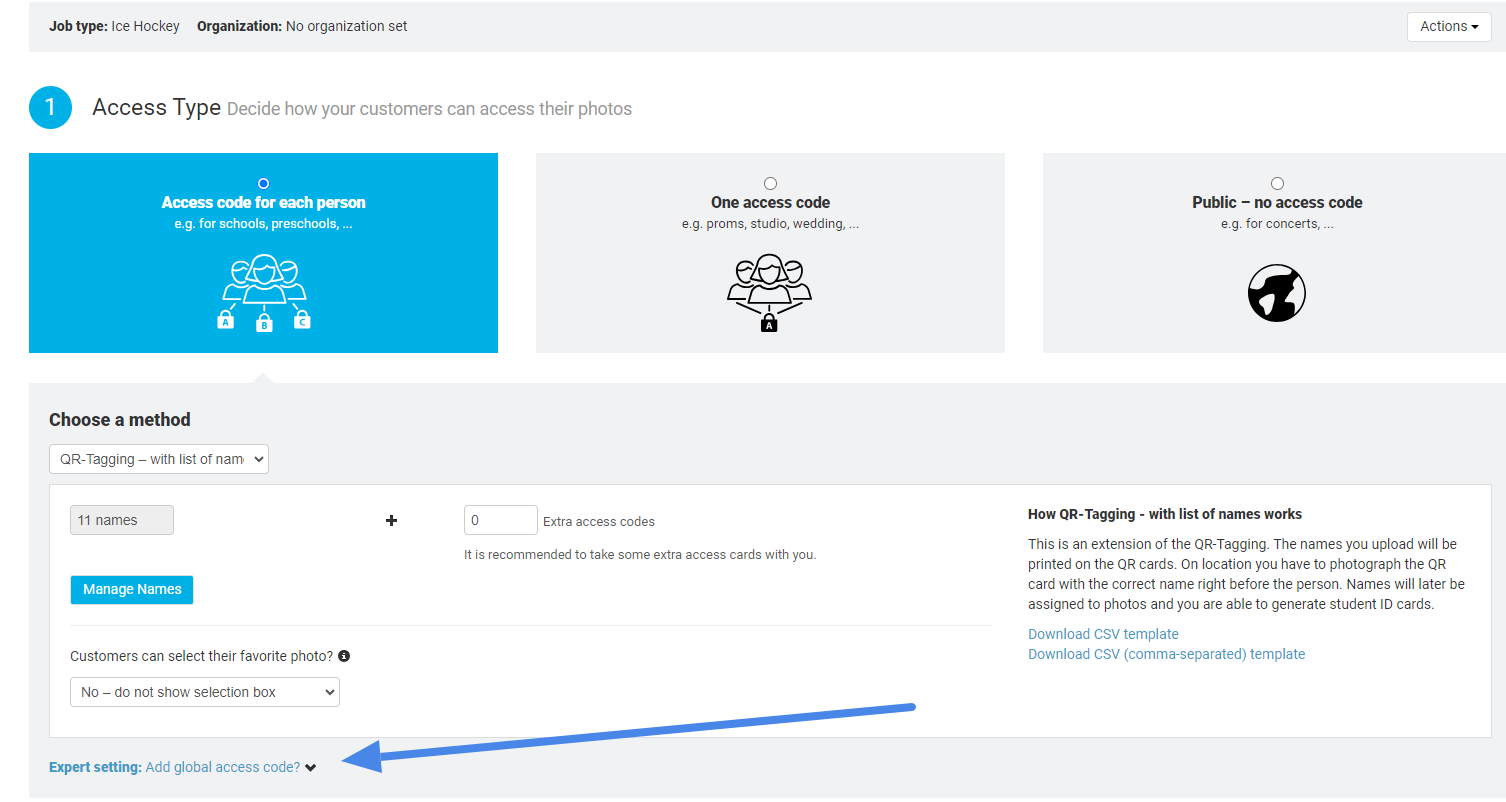
- From the Main Settings Page of your photo job, select the access type "Access code for each person", choose your tagging method, and click "Expert setting: Add global access code" at the bottom of the Access Type section of the page:
- Type the desired access code in the text box that appears:
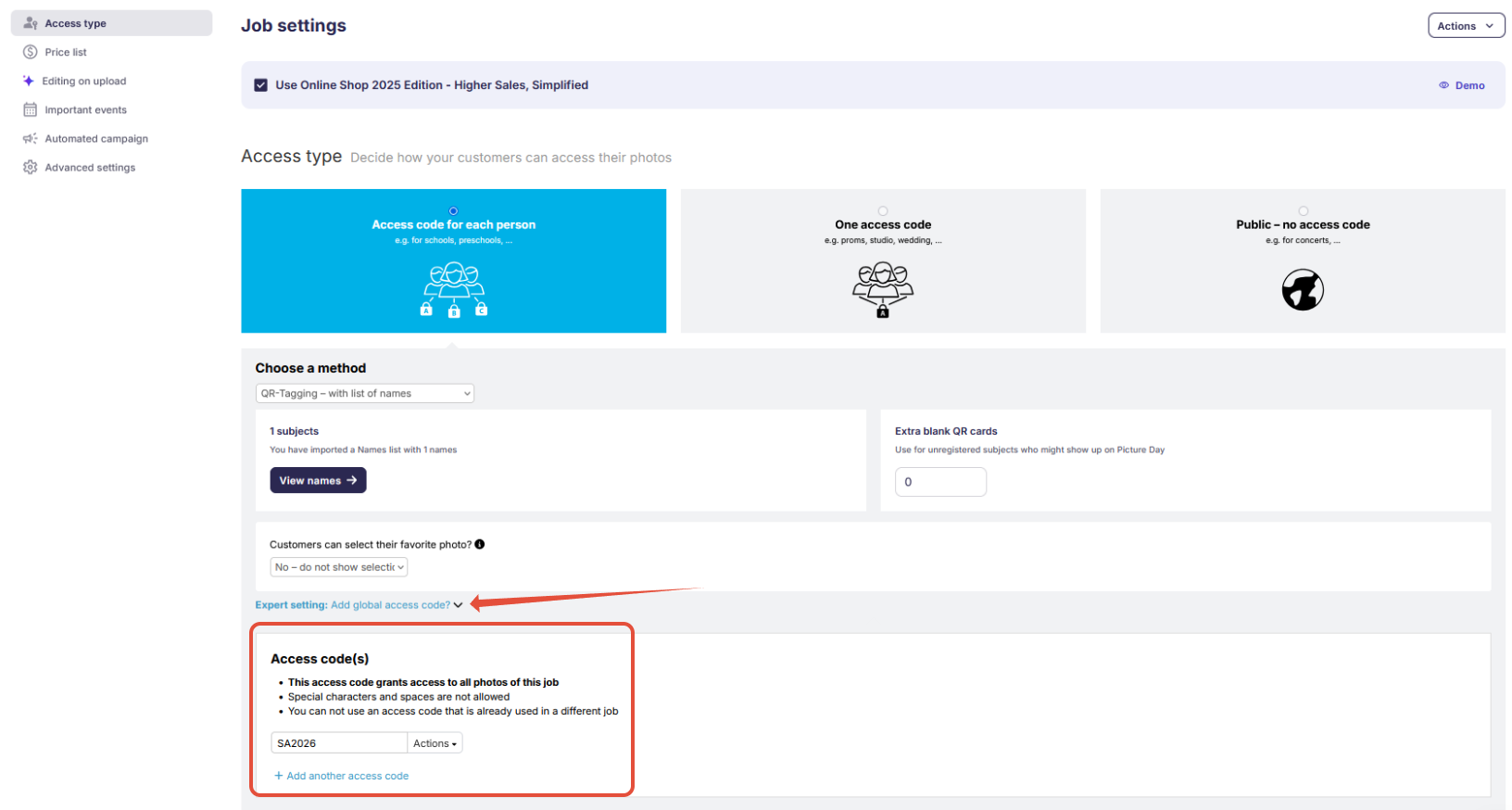
- Save your changes by clicking the blue "Save Settings" button on the left side.
- The global access code is now active. Provide it to the school staff/coaches.
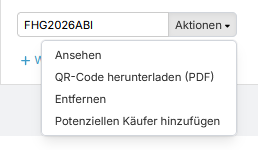
Under Actions, you’ll then find these options:
- View: shows the photos available for the global access code
- Download QR code (PDF): handy for posters when you want to share the code with parents/participants
- Remove
- Add potential buyers
New: Album view for the global access code in the new shop
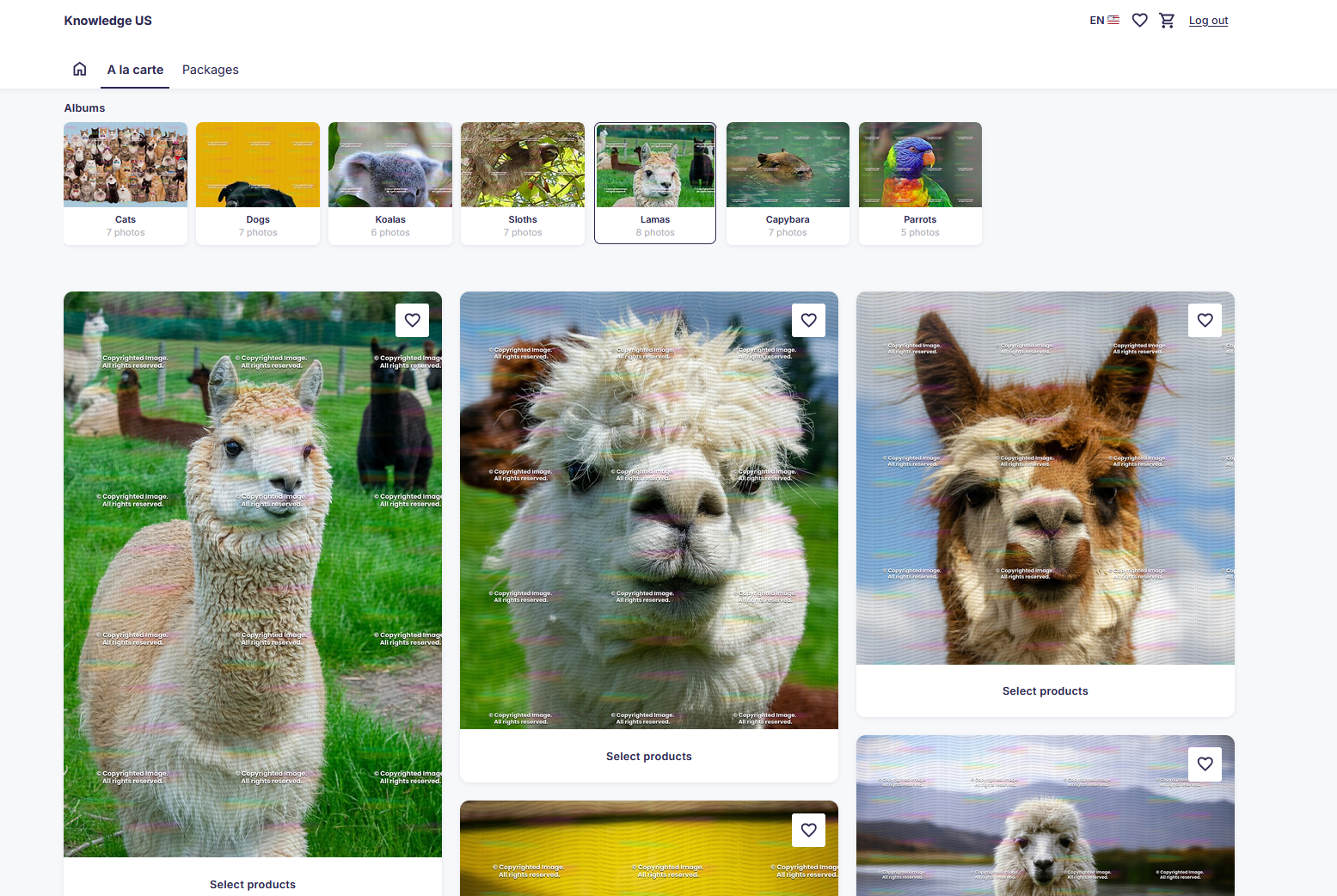
The new shop now also supports the album view in the shop's A la carte section (US/CA) / Single products sections (UK). This feature is available per request, our team can assist you with the activation.
This lets customers browse for their photos within albums and save them to their wishlist there.
Desktop view
Mobile view
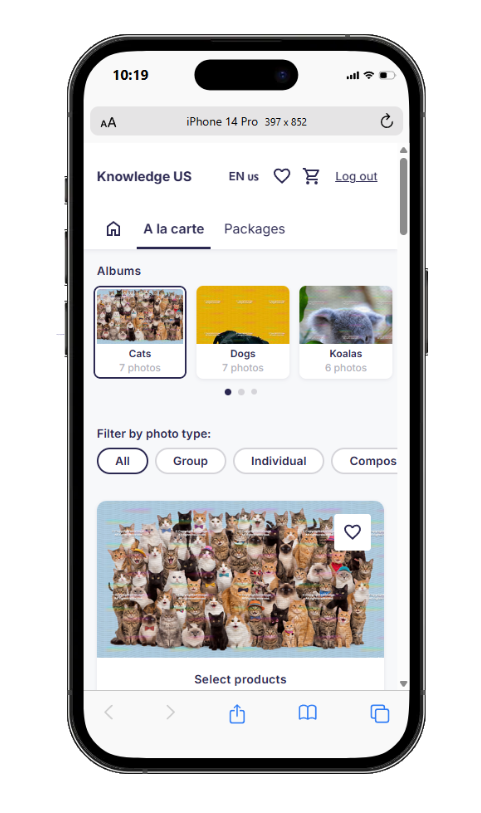
If albums have multiple photo types (individual photos, group photos, or composites), customers can filter for each photo type.
Video preview: Album view with photo type filter
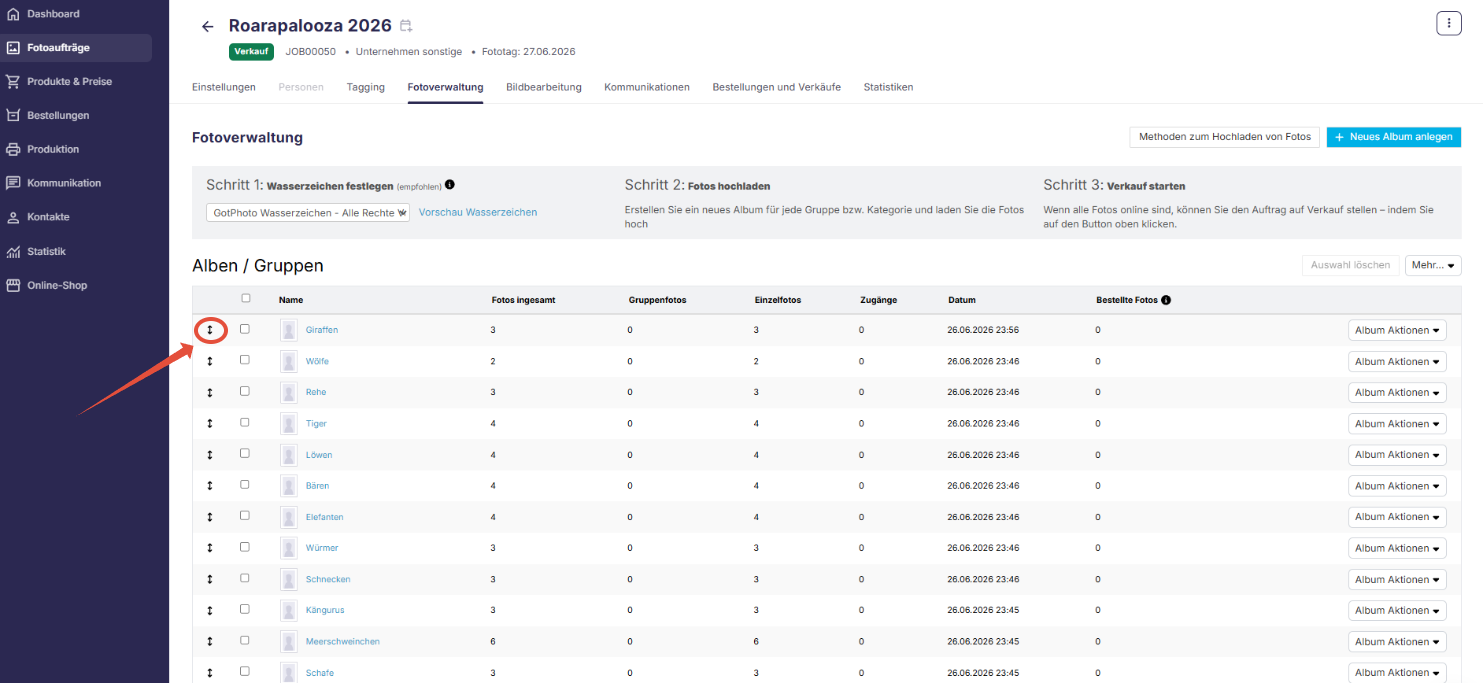
How to change the order of the albums in the shop:
Open the desired job and switch to the Photo Management tab.
Click and hold the move icon (↕) to the left of an album.
Drag and drop the album to the desired position.
The new order is saved automatically and is then applied in the shop as well.
The album preview image is selected automatically using the following logic:
1. If at least one group photo is available:
The first group photo is used as the album preview image in the shop (displayed at the top left of the Group Photos section).
If you have multiple group photos and want to change the album preview image, simply upload the desired photo last. It will be added as the first image in the album and automatically become the album preview.
2. If no group photos are available:
The first photo in the Individual Photos section is used as the album preview image.
To choose a different preview image, apply a 5-star rating to the desired photo.
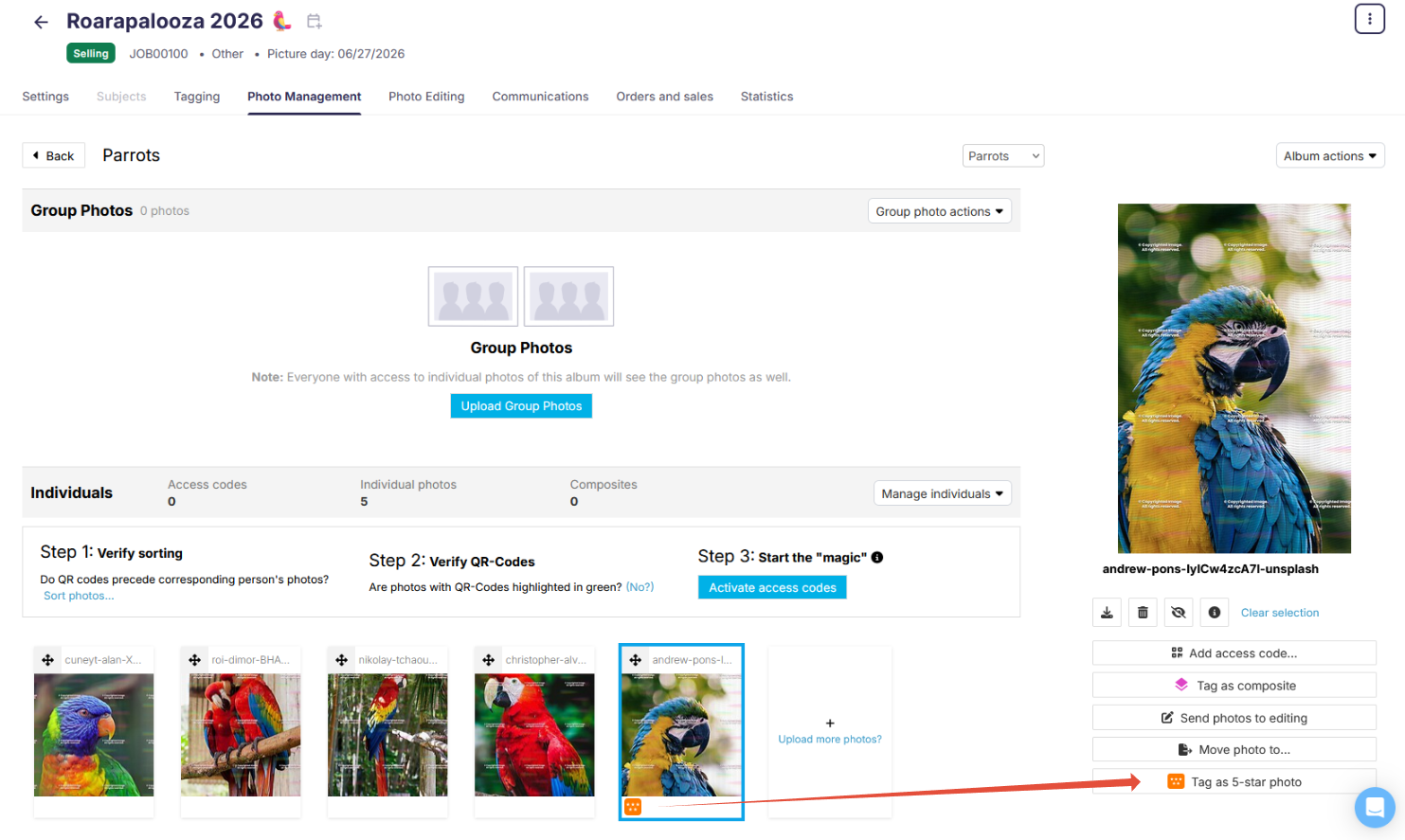
If multiple photos have a 5-star rating, the system uses the first 5-star-rated photo as the album preview image.
3. If no group or individual photos are available, but composite photos are:
The first composite photo is used as the album preview image. You can change the selection by using the 5-star rating.
Albums with the settings "Available for everyone"
Please note: If your job has individual access codes and an album with the "available for everyone" settings, the included group photos won't be displayed as a separate album. Instead, they will be mixed in with the photos for each individual access code.
Global Connection Code (restricted legacy feature)
The Global Connection Code feature for the legacy shop is available only on paid plans and must be enabled upon request.
Please note that the legacy shop is scheduled to be retired this summer. This feature is not available in the new shop and will not be supported after the legacy shop is discontinued.
The feature allows all parents in a job to access their children’s galleries with a single password. After signing in, parents will be prompted to select their child’s name from a list.
Note:
- Jobs must include student data (Firstname, Lastname) for this feature to work.
- The Global Connection Code feature is not supported in the new shop.
Steps to create a Global Connection Code:
- From the Main Settings Page, enable "Add global access code?"

- Enter your desired access code and check "Global connection":

- Save settings.
- Parents will enter the code and select their child:

Note: Parents can access other galleries. A privacy disclaimer will appear:
Find Your Access Code (restricted legacy feature)
The Find Your Code feature for the legacy shop is available only on paid plans and must be enabled upon request.
Please note that the legacy shop is scheduled to be retired this summer. This feature is not available in the new shop and will not be supported after the legacy shop is discontinued.
The workflow: Parents enter the global code and then type their child’s name instead of selecting it from a visible list.
Please note:
- Jobs must include student data (Firstname, Lastname) for this feature to work.
- The Find Your Access Code feature is not supported in the new shop.
Steps to apply:
- Go to Main Settings and enable "Add global access code?"

- Type your access code and check "Global connection" and "Find your access code":

- Save your changes.
- Parents will type the name and confirm they are authorized:

FAQs
Is the Global Access Code supported in the new shop?
Yes, it is now supported in the new shop, including the album view (available upon request) and wishlist.
Can a Global Access Code also be used for purchases in the shop?
Yes, the Global Access Code can also be used for purchases in the shop. In the new shop, it additionally serves as a replacement for jobs that previously used the access type “One access code.” Important: If you share the code only with an organization, it should not be passed on to parents or used for staff orders without prior agreement.
Can I prevent the global access code from being used to purchase the “Download All” package?
This is not possible in the legacy shop. However, this restriction applies to the new shop: In volume jobs with 200 or more photos, the “Download All” package will not be visible when using the global access code.
This also applies to digital packages and upsell downloads that exceed 199 photos, meaning these options cannot be purchased once the limit is exceeded (the shop will hide these options).
The takeaway
Explore alternative ways to access galleries beyond standard access codes. Use Global Access Codes to give staff or parents access to all photos — now supported in the new shop, including album view and wishlist. Global Connection Codes and Find Your Access Code offer legacy options for parent access with lower privacy restrictions, but are only available on paid plans and are not supported in the new shop.