

Table of contents
- Overview
- Change a job's status
- Options in planning status
- View job status in the overview
- Use the go-live checklist when switching to selling
- The takeaway
Overview
The GotPhoto system uses different job statuses to help you manage photo jobs efficiently throughout their lifecycle.
Use statuses like Planning, Selling, and Archived to clearly track where each job stands and control what actions are available.
Change a job's status
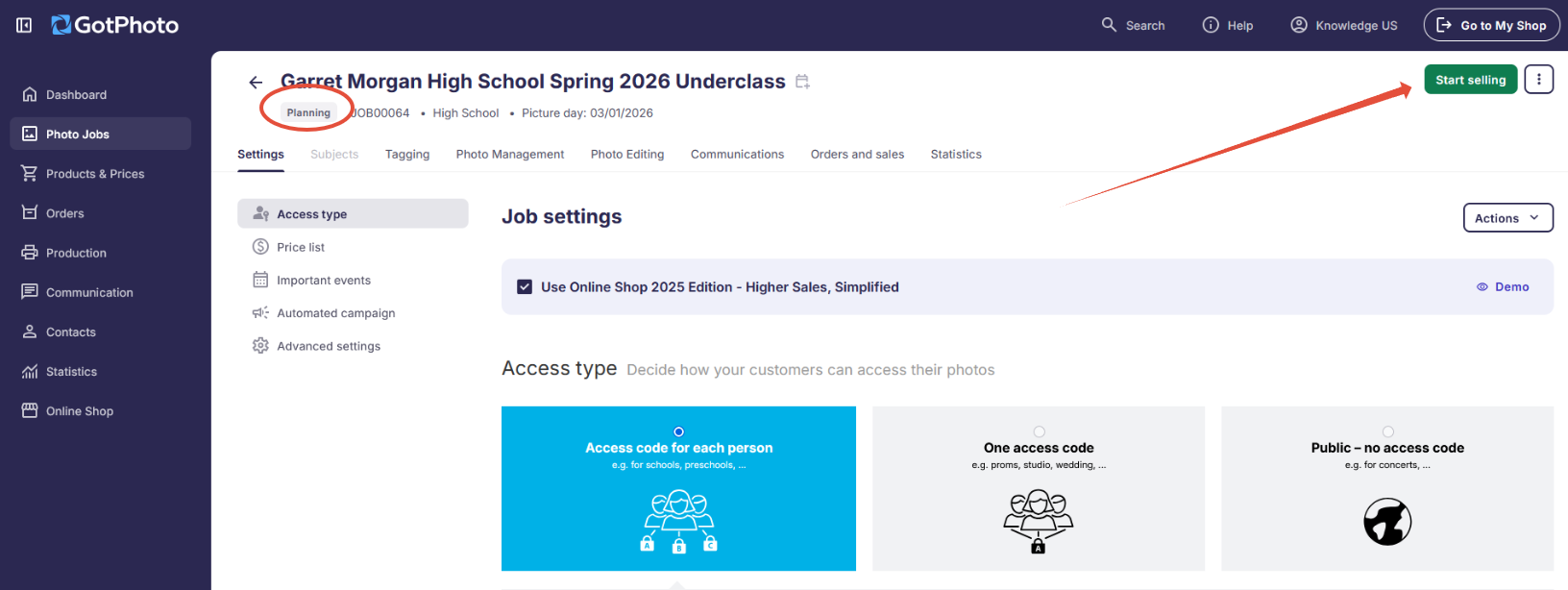
Update a job’s status directly from the top banner of the job settings page.
You can switch between Planning, Selling, or set the job to Archived in just a few clicks.
- Open the job’s Settings tab.
- Click the three-dot menu icon in the upper-right corner.
- Select whether you want to move the job to Planning or Archive.
Options in planning status
When a job is in Planning status, additional configuration options are available.
A green Start Selling button appears at the top right of the Settings page.
Click the three dots next to this button to:
- Archive the job
- [Prepay only] Switch the job to Prepay status if Prepay is enabled in your account. Learn more in the Prepay feature guide.

View job status in the overview
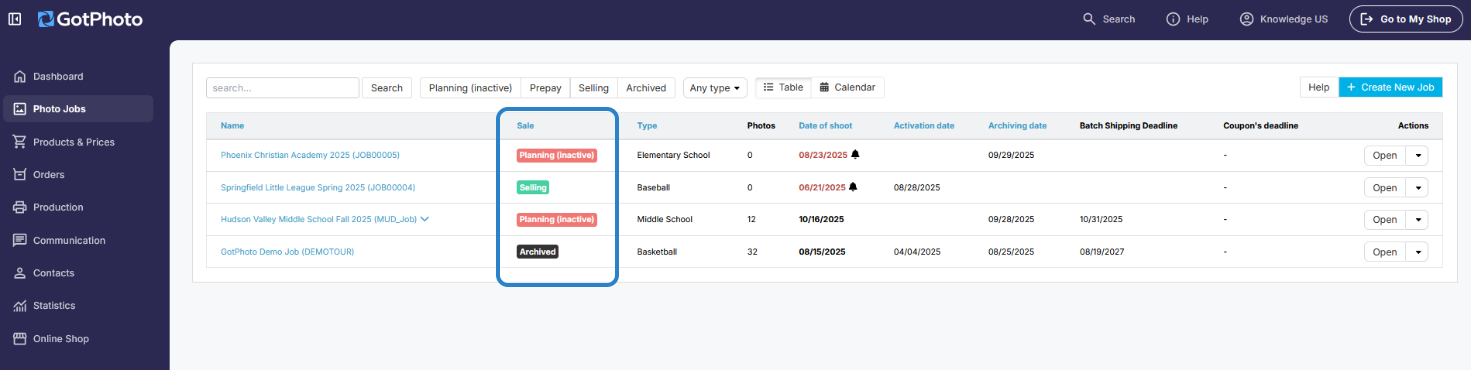
View the current job status directly from the main job overview page.
This allows you to quickly identify which jobs are in Planning, Selling, or Archived status without opening each job individually.
Use the go-live checklist when switching to selling
When you change a proofing job to Selling, a Go-Live Checklist appears to help you review important settings.
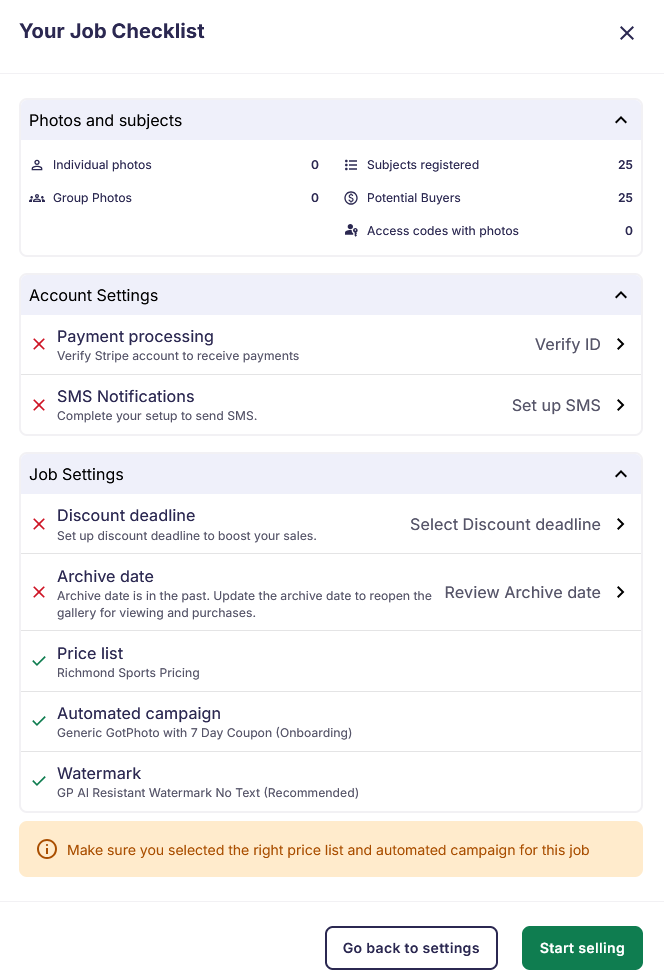
The Go-Live Checklist provides a clear, actionable overview of your setup to help ensure no important settings are overlooked before going live.
If a critical setting needs attention:
- Select Cancel to review and adjust your configuration.
- Select Start selling if the flagged items are not relevant to your workflow.
The checklist highlights incomplete configurations and recommends activating sales-boosting features such as:
- Price list
- Archive dates
- Automated campaigns
- Watermarks
- Coupons
The checklist appears each time you change a job’s status to Selling. It is a helpful guide, not a required step.
The takeaway
Change a job’s status directly from the job banner to match your workflow stage.
Use Planning to prepare your setup, switch to Selling when you are ready to go live, and move jobs to Archived when they are complete.
[Prepay only] If enabled in your account, switch to Prepay from Planning to collect payments in advance.
The Go-Live Checklist helps you verify important configurations before going live, while keeping you fully in control of when to proceed.